

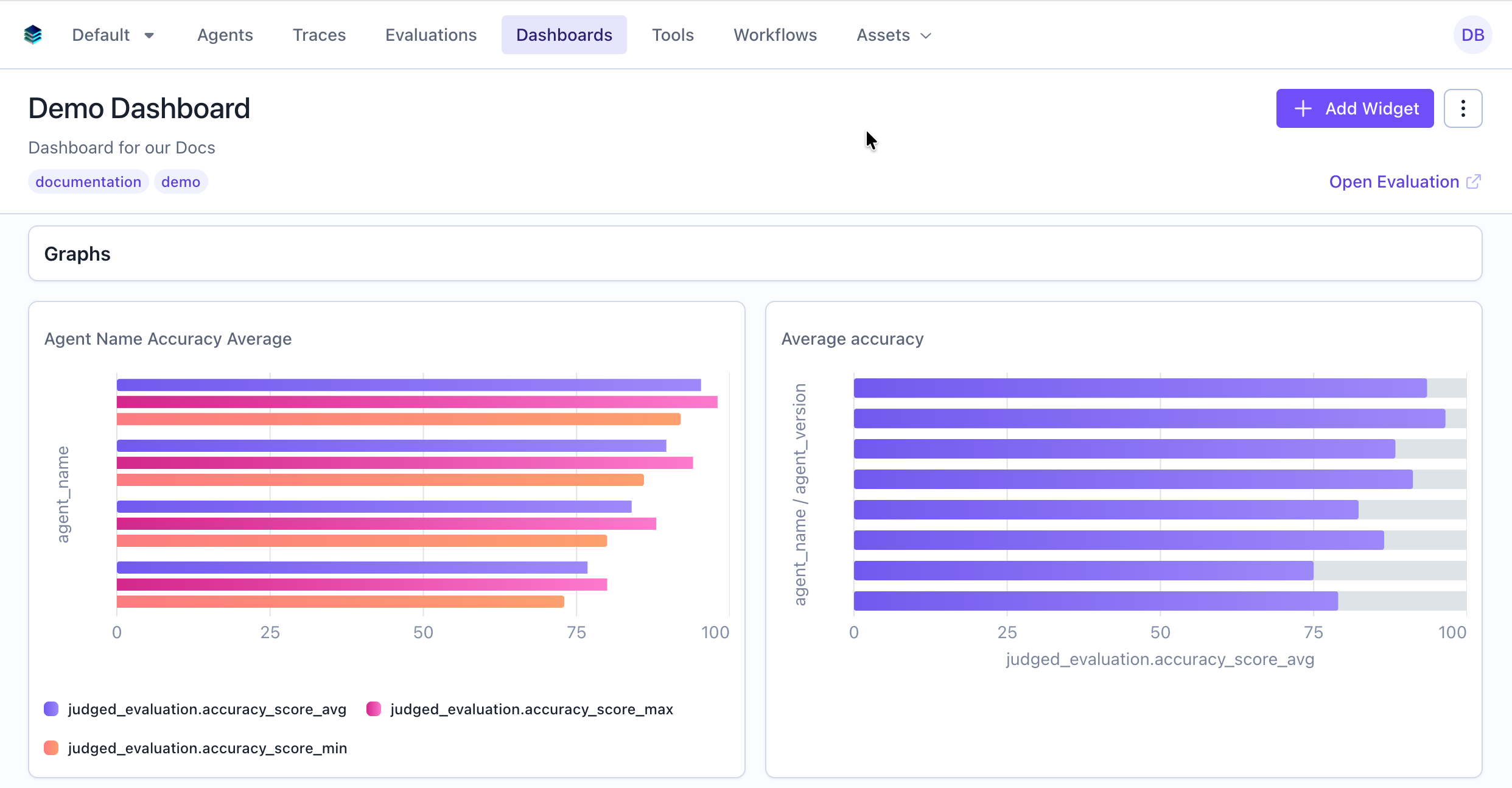
When to Use
Use heading widgets to:- Divide dashboard into logical sections
- Label groups of related widgets
Configuration
Required Fields
string
required
The heading text to display
string
required
Must be set to “heading”
Creating in the UI
1
Open Widget Creator
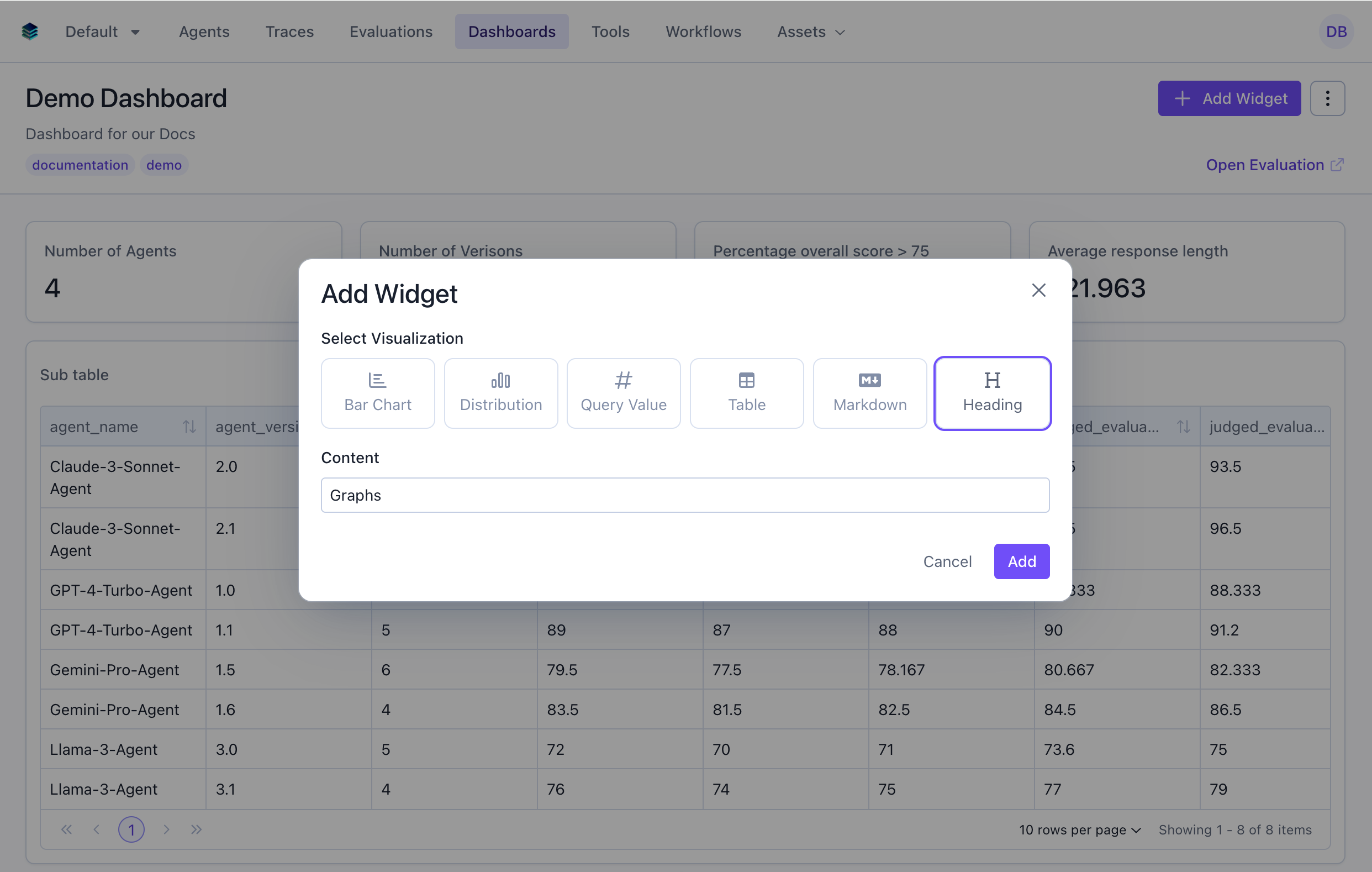
From your dashboard, click “Add Widget” and select “Heading”
2
Enter Heading Text
3
Create Widget
Click “Add” to add the heading to your dashboard
Heading vs Markdown
Use Heading When:
- You only need a simple text header
- You want consistent dashboard styling
- You’re organizing multiple short sections
- Simplicity is preferred
Use Markdown When:
- You need formatted text beyond a header
- You want to include links, lists, or tables
- You’re providing detailed context or instructions
- You need multiple paragraphs of content
Related Documentation
- Markdown Widget - For rich text content
- All Widget Types - Compare widget types
- Getting Started - Dashboard organization tips
- API Reference - Programmatic heading creation