

What are Evaluation Dashboards?
Evaluation Dashboards are customizable visualizations that allow you to analyze and monitor evaluation performance with widgets. Dashboards are a collection of metric cards, charts, and tables that can be used to provide insights into evaluation results.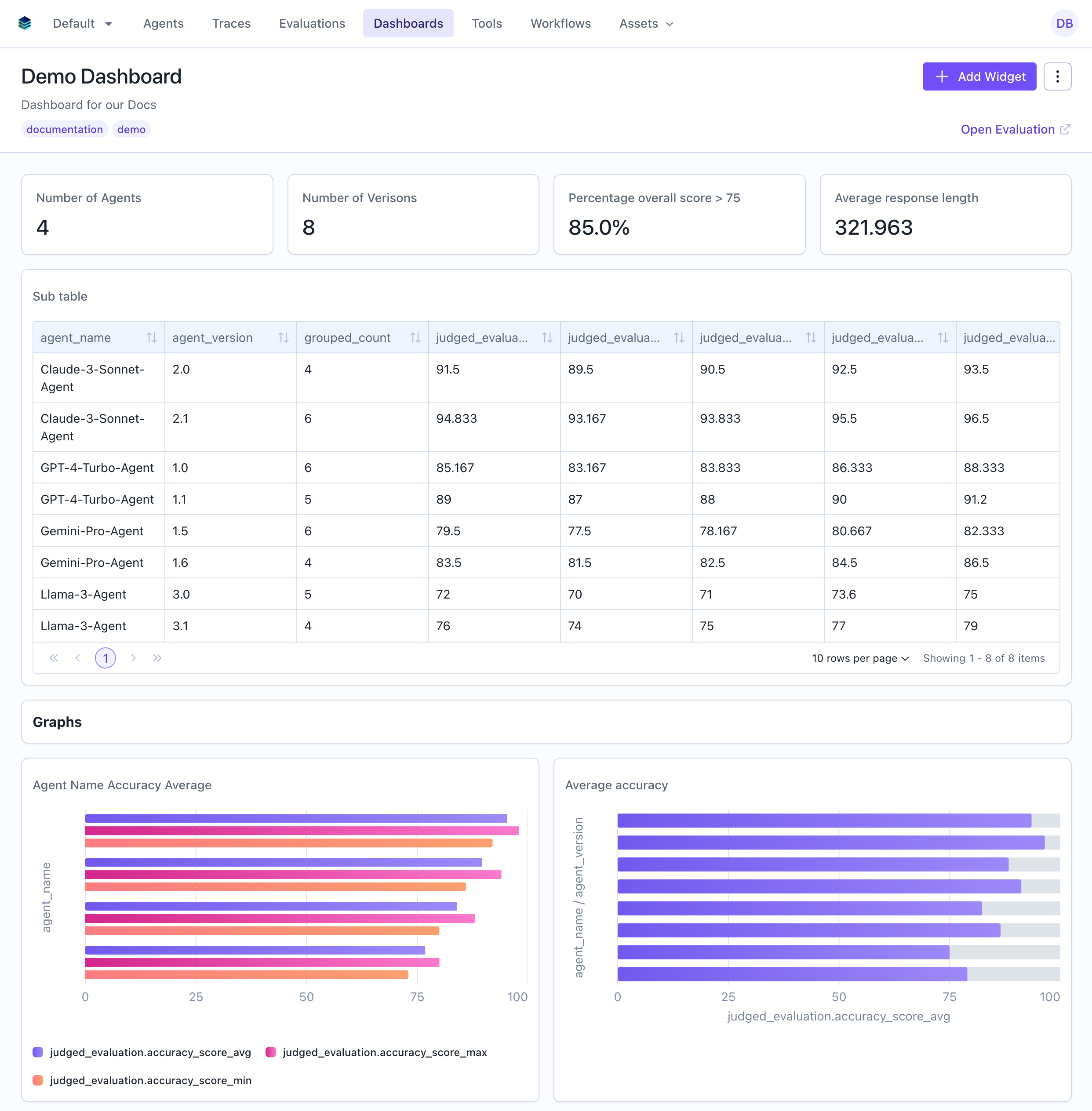
Demo Videos
Single Evaluation Dashboard
Evaluation Group Dashboard
Key Concepts
Dashboards
A dashboard is a collection of widgets arranged in a custom layout. Each dashboard is scoped to either:- Single Evaluation: Visualize metrics for one specific evaluation — see demo video
- Evaluation Group: Compare metrics across multiple related evaluations — see Evaluation Group Dashboards and demo video
Dashboards use an XOR constraint - they belong to either a single evaluation OR an evaluation group, never both.
Widgets
Widgets are reusable visualization components that display computed metrics or data. Nine widget types are available:- Metric: Display a single computed aggregation (e.g., “Average Score: 0.87”)
- Table: Show aggregations in a table format, with grouping, sorting, and conditional formatting
- Bar Chart: Visualize data across a categorical dimension
- Histogram: Visualize data across a numerical dimension
- Donut Chart: Show proportional distribution of categories
- Scatter Plot: Explore correlations between two numerical dimensions
- Timeseries: Track metrics over time across evaluation runs
- Markdown: Add static content to the dashboard
- Heading: Organize dashboard sections
Queries
For data-driven widgets (Metric, Table, Bar, Histogram, Donut, Scatter, Timeseries), you define a query using a SQL-like JSON object. Queries allow you to:- Aggregate data using functions
AVG,SUM,COUNT,MIN,MAX,STDDEV,VARIANCE,PERCENTILE,PERCENTAGE,COUNT,COUNT_DISTINCT
- Filter results based on conditions
- Group by dimensions
- Sort and limit results
Widget Results
When you create or update a widget, the system automatically computes its results by executing the query against your evaluation data. Results are stored in the database and can be accessed by the widget when it is rendered. For evaluation group dashboards, widget results are also automatically recomputed when evaluations are added to or removed from the group. See Evaluation Group Dashboards for details.Architecture & Data Model
Understanding how dashboards are structured in the database helps clarify the relationship between dashboards, widgets, and their computed results.Three Core Entities
1. Dashboard A dashboard is a container that links to an evaluation or evaluation group and maintains an ordered list of widget IDs.widget_order array defines both which widgets appear on the dashboard and their display order.
2. Widget (Template)
Widgets are reusable computation templates that define:
- What data to query (the query definition)
- How to display it (the configuration)
- The visualization type (metric, table, bar, etc.)
widget_order arrays.
This enables the same dashboard template to be used for different evaluations.
3. Widget Result (Computed Output)
Widget results are the actual computed values produced by executing a widget’s query against evaluation data.
How They Work Together
- Dashboard Creation: When you create a dashboard, you link it to an evaluation or evaluation group
-
Adding Widgets: When you add a widget to a dashboard:
- A widget template is created (or reused if it already exists)
- The widget’s ID is appended to the dashboard’s
widget_order - The system automatically computes the widget result for the dashboard’s evaluation data
-
Display: When rendering a dashboard:
- The system fetches the dashboard and its ordered widget list
- For each widget ID, it loads the widget definition (template)
- It retrieves the corresponding widget result (computed output)
- The UI renders widgets in order using the template definition and computed results
-
Updates: When you update a widget:
- If the widget belongs to only one dashboard: The template is updated in place
- If the widget is shared across multiple dashboards: A copy of the widget is created for your dashboard
- Results are recomputed if the query or configuration changed
Reusability Example
The same widget template can appear on multiple dashboards:Managing Widgets
Editing Widgets
You can edit a widget’s configuration, query, or title at any time: Via the UI:- Navigate to your dashboard
- Click the edit icon (pencil) on the widget you want to modify
- Update the title, query, or configuration
- Click “Save Changes”
Widget Cloning Behavior: If a widget is shared across multiple dashboards, editing it will automatically create a copy for your dashboard to prevent affecting other dashboards using the same widget.
Removing Widgets from a Dashboard
Remove widgets you no longer need from your dashboard: Via the UI:- Navigate to your dashboard
- Click the delete icon (trash) on the widget
- Confirm the removal
Reordering Widgets
Organize your dashboard by rearranging widget order: Via the UI:- Navigate to your dashboard
- Click and drag widgets to reorder them
- Changes are saved automatically
Duplicating Dashboards
Create a copy of an existing single-evaluation dashboard to reuse its widget configuration with a different evaluation.Use Cases for Duplication
- Template Reuse: Apply a dashboard template to multiple evaluations
- Comparison: Create identical dashboards for different evaluation runs
- Iteration: Start with a proven dashboard structure and customize it
Creating from a Template
Via the UI:- Navigate to the Dashboards page
- Go to the dashboard you want to duplicate
- Click the three dots menu and select “Duplicate Dashboard”
- Fill in the form — select the target evaluation and optionally choose a template dashboard to copy from
- Click “Duplicate”
- The new dashboard copies the
widget_orderfrom the template - All widgets are reused (same widget IDs)
- New widget results are computed for the new evaluation’s data
- The template dashboard remains unchanged
Next Steps
- Ready to create your first dashboard? Watch the single evaluation dashboard demo or follow the Getting Started guide for a step-by-step walkthrough.
- Want to compare across evaluations? Watch the evaluation group dashboard demo or see the Evaluation Group Dashboards guide.
- For detailed information on widget configuration, see the Widget Types reference.
- To learn the query language for data-driven widgets, read the Query Language guide.
- For programmatic query creation, read the API Reference.