Dex SDK).
You’ll learn how to connect to cloud file storage, filter and parse documents, extract structured data, store parsed data to Knowledge Base, and use the results in your workflows.
Step 1: Connect to cloud file storage
Start by navigating toWorkflows in SGP. Click on the Cloud Storage Browser card to connect to your cloud file storage.
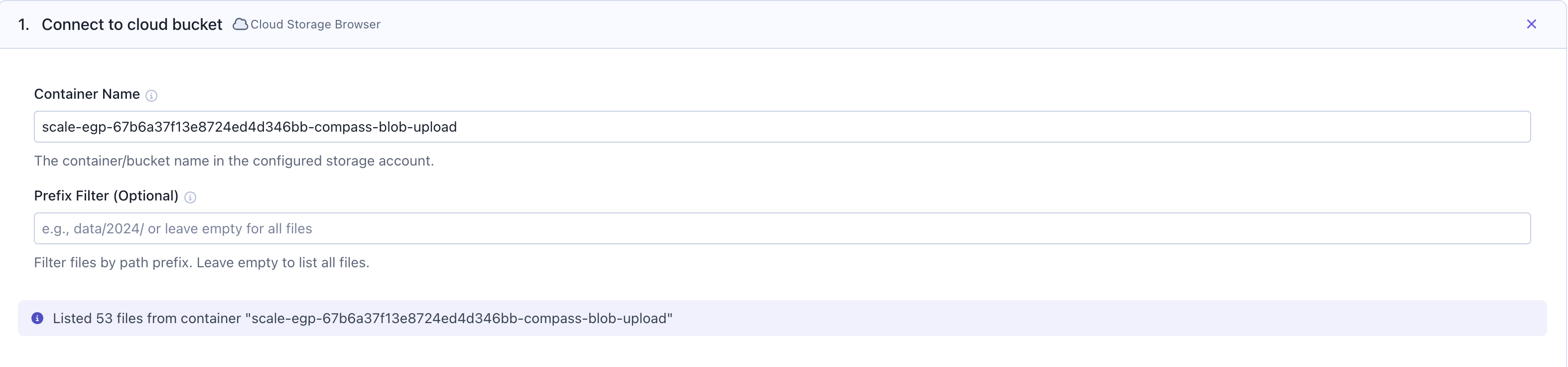
- Amazon S3
- Azure Blob Storage
- Google Cloud Storage
The Cloud Storage Browser card can read an S3 bucket only after Workflows is given access to it. Ask your Scale team to enable access to your bucket.
Step 2: Filter files (optional)
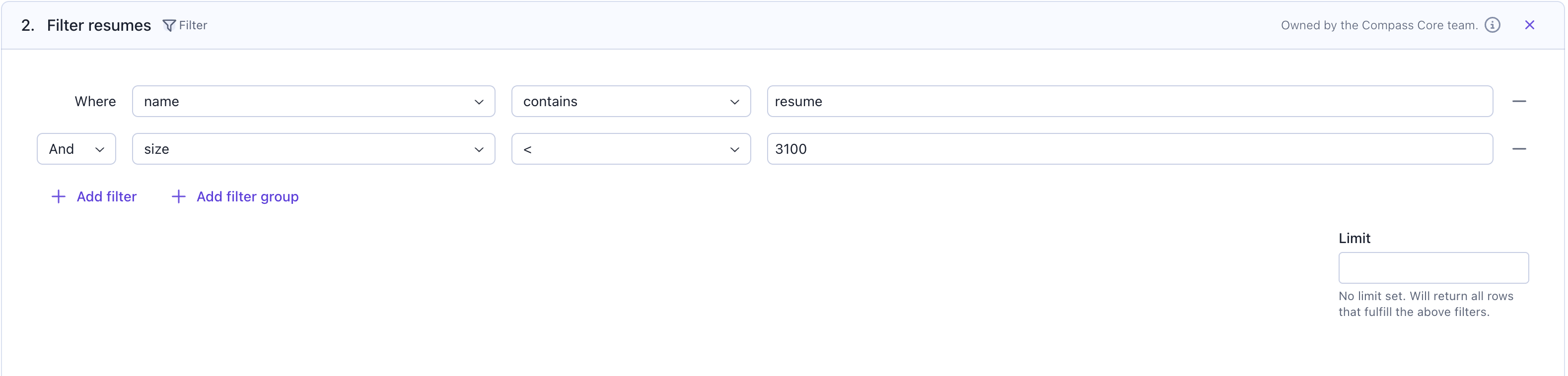
Before parsing, you can use aFilter card to select only the files you want to process. This helps you narrow down your dataset and avoid parsing unnecessary documents.
Step 3: Parse & Extract from documents with the Dex Card
This feature utilizes our Document Understanding capability, ourDex SDK on the backend.
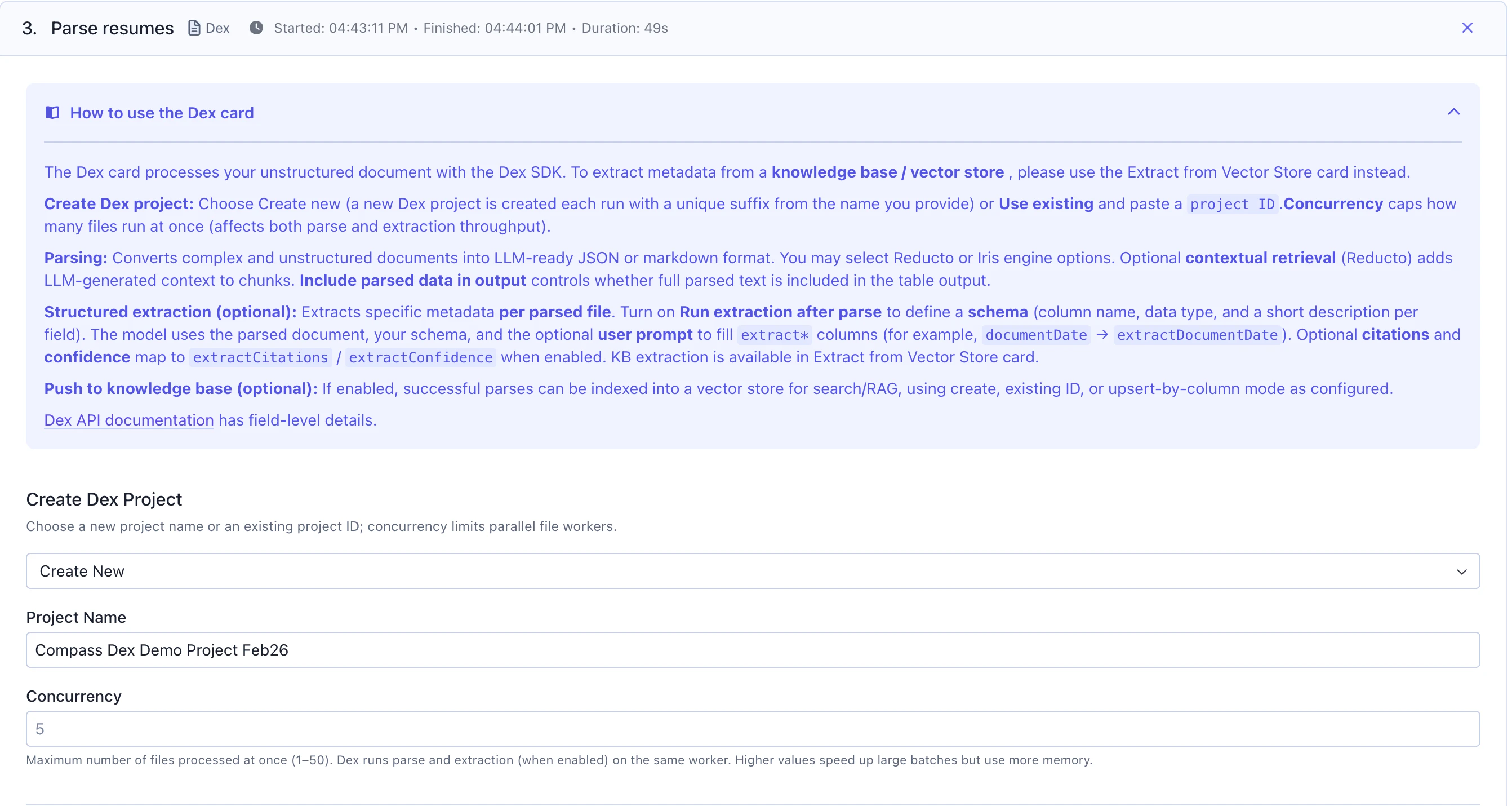
Add a Dex card to extract structured data from your documents. This card utilizes the Dex SDK in the backend and creates or reuses a Dex project, depending on the Dex Project option below, that you can reference later in the Dex UI.
Dex Project Configuration
UnderDex Project, choose how the card picks its project:
Create New: Creates a new project each time the workflow runs. SetProject Nameto a descriptive name (e.g., “Resume Parsing Project”)Upsert (by Name): Reuses the project whose name matchesProject Nameacross runsUse Existing (by ID): Uses the project inProject ID
Parsing
This is the step that converts complex, unstructured files into LLM-ready JSON or markdown format.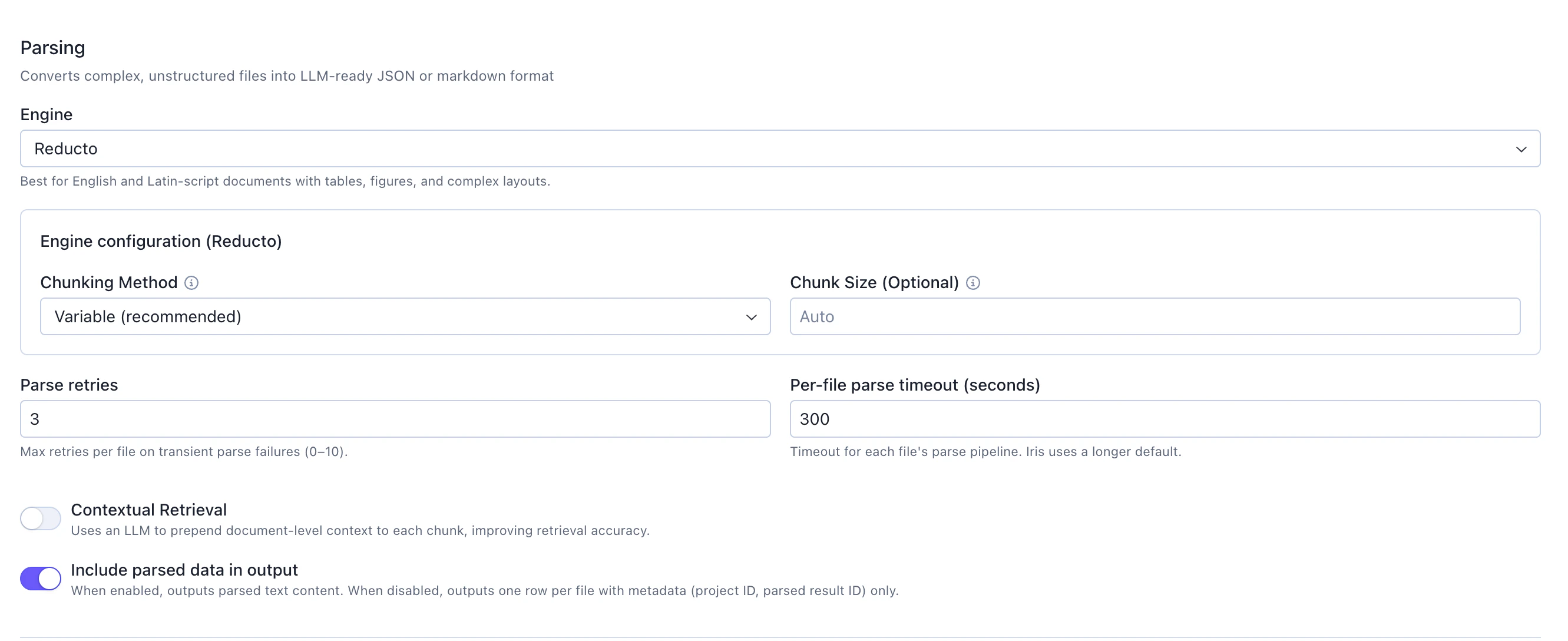
Engine: SelectReductoorIris. Reducto: Best for English and Latin-script documents with tables, figures, and complex layouts. Iris: Best for non-English, non-Latin scripts (Arabic, CJK, Thai, Hindi, etc.)
Layout Model, Text OCR Model, and Table OCR Model, along with prompts and confidence thresholds.
For Reducto, configure the following settings to select how documents should be split into chunks:
Variable (recommended): Automatically determines optimal chunk boundariesChunk Size (Optional): Set toAutoto let the engine determine the best size
contextual retrieval, which uses an LLM to prepend document-level context to each chunk, improving retrieval accuracy.
Control the visibility of the output data:
Include parsed data in output: Toggle on to include parsedContent, which joins the text of all chunks. Output remains one row per input file for each selected parse configuration.
- When enabled: Includes the joined parsed text
- When disabled: Includes file metadata and result identifiers without parsed text
Structured Extraction
Optionally extract specific fields from parsed documents using LLM-based extraction. This feature pulls targeted data from unstructured documents into structured metadata columns.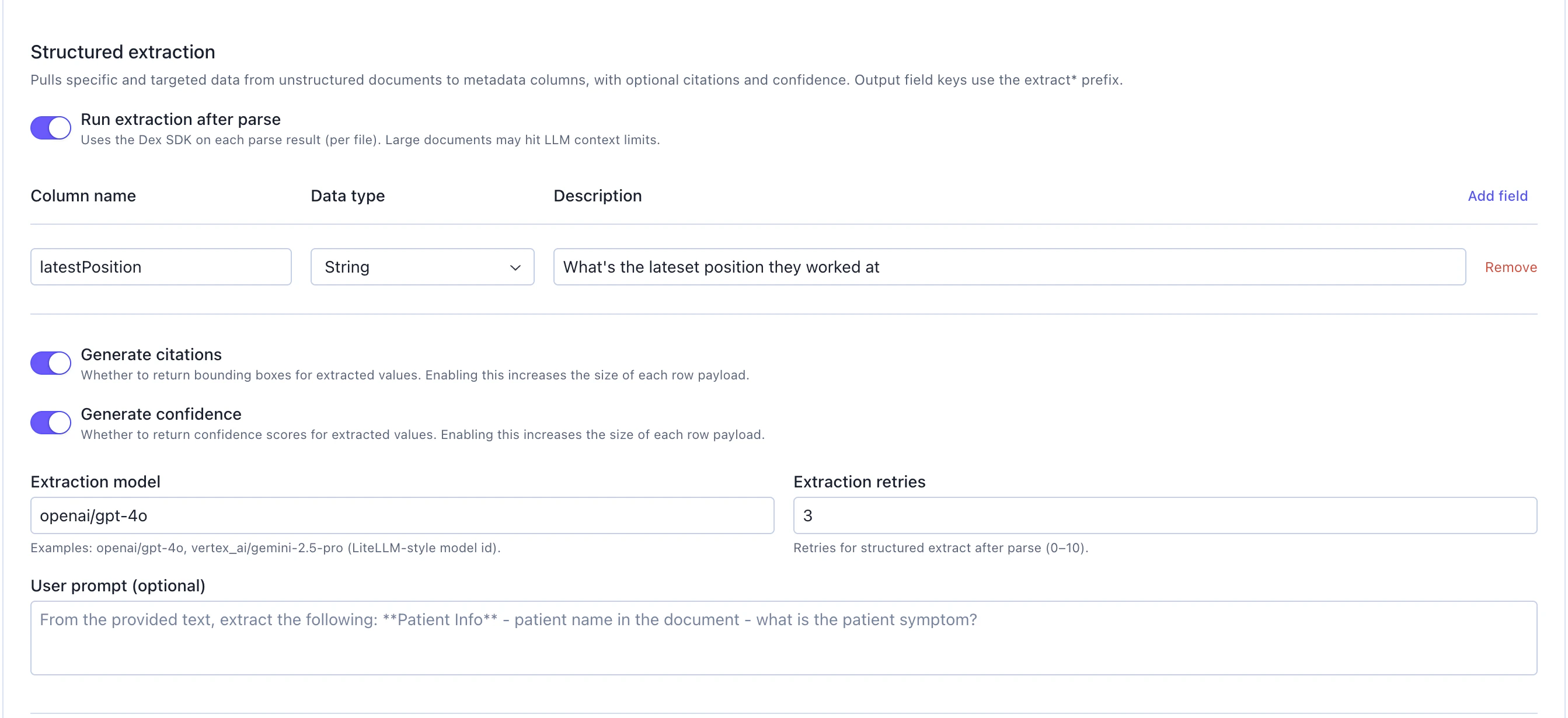
Run extraction after parse: Toggle on to enable structured extraction. This uses the Dex SDK on each parse result (per file). Note: Large documents may hit LLM context limits
When enabled, configure the following:
Schema Definition
Define the fields you want to extract. Add all the fields you need:
Column name: Name for the extracted field (e.g., “latestPosition”)Data type: Select the data type (String, Number, Boolean, etc.)Description: Describe what should be extracted (e.g., “What’s the latest position they worked at”)- Click
Add fieldto define additional extraction fields
Generate citations: Toggle on to return bounding boxes for extracted values. Enabling this increases the size of each row payloadGenerate confidence: Toggle on to return confidence scores for extracted values. Enabling this increases the size of each row payload
Extraction model: Specify the LLM to use for extraction (e.g., “openai/gpt-4o”, “vertex_ai/gemini-2.5-pro”). This uses LiteLLM-style model IDsExtraction retries: Number of retries for structured extraction (0-10). Default: 3 retries
Extracted field keys in the output use
extract followed by the column name with its first letter capitalized (for example, latestPosition becomes extractLatestPosition) to distinguish them from standard parse output columns.Knowledge Base
Optionally push parsed results into a vector store for semantic search and RAG:Push to Knowledge Base: ChooseNone,Create New,Use Existing (by ID), orUpsert (by Column)Vector Store Name(Create New): Provide a name for your Knowledge Base (e.g., “Resume Vector Store”). The Dex project ID is appended to the final nameVector Store ID(Use Existing (by ID)): The ID of an existing vector store. RequiresUse Existing (by ID)for the projectKB Name Column(Upsert (by Column)): A column holding vector store names. The card creates one vector store per unique name and pushes later rows with the same name to itEmbedding Model(Create NewandUpsert (by Column)): Specify the embedding model (defaultopenai/text-embedding-3-large)
Push to Knowledge Base is not None, parsed documents will be automatically indexed in the SGP Knowledge Base, accessible via the Knowledge Base UI for semantic search and retrieval.
Step 4: View parsed & extracted output
After the Dex card processes your documents, the output has one row per input file and selected parse configuration, with the following columns: Standard Parse ColumnsparseResultId: Unique identifier for the parsing resultprojectId: The Dex project ID where results are storedengine: The parsing engine used (reductooriris)pagesProcessed: Number of pages processed in the documentchunkCount: Number of chunks created from the documentstatus:queued,downloading,parsing, orenrichingwhile processing; terminal values aresuccessorerror(onerror,errorMessageholds the message)parsedContent: Joined text from all parsed chunks when included in outputvectorStoreId: ID of the Knowledge Base vector store (if enabled)
extract prefix. Their values are stringified:
extract<FieldName>: The extracted value for each defined field (e.g.,extractLatestPosition)extractCitations: JSON-string map of citations keyed by extraction output names, such asextractLatestPosition(if citations enabled)extractConfidence: JSON-string map of confidence values keyed by the same names (if confidence enabled)extractError: The error message when extraction failed for the file. Parsing can still havestatus=success; check this column separately.
row below shows the shape of one Dex output record:
Step 5: Access Dex project and SGP Knowledge Base
The Dex card creates a Dex project (or reuses one, depending on theDex Project option) that you can access later for review and management.
If you set Push to Knowledge Base to an option other than None, navigate to the Knowledge Base section in SGP to access your vector store:
- Search parsed documents semantically
- Test retrieval quality
- Use for RAG applications
- Manage embeddings and vector store settings
Step 6: Use parsed / extracted data in your workflow
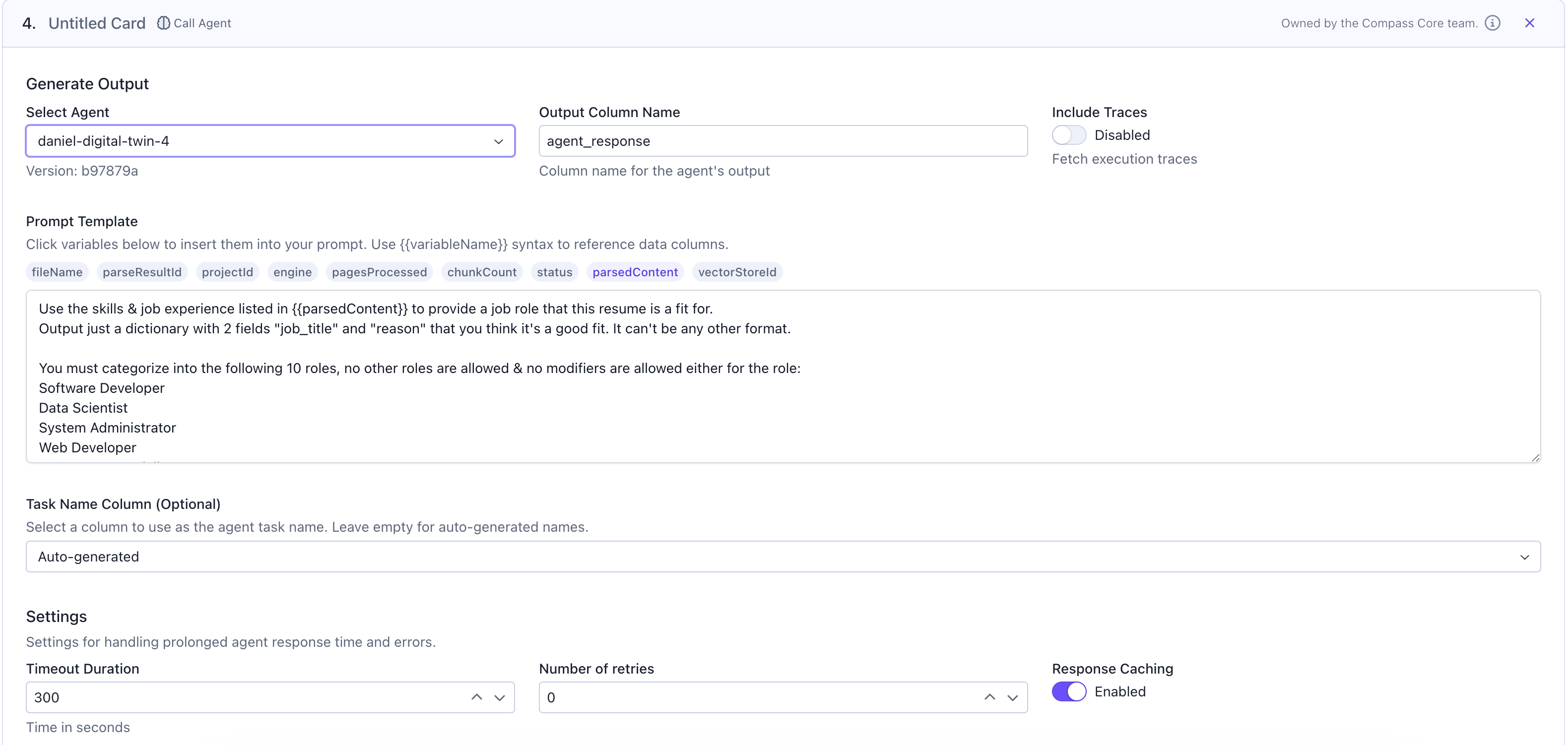
Now you can use the parsed content in subsequent workflow cards. For this example, we’ll call an agent to categorize resume content into suitable job roles.Call Agent for Analysis
Add aCall Agent card to process the parsed content:
Select Agent: Choose your agent from the dropdownOutput Column Prefix: Specify the prefix for the card’s output columns (e.g.,job_categories). The card writes the agent task ID and status columns, not the agent’s reply; see Evaluations in Workflows for the full listPrompt Template: Write your prompt using{{parsedContent}}to reference the parsed text
Additional Processing
You can add more cards to:- Filter or transform the categorized results
- Join with job posting data
- Run evaluations on categorization quality
- Generate reports or summaries
Step 7: Save your results
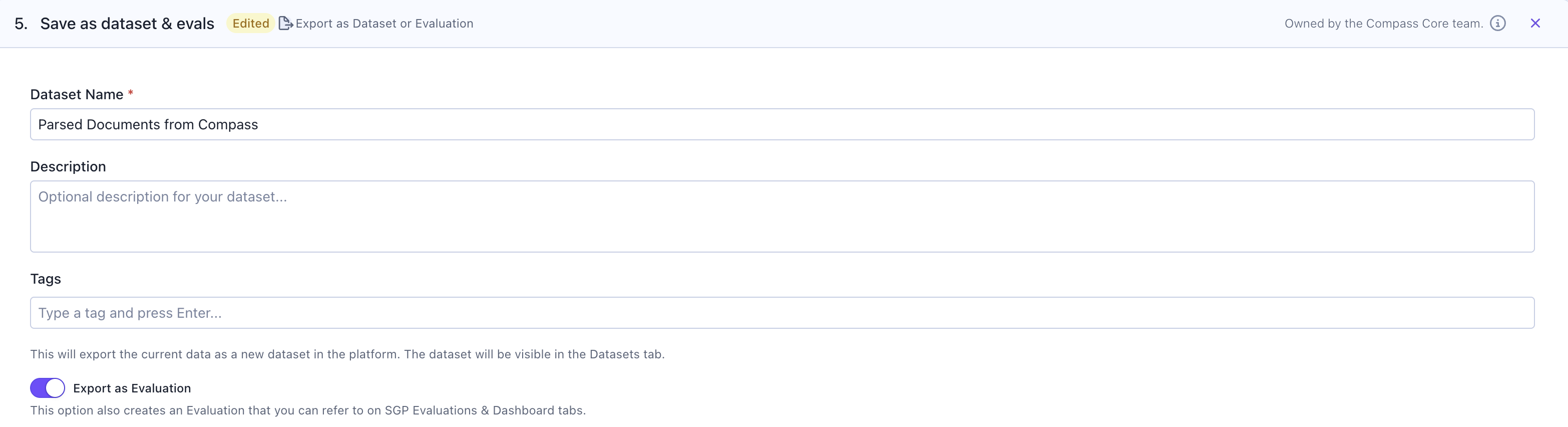
Finally, save the workflow output for future reference and analysis. You can save the results with theExport as Evaluation card as:
- SGP Dataset: Store the categorized resumes as a dataset for future use in training, evaluation, or analysis.
- SGP Evaluation: Create an evaluation to track the quality of resume categorization. The next 2 options allow you to observe hillclimbing trends.
- SGP Dashboard: Create a dashboard to visualize evaluation results, optionally from an existing template.
- SGP Evaluation Group: Add the evaluation to an existing group for side-by-side comparison on the Evaluations tab.