

Step 1: Connect to the data source
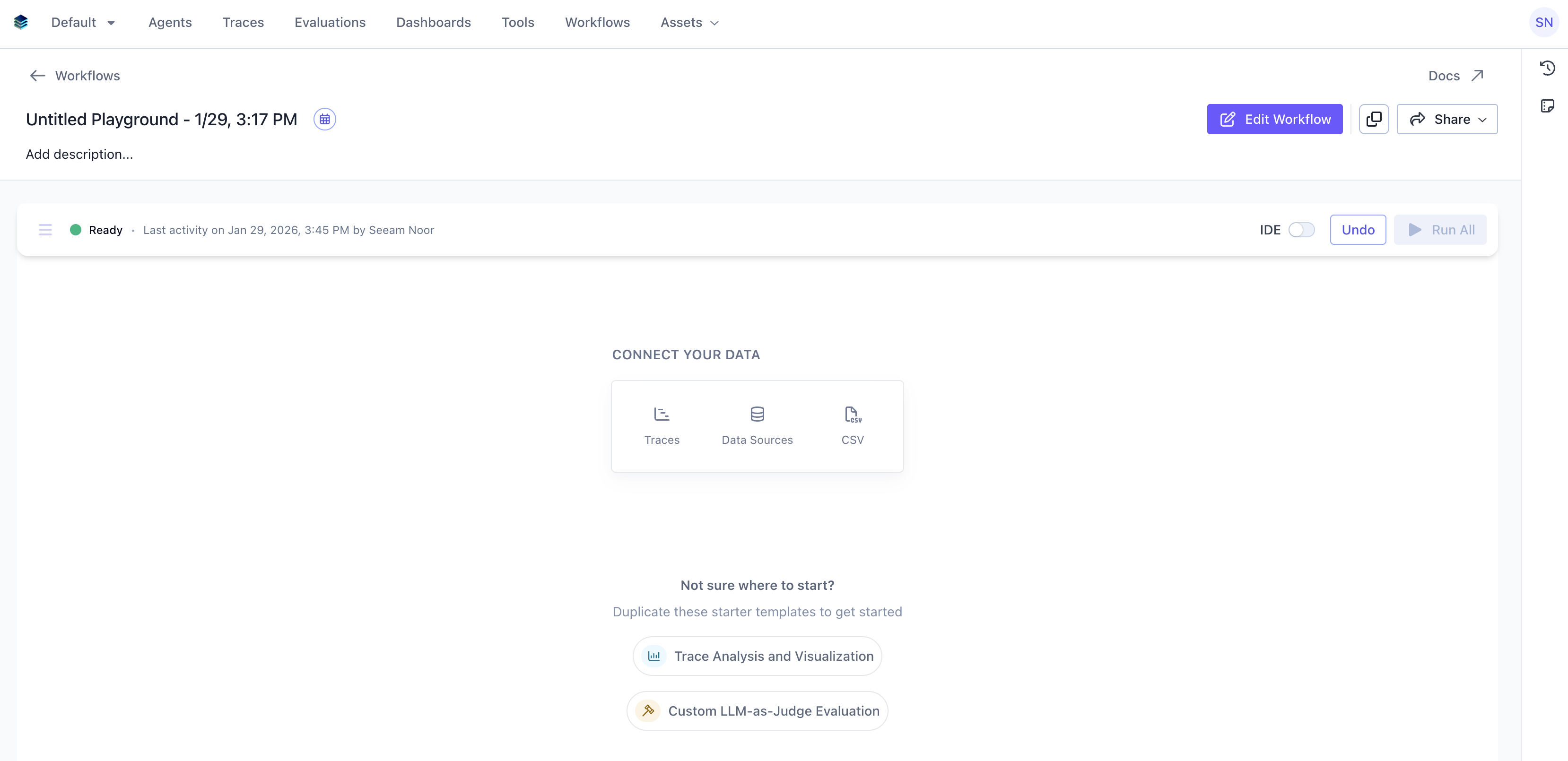
Start by navigating toWorkflows in SGP. Choose from the available data connection options: Traces, Data Sources, or CSV.
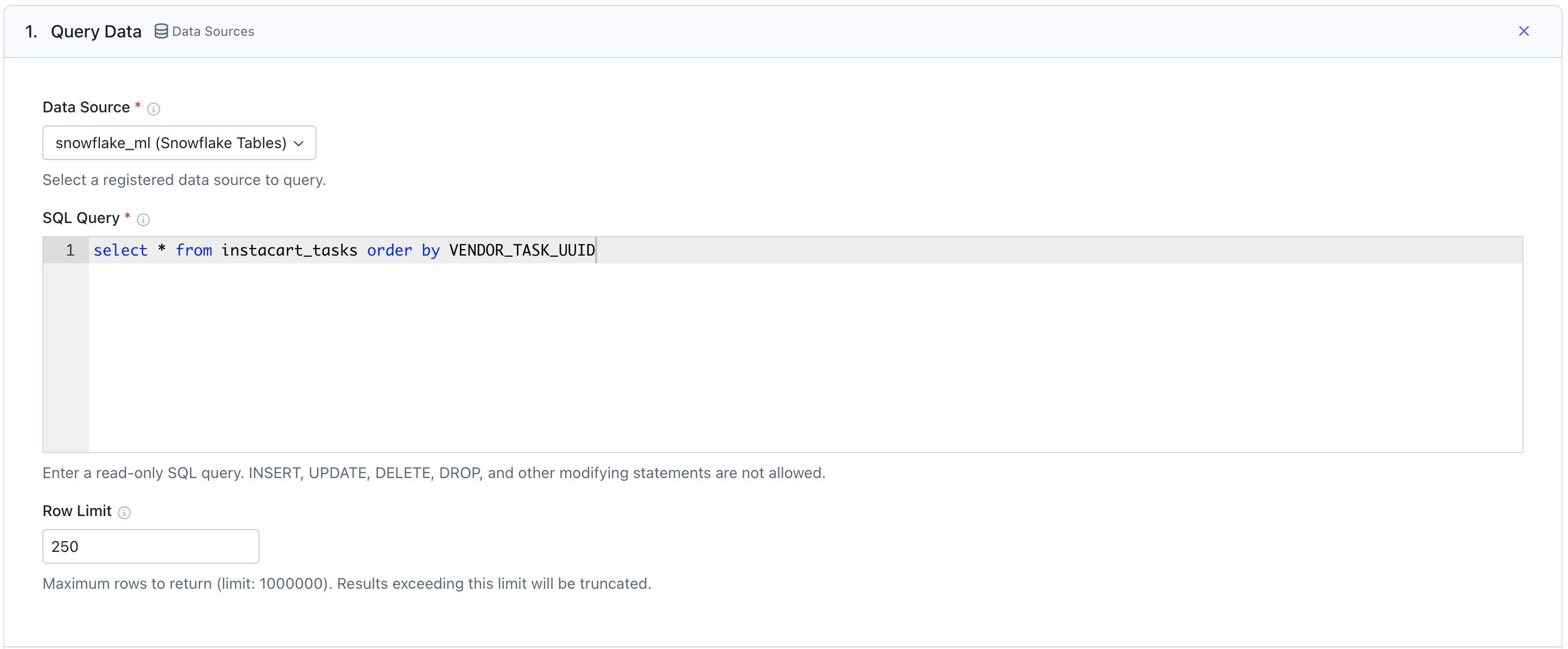
Data Sources, then choose your registered Snowflake connection from the dropdown. Write a SQL query to fetch the data you want to evaluate. You can set a Row Limit up to 1,000,000.
Only read-only SQL queries are allowed. INSERT, UPDATE, DELETE, DROP, and other modifying statements are not permitted.
Step 2: Call your agent for completions
Use aCall Agent card to generate outputs from your agent for each row in your dataset. The Agentex agent you select has to be live on your SGP deployment.
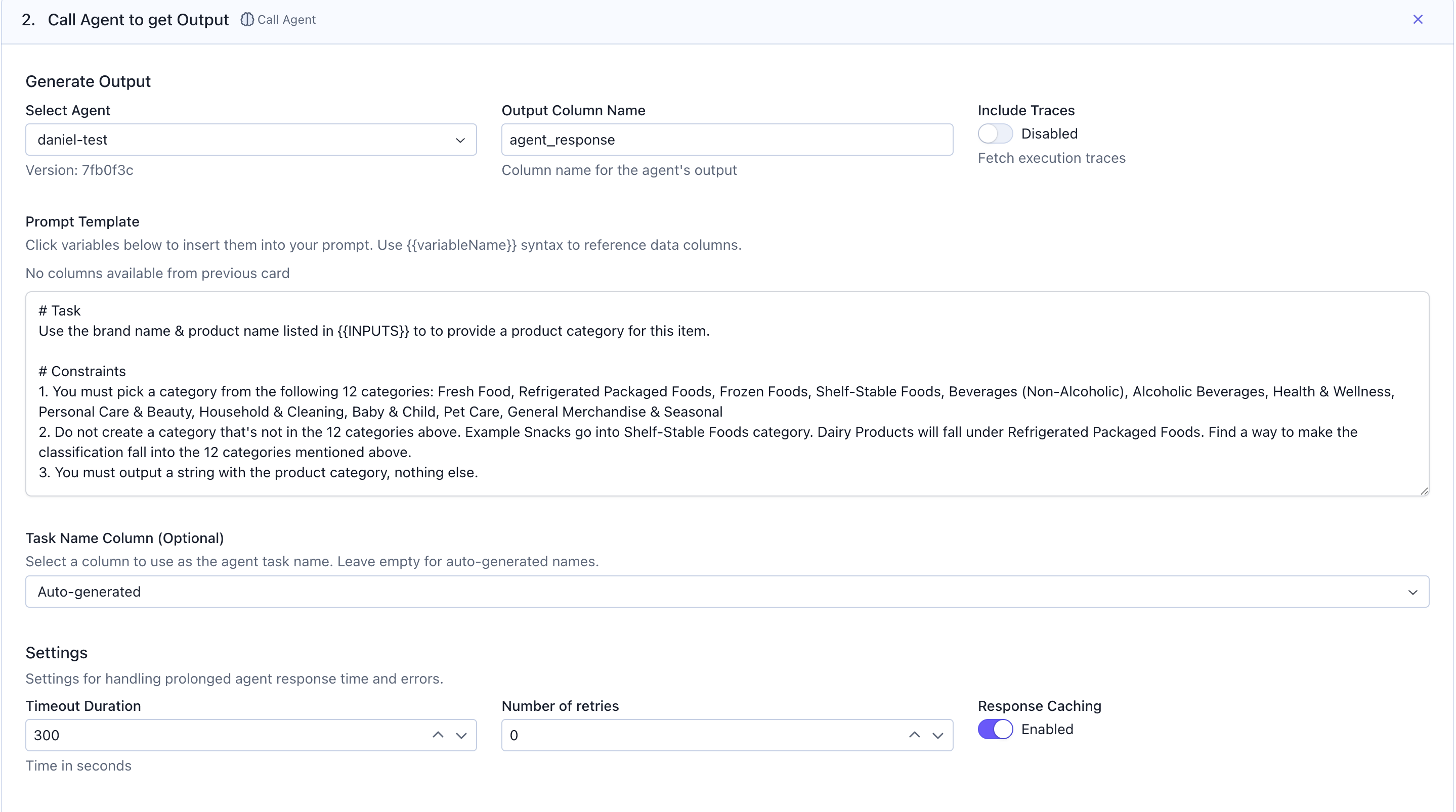
Select Agent: Choose the agent you want to evaluate from the dropdownOutput Column Name: Specify the column name where agent responses will be stored (e.g.,agent_response)Include Traces: Toggle on if you want to fetch execution traces for debuggingPrompt Template: Write your prompt using{{variableName}}syntax to reference columns from your data. Click the variable buttons to insert column references automatically.
Settings, you can configure:
Timeout Duration: Maximum time in seconds to wait for agent responses (default: 300)Number of retries: How many times to retry failed callsResponse Caching: Enable to cache responses and avoid redundant API calls
Step 3: Join data from another workflow (ex: Ground Truth)
Use theJoin Workflow card to bring in data from another Compass workflow—such as a ground truth dataset for comparison. Here we will compare our agent’s categorization against the ground truth categorization for each product.
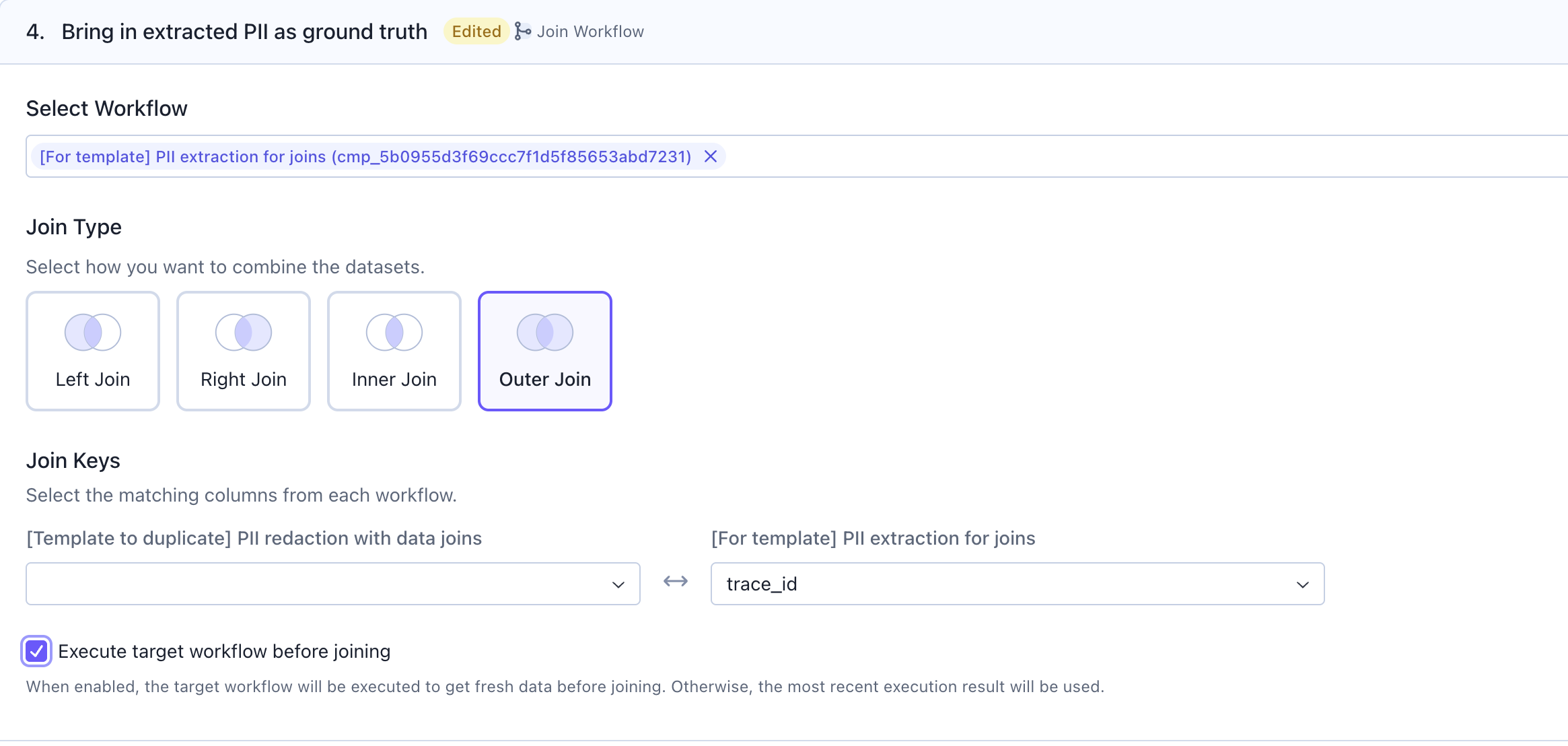
Select Workflow: Choose the workflow containing your ground truth or reference dataJoin Type: Select how you want to combine the datasets:Left Join: Keep all rows from the current workflowRight Join: Keep all rows from the target workflowInner Join: Keep only matching rowsOuter Join: Keep all rows from both workflows
Join Keys: Select the matching columns from each workflow (e.g.,trace_id)Execute target workflow before joining: Enable this to get fresh data from the target workflow; otherwise, the most recent execution result will be used
Step 4: Use the LLM as Judge card to do evals
Add anLLM as Judge card to evaluate your agent’s outputs against the ground truth.
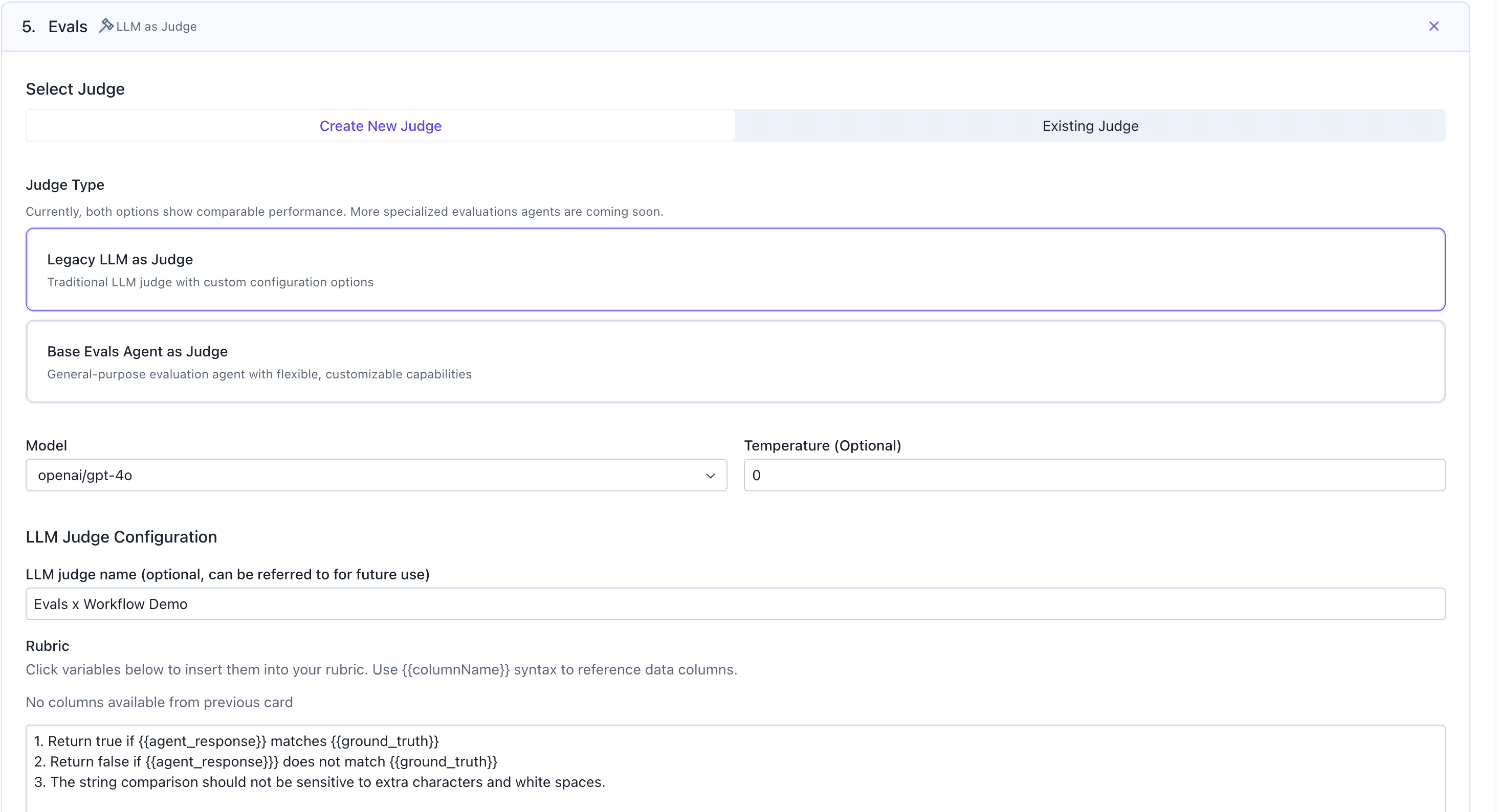
Select Judge: Choose to create a new judge or use an existing oneJudge Type: Select from available options likeLegacy LLM as Judge: Traditional LLM judge with custom configurationBase Evals Agent as Judge: General-purpose evaluation agent with flexible capabilities
Model: Choose the LLM model to use for judging (e.g.,openai/gpt-4o)Temperature: Set to 0 for deterministic outputsLLM Judge Name: Give your judge a name for future usageRubric: Define evaluation criteria. Use{{columnName}}to reference data columns
Evaluation Details section to export your results as an evaluation that can be accessed later anytime, which is helpful if you are running the evaluations on a schedule.
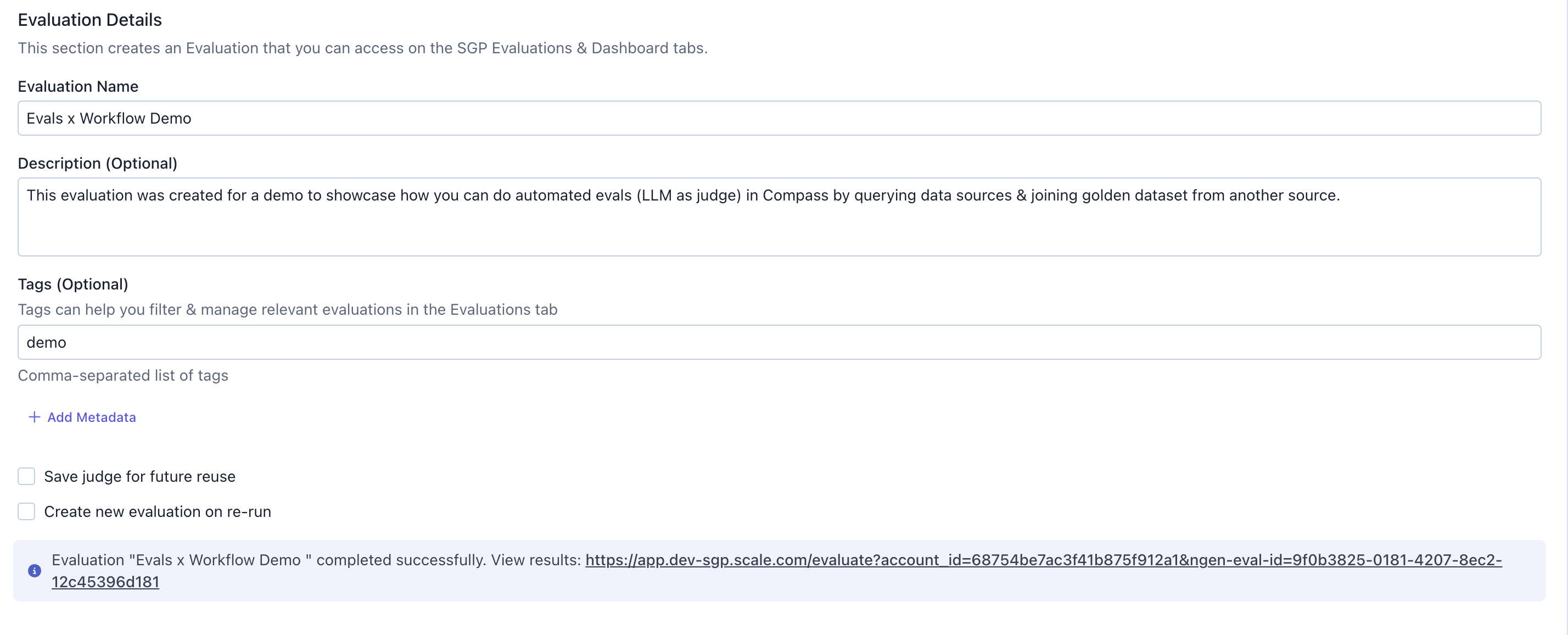
Evaluation Name: A descriptive name for your evaluationDescription: Explain what this evaluation measuresTags: Add tags to filter and organize evaluations by groups laterSave judge for future reuse: Check to save this judge configuration & use from existing judge dropdown in other workflowsCreate new evaluation on re-run: Check to create a new evaluation each time the workflow runs
Evaluations & Dashboards tab anytime respectively.
Step 5: Open the evals in Evaluations tab or Dashboard tab
Navigate to theEvaluations tab in SGP to view your evaluation results. You can search, filter by date range, and filter by tags to find specific evaluations.
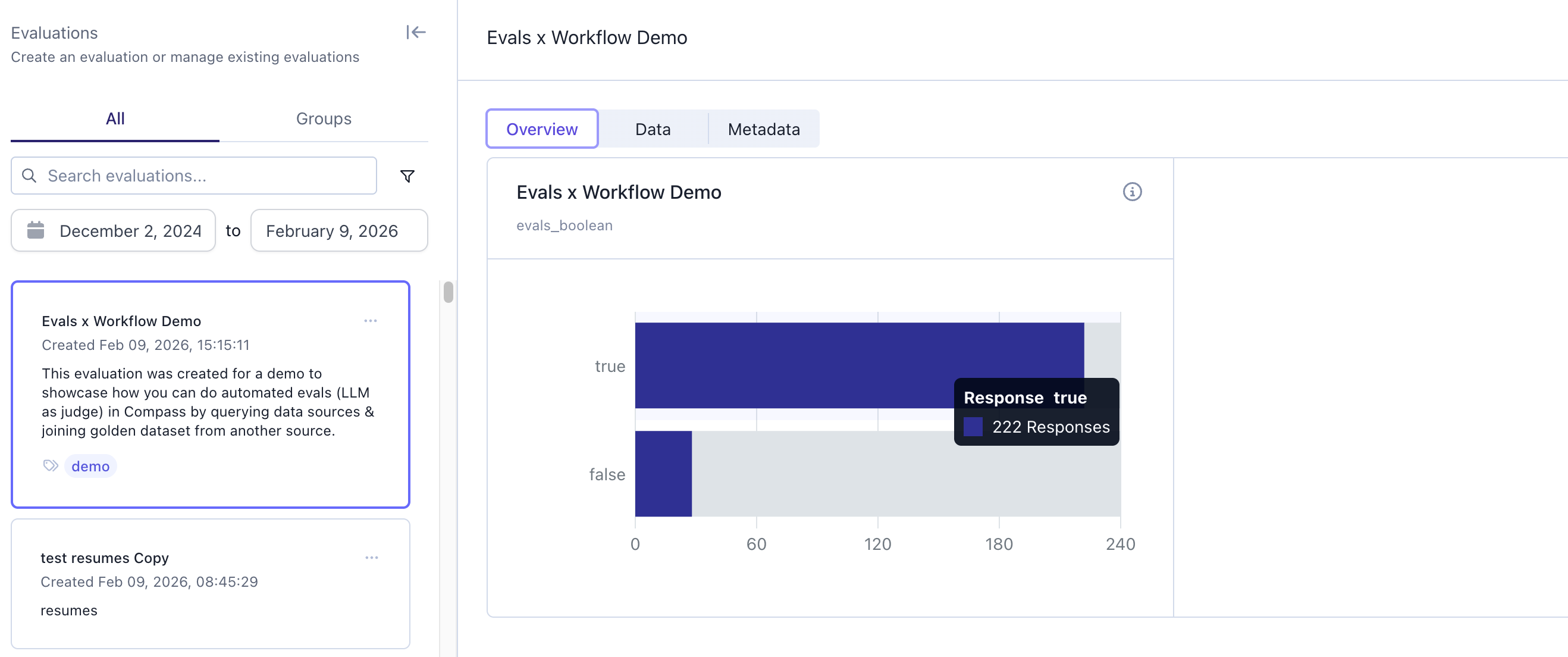
Overview: Visual summary of evaluation metrics and response distributionsData: Detailed row-by-row results with all columnsMetadata: Information about when and how the evaluation was created
Dashboards tab for deeper analysis and custom visualizations.
Step 6: Automate the evals to run on a schedule
To automate your evaluation workflow, clickEdit Workflow and configure a schedule.
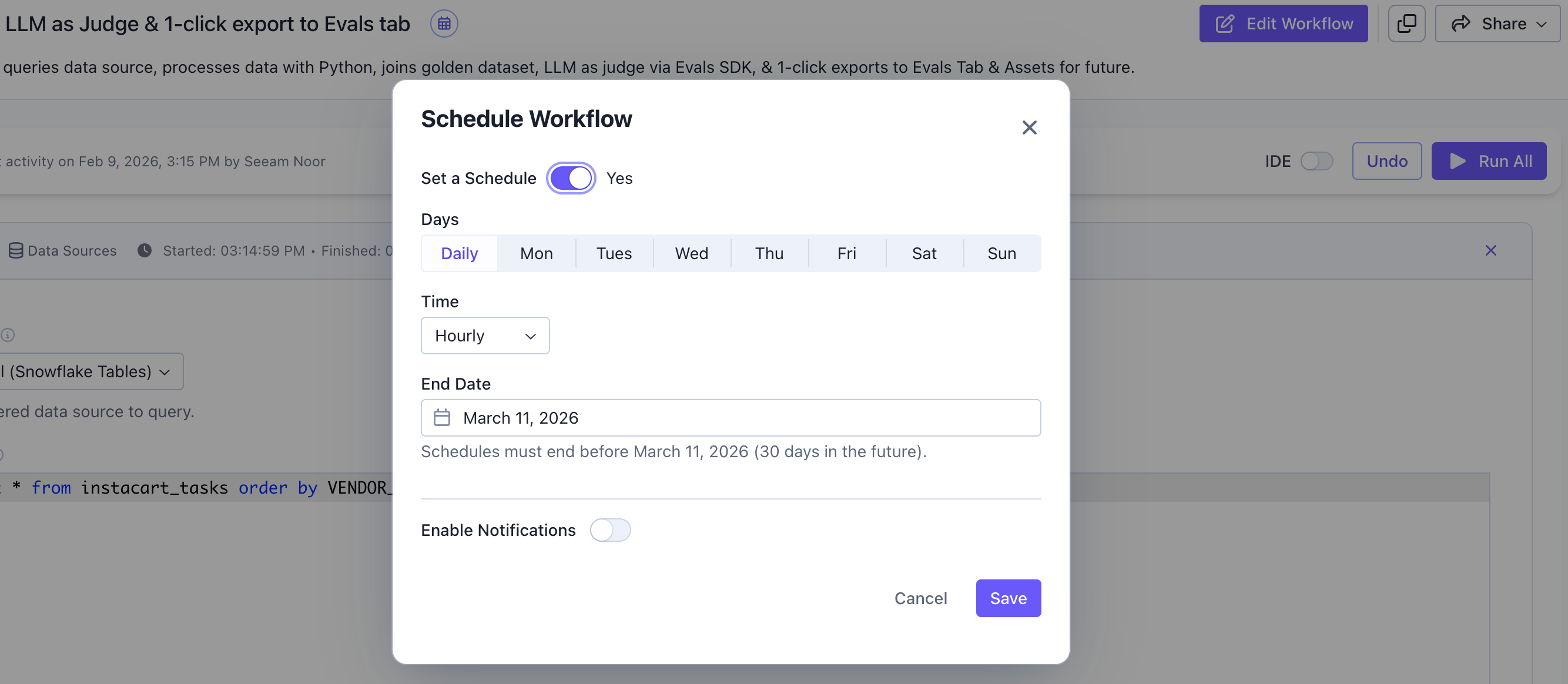
Set a Schedule: Toggle on to enable schedulingDays: ChooseDailyto run every day, or select specific days of the weekTime: Set the frequency (e.g.,Hourly) or a specific timeEnd Date: Schedules can run for up to 30 days into the futureEnable Notifications: Toggle on to receive Slack alerts for failed runs
Save to activate your scheduled workflow. You can monitor all scheduled runs from the Execution logs in the side menu, and view Workflow history to track changes across versions.