> ## Documentation Index
> Fetch the complete documentation index at: https://docs.gp.scale.com/llms.txt
> Use this file to discover all available pages before exploring further.
# Labeling Evaluations
> Guide for labeling contributor evaluations
## Overview
This guide is designed for human annotators to understand how to label evaluations created through the human evaluations creation flow. For information on creating contributor evaluations, see [Contributor Evaluation](/docs/v5/next-gen-evaluation/ui-evaluations/contributor-evaluation).
### Start Labeling
 To start labeling a task, click on the **Label** button next to a task that is assigned to your name.
If you don't have any assigned tasks but want to label a task, you can assign a task to yourself and then click the **Label** button.
### Labeling Tasks
To start labeling a task, click on the **Label** button next to a task that is assigned to your name.
If you don't have any assigned tasks but want to label a task, you can assign a task to yourself and then click the **Label** button.
### Labeling Tasks
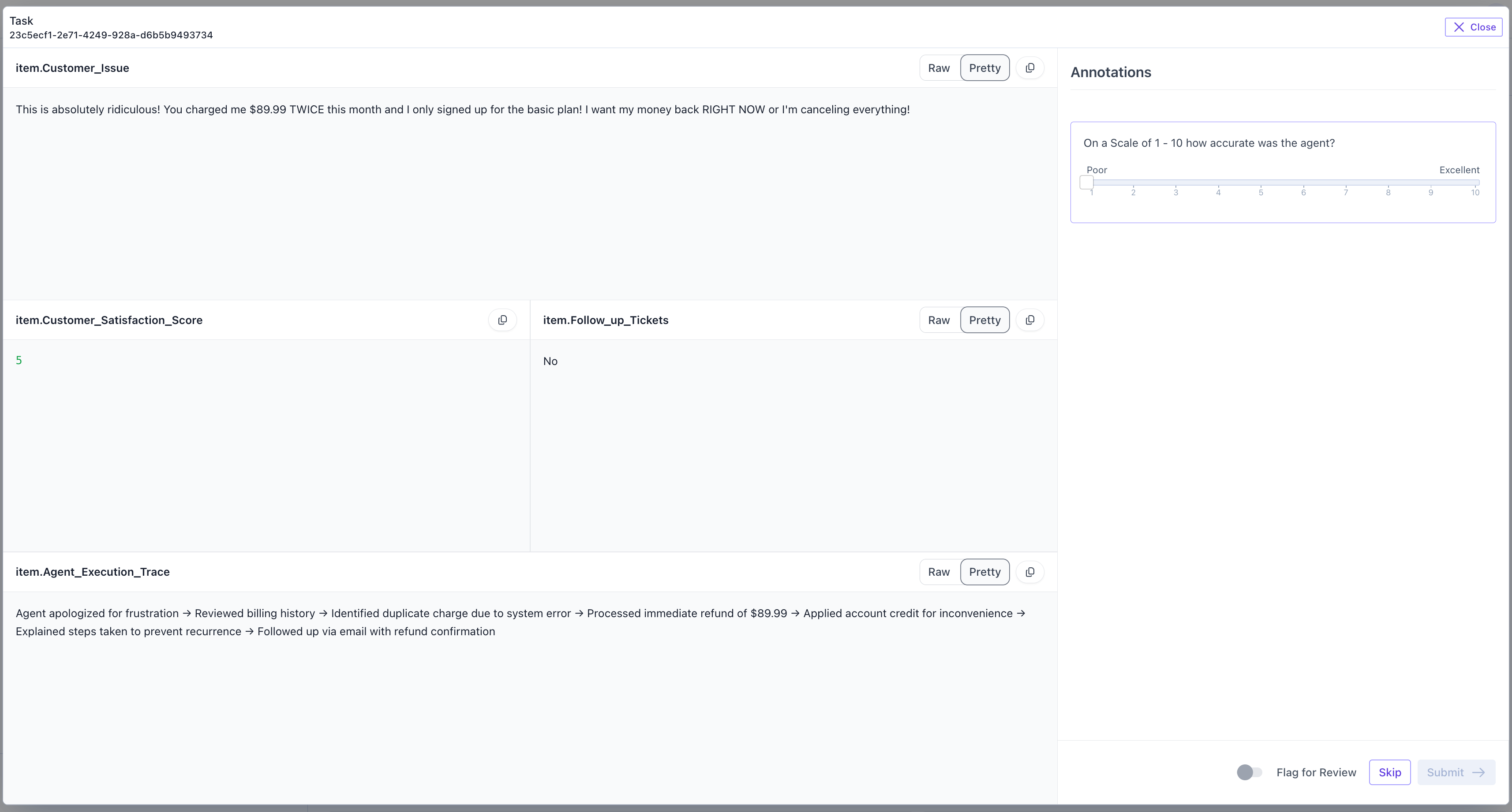 When you open a task, you will see the information related to an evaluation run on the left side of the task screen.
On the right side, there will be a series of questions that you should answer as the annotator.
* **Save**: There is no save button. All tasks are auto saved when you answer questions. If you navigate away from a task and return to it, you will see answers you previously answerd.
* **Skip**: Skip. If you are unsure about how to answer this task, then you can utilize the Skip button to skip this task.
* **Submit**: Submit. When you are done with a task, use the Submit button to submit it. Submitting a task allows it to be audited by an auditor. You are allowed to edit a task after you submit if it has not yet been audited.
* **Flag for Review**: If you want to submit a task but have concerns about the task you want to flag to an auditor, toggle the flag for review button and leave a comment. The auditor will see your comment and see that you flagged this for review.
When you open a task, you will see the information related to an evaluation run on the left side of the task screen.
On the right side, there will be a series of questions that you should answer as the annotator.
* **Save**: There is no save button. All tasks are auto saved when you answer questions. If you navigate away from a task and return to it, you will see answers you previously answerd.
* **Skip**: Skip. If you are unsure about how to answer this task, then you can utilize the Skip button to skip this task.
* **Submit**: Submit. When you are done with a task, use the Submit button to submit it. Submitting a task allows it to be audited by an auditor. You are allowed to edit a task after you submit if it has not yet been audited.
* **Flag for Review**: If you want to submit a task but have concerns about the task you want to flag to an auditor, toggle the flag for review button and leave a comment. The auditor will see your comment and see that you flagged this for review.