> ## Documentation Index
> Fetch the complete documentation index at: https://docs.gp.scale.com/llms.txt
> Use this file to discover all available pages before exploring further.
# Auditing Evaluations
> Guide for auditing contributor evaluations
## Overview
The platform supports auditing in order to enable users to review tasks that are completed by labelers.
Currently, the platform supports two levels of auditing. A user can only complete the first level of auditing after the task has been labeled.
A user can then only complete the second level of auditing after the first level of auditing has been completed.
## Auditing
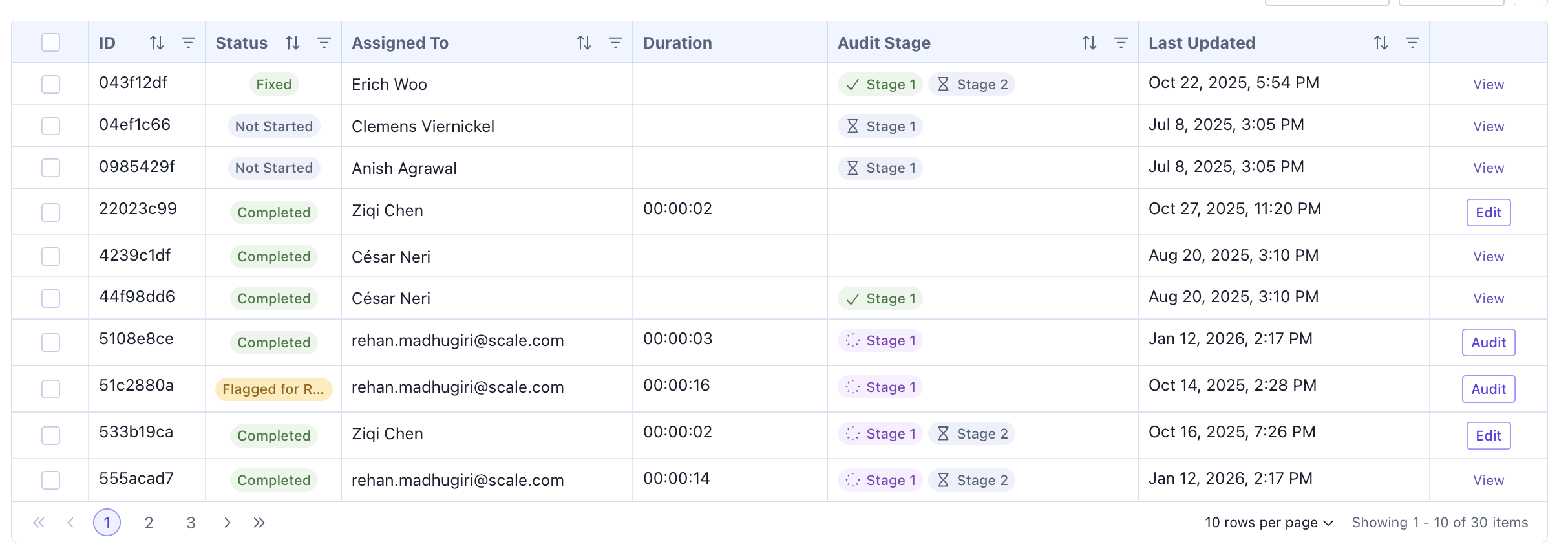 The task table shows the status of all the tasks. To learn how to assign auditors to tasks, see [Managing Contributor Evaluations](/docs/v5/next-gen-evaluation/labeling-evaluations/managing-contributor-evaluations).
Users can assign themselves as auditors with manager permissions. But for each task, the person completing the task, the person doing the first level of audit, and the person doing the second level of audit must all be different people.
### Complete an Audit assigned to you
In order to complete an Audit that is assigned to you, click on the **Audit** button in the table of the corresponding task.
This will show the task with the auditing functionality.
The task table shows the status of all the tasks. To learn how to assign auditors to tasks, see [Managing Contributor Evaluations](/docs/v5/next-gen-evaluation/labeling-evaluations/managing-contributor-evaluations).
Users can assign themselves as auditors with manager permissions. But for each task, the person completing the task, the person doing the first level of audit, and the person doing the second level of audit must all be different people.
### Complete an Audit assigned to you
In order to complete an Audit that is assigned to you, click on the **Audit** button in the table of the corresponding task.
This will show the task with the auditing functionality.
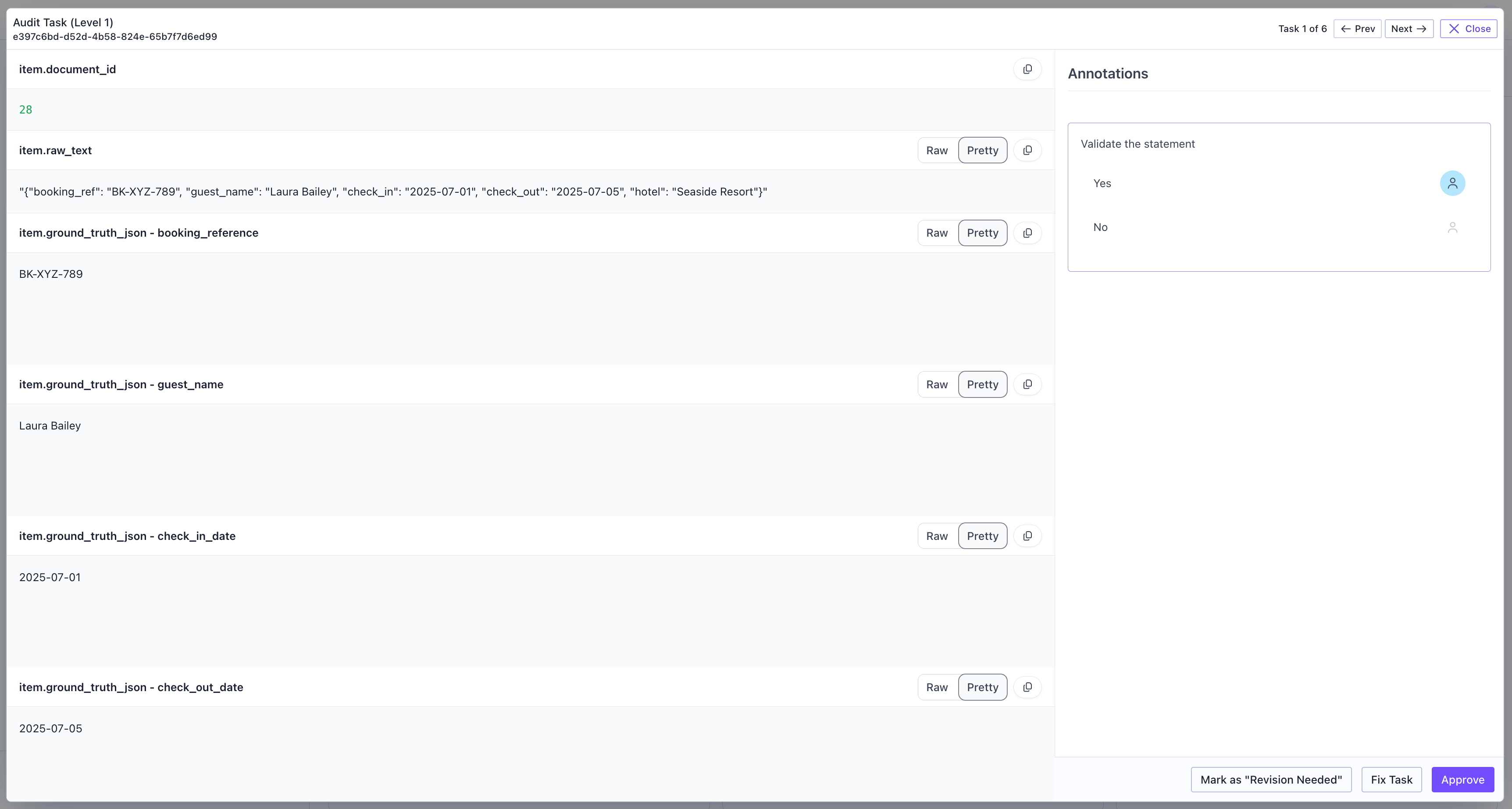 * **Mark as "Revision Needed"**: Request the contributor to revise their work
* **Fix Task**: Make corrections directly as the auditor
* **Approve**: Accept the task as completed correctly
If a user has marked the task for review, the audit view will also show that here. This is an example of what a task that has been flagged for review by the labler will look like for the auditor.
* **Mark as "Revision Needed"**: Request the contributor to revise their work
* **Fix Task**: Make corrections directly as the auditor
* **Approve**: Accept the task as completed correctly
If a user has marked the task for review, the audit view will also show that here. This is an example of what a task that has been flagged for review by the labler will look like for the auditor.
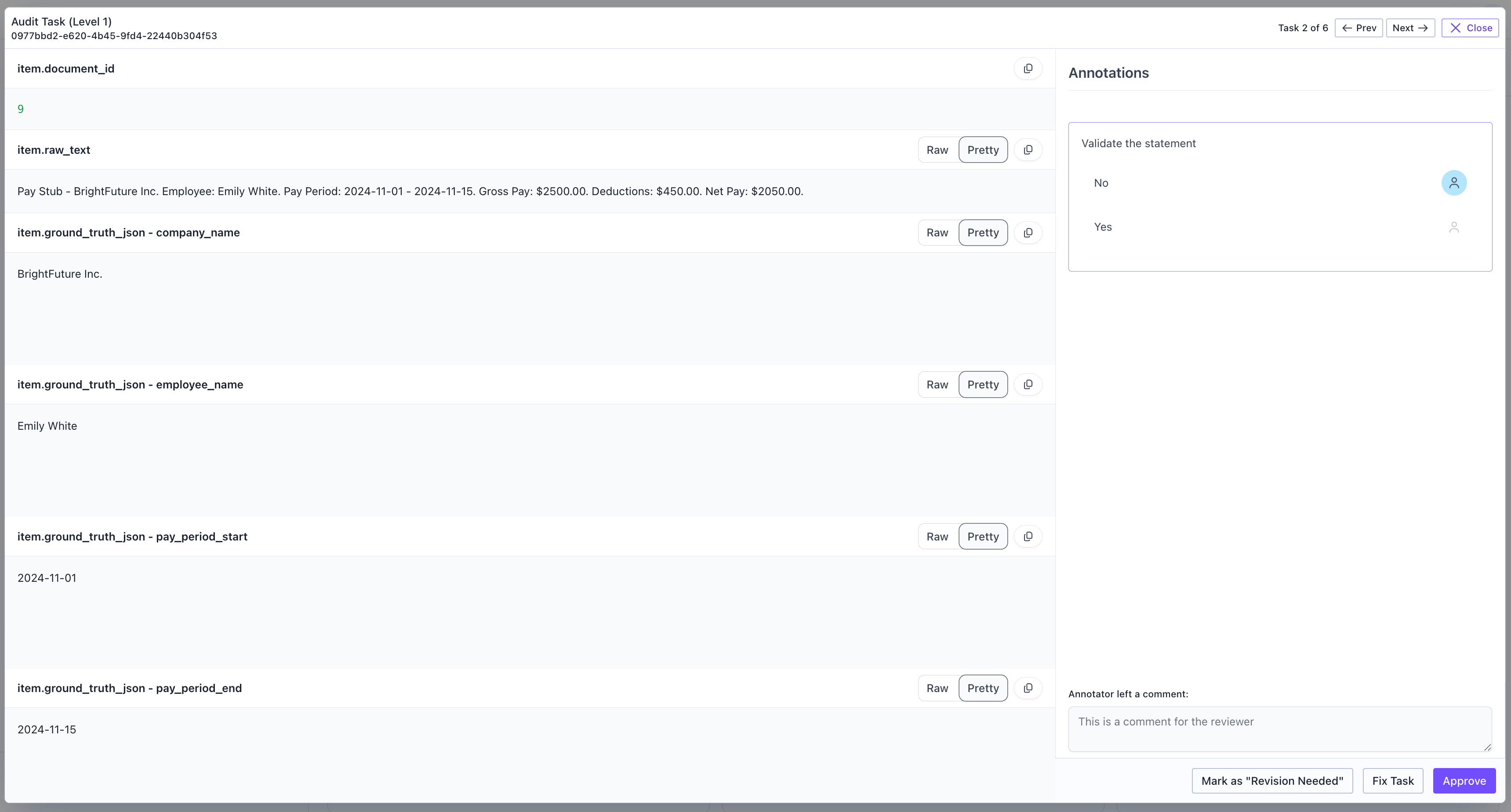 There will be a section on the bottom right showing that the original labeler left a comment and flagged the task for review.