> ## Documentation Index
> Fetch the complete documentation index at: https://docs.gp.scale.com/llms.txt
> Use this file to discover all available pages before exploring further.
# Markdown Widget
> Add rich text documentation, instructions, and notes to dashboards
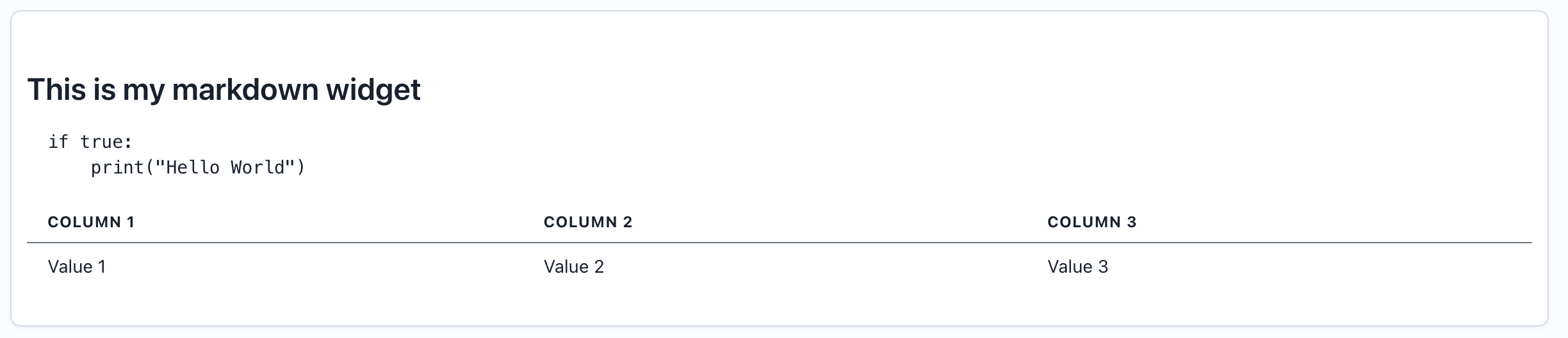 ## When to Use
Use markdown widgets to:
* Document evaluation methodology
* Provide context for dashboard viewers
* Add instructions or guidelines
* Include links to related resources
* Create formatted notes and observations
* Define thresholds and alert criteria
* Credit data sources and team members
## Configuration
### Required Fields
Widget title for reference (not displayed in rendered output)
Must be set to "markdown"
Markdown-formatted text to display
### Supported Markdown Syntax
Markdown widgets support standard CommonMark syntax:
* **Headers**: `# H1`, `## H2`, `### H3`
* **Bold**: `**bold text**`
* **Italic**: `*italic text*`
* **Lists**: Bulleted (`- item`) and numbered (`1. item`)
* **Links**: `[text](url)`
* **Code**: Inline `` `code` `` and fenced code blocks
* **Blockquotes**: `> quote`
* **Horizontal rules**: `---`
* **Tables**: Standard markdown tables
## Creating in the UI
From your dashboard, click "Add Widget" and select "Markdown"
Give your widget a reference name (e.g., "Dashboard Overview")
## When to Use
Use markdown widgets to:
* Document evaluation methodology
* Provide context for dashboard viewers
* Add instructions or guidelines
* Include links to related resources
* Create formatted notes and observations
* Define thresholds and alert criteria
* Credit data sources and team members
## Configuration
### Required Fields
Widget title for reference (not displayed in rendered output)
Must be set to "markdown"
Markdown-formatted text to display
### Supported Markdown Syntax
Markdown widgets support standard CommonMark syntax:
* **Headers**: `# H1`, `## H2`, `### H3`
* **Bold**: `**bold text**`
* **Italic**: `*italic text*`
* **Lists**: Bulleted (`- item`) and numbered (`1. item`)
* **Links**: `[text](url)`
* **Code**: Inline `` `code` `` and fenced code blocks
* **Blockquotes**: `> quote`
* **Horizontal rules**: `---`
* **Tables**: Standard markdown tables
## Creating in the UI
From your dashboard, click "Add Widget" and select "Markdown"
Give your widget a reference name (e.g., "Dashboard Overview")
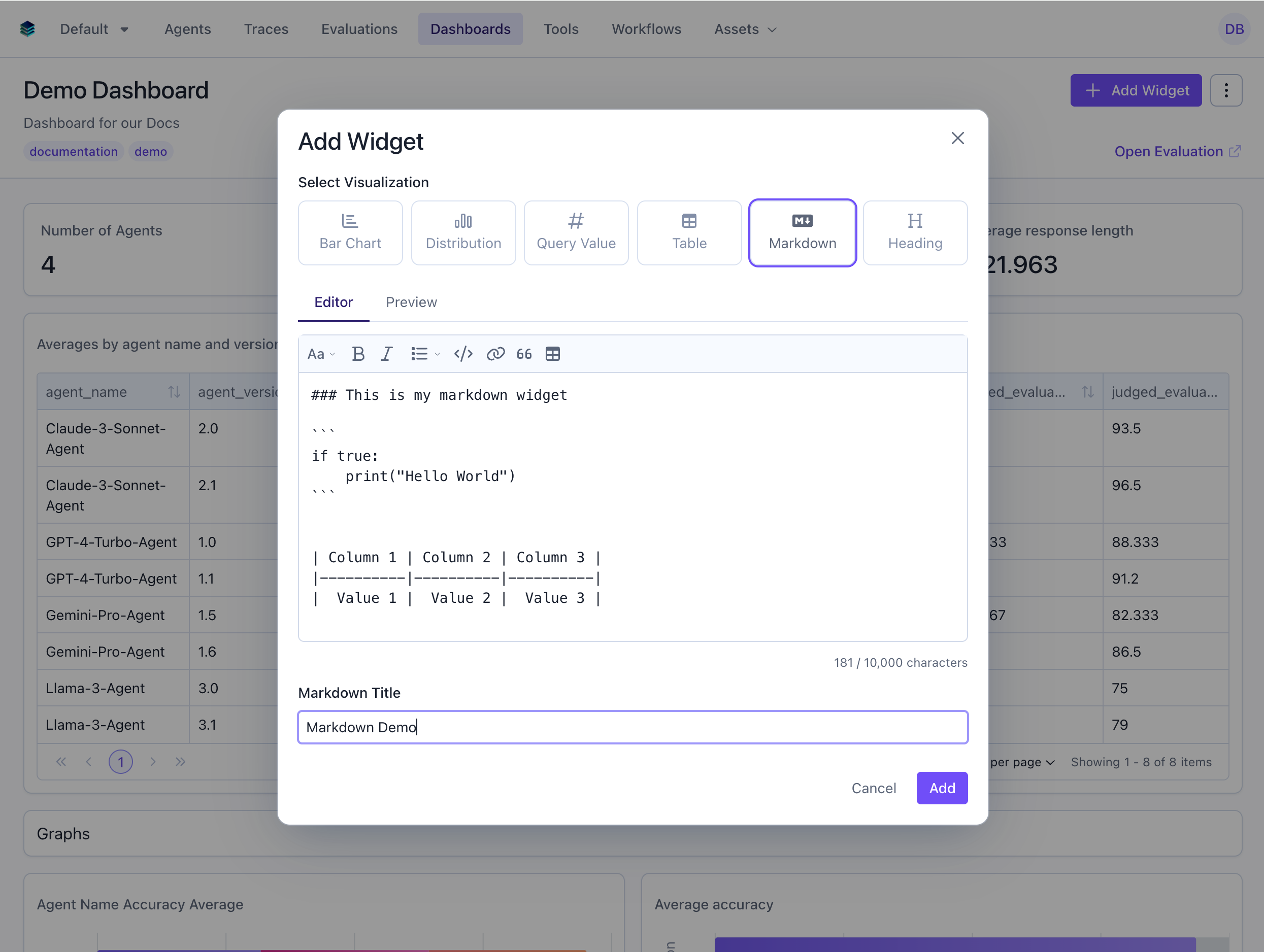 Write or paste your markdown content in the editor. Most editors provide:
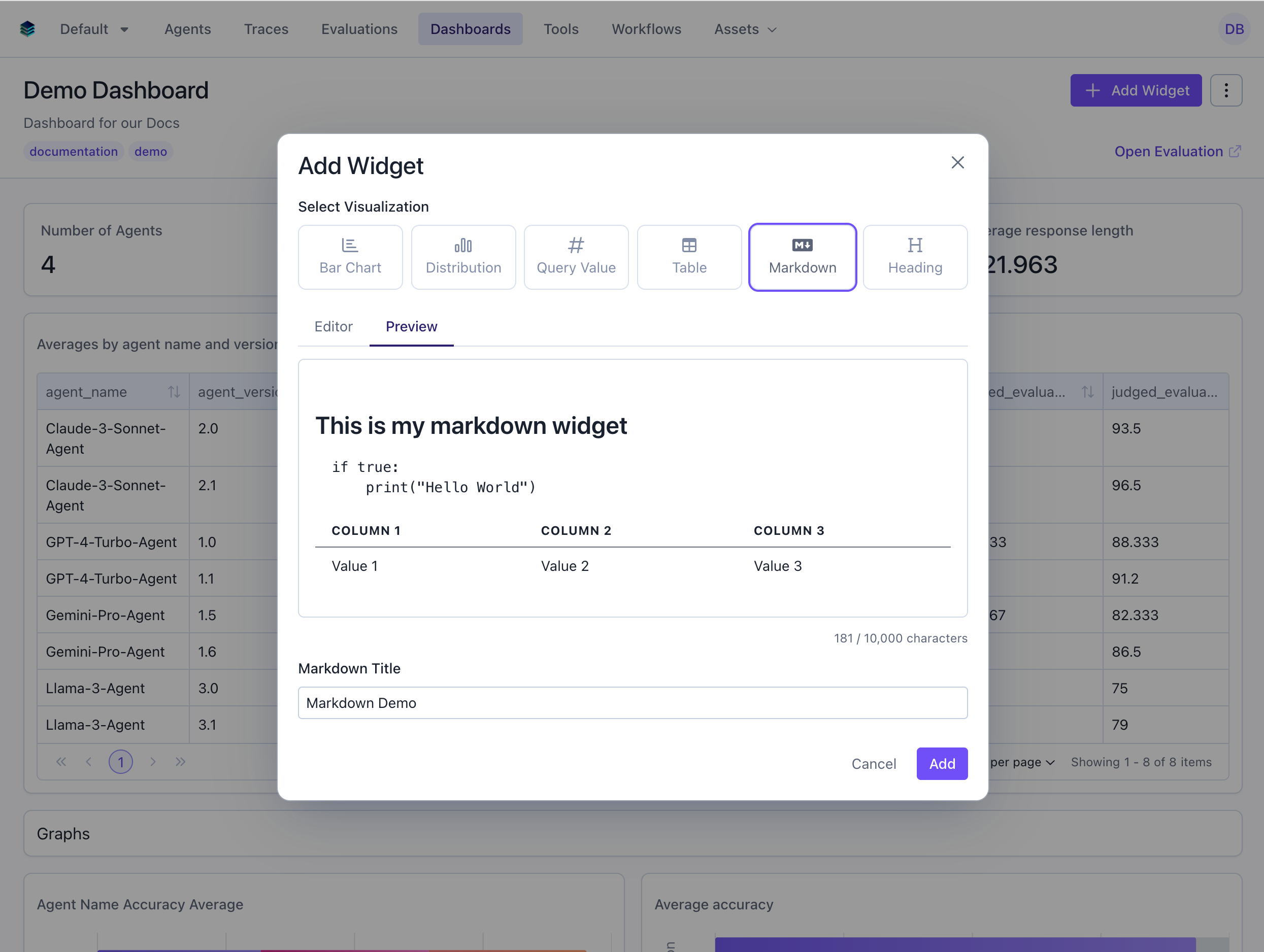 Check the rendered output to ensure formatting looks correct
Click "Add" to add to your dashboard
## Related Documentation
* [Heading Widget](./heading) - For simple section headers
* [All Widget Types](./overview) - Compare widget types
* [Getting Started](../getting-started) - Dashboard creation workflow
* [API Reference](/reference/v5/evaluation-dashboards) - Programmatic markdown widget creation
Check the rendered output to ensure formatting looks correct
Click "Add" to add to your dashboard
## Related Documentation
* [Heading Widget](./heading) - For simple section headers
* [All Widget Types](./overview) - Compare widget types
* [Getting Started](../getting-started) - Dashboard creation workflow
* [API Reference](/reference/v5/evaluation-dashboards) - Programmatic markdown widget creation