> ## Documentation Index
> Fetch the complete documentation index at: https://docs.gp.scale.com/llms.txt
> Use this file to discover all available pages before exploring further.
# Bar Chart Widget
> Visualize comparisons across categories using bar charts
**Using Sample Data**: The examples on this page use fields from our sample dataset. Download it and create an evaluation with it to follow along with this tutorial.
 ## When to Use
Use bar chart widgets to:
* Compare values across categories or groups
* Show rankings or relative performance
* Visualize aggregated metrics by dimension
* Make patterns and outliers immediately visible
## Configuration
### Required Fields
Widget display name shown on the dashboard
Must be set to "bar"
SeriesQuery with `GROUP BY` for categorical breakdown
### X-Axis Configuration (One Required)
You must provide **either** `x_column` **or** `x_column_group`, but not both:
Single column name to use for x-axis categories. Use for simple bar charts grouping by one dimension.
**Example:** `"agent_name"` - creates bars for each agent
Array of column names for multi-dimensional grouping. Use for complex bar charts that group by multiple dimensions.
**Example:** `["agent_name", "task_type"]` - creates grouped bars combining agent and task type
### Optional Config Fields
Controls whether multiple series are stacked or displayed side-by-side.
* `true` (default): Stack bars on top of each other (useful for showing totals)
* `false`: Display bars side-by-side (better for comparing individual values)
When `true`, each bar's value is rendered directly on the chart so you don't have to hover to read it.
Value labels apply to single-series charts only (charts with one aggregation). They are ignored on multi-series charts, which use a legend instead.
### Query Requirements
Bar chart widgets require a **SeriesQuery** with:
* `groupBy` for categorical breakdown (required)
* Should have at least one aggregation for y-axis values
* Can include `filter` for row filtering
## Creating in the UI
From your dashboard, click "Add Widget" and select "Bar Chart"
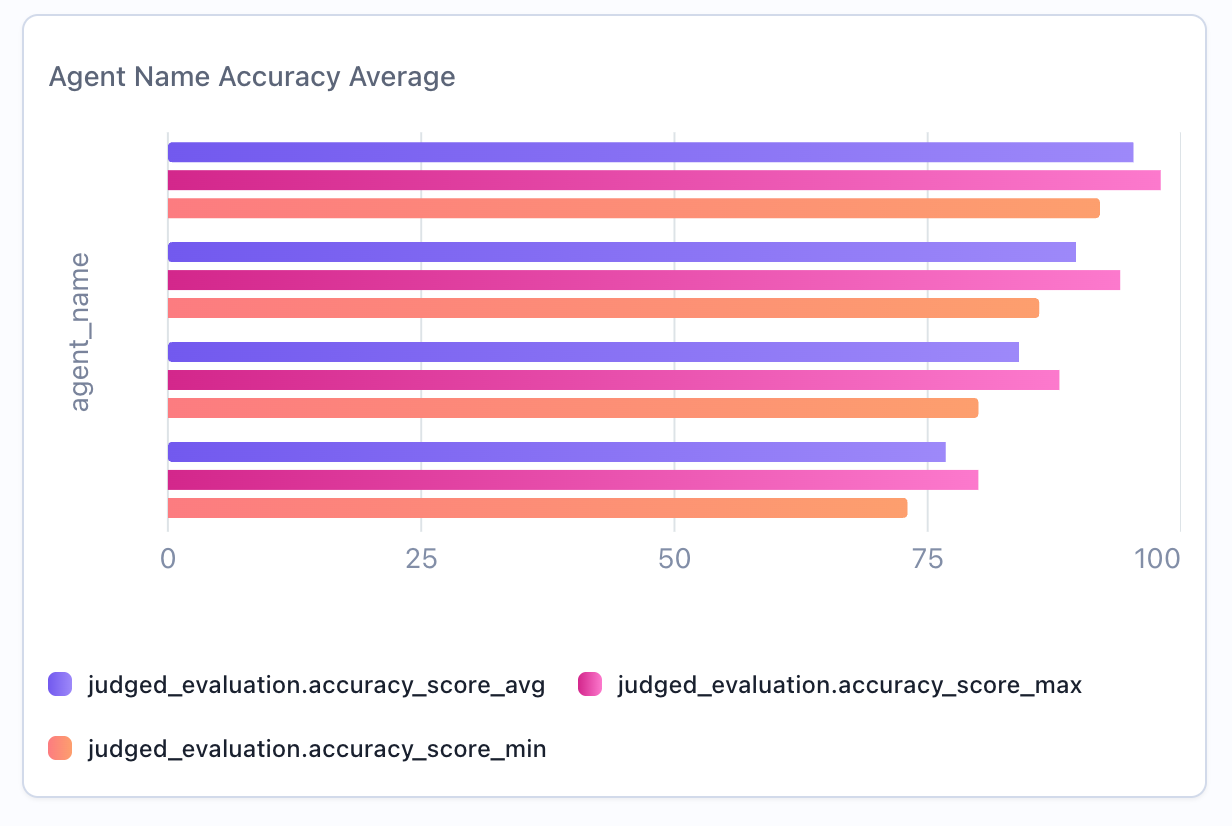
Give your chart a descriptive name (e.g., "Agent Name Accuracy Average")
## When to Use
Use bar chart widgets to:
* Compare values across categories or groups
* Show rankings or relative performance
* Visualize aggregated metrics by dimension
* Make patterns and outliers immediately visible
## Configuration
### Required Fields
Widget display name shown on the dashboard
Must be set to "bar"
SeriesQuery with `GROUP BY` for categorical breakdown
### X-Axis Configuration (One Required)
You must provide **either** `x_column` **or** `x_column_group`, but not both:
Single column name to use for x-axis categories. Use for simple bar charts grouping by one dimension.
**Example:** `"agent_name"` - creates bars for each agent
Array of column names for multi-dimensional grouping. Use for complex bar charts that group by multiple dimensions.
**Example:** `["agent_name", "task_type"]` - creates grouped bars combining agent and task type
### Optional Config Fields
Controls whether multiple series are stacked or displayed side-by-side.
* `true` (default): Stack bars on top of each other (useful for showing totals)
* `false`: Display bars side-by-side (better for comparing individual values)
When `true`, each bar's value is rendered directly on the chart so you don't have to hover to read it.
Value labels apply to single-series charts only (charts with one aggregation). They are ignored on multi-series charts, which use a legend instead.
### Query Requirements
Bar chart widgets require a **SeriesQuery** with:
* `groupBy` for categorical breakdown (required)
* Should have at least one aggregation for y-axis values
* Can include `filter` for row filtering
## Creating in the UI
From your dashboard, click "Add Widget" and select "Bar Chart"
Give your chart a descriptive name (e.g., "Agent Name Accuracy Average")
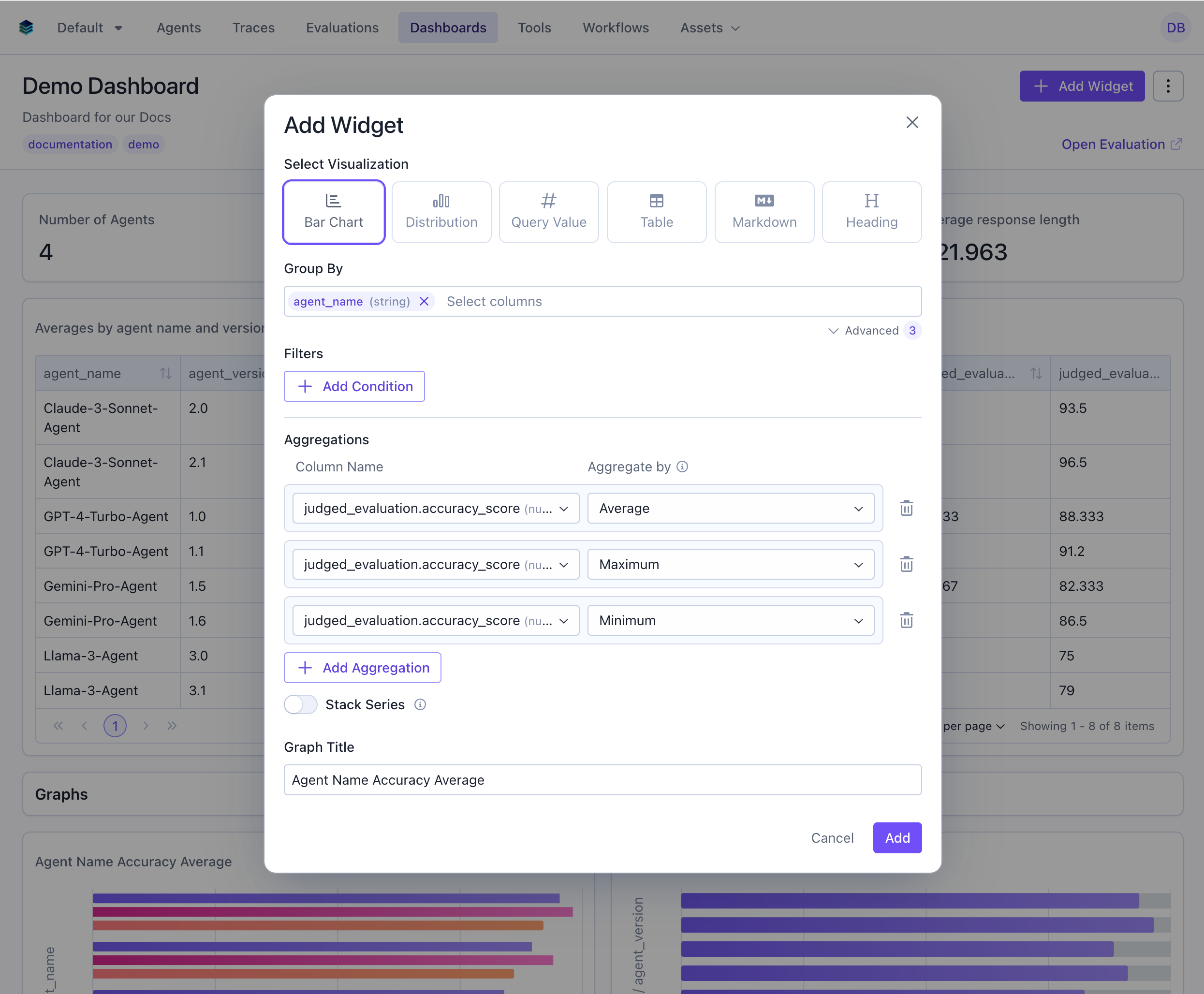 * **Group By**: Select the categorical dimension - these will be the bars on the y-axis
* **Aggregation**: Choose the metric to visualize (`AVG`, `SUM`, `COUNT`)
* **Filter**: Add conditions to narrow the data (optional)
For single-series charts, toggle **Show values on bars** to render each bar's value directly on the chart. This sets `config.show_value_labels`.
Click "Add" to generate the bar chart
* **Group By**: Select the categorical dimension - these will be the bars on the y-axis
* **Aggregation**: Choose the metric to visualize (`AVG`, `SUM`, `COUNT`)
* **Filter**: Add conditions to narrow the data (optional)
For single-series charts, toggle **Show values on bars** to render each bar's value directly on the chart. This sets `config.show_value_labels`.
Click "Add" to generate the bar chart
 ## Output Format
Bar chart widgets use the same series format as tables:
```json theme={null}
{
"type": "series",
"data": [
{"category": "Quality", "avg_score": 0.89},
{"category": "Accuracy", "avg_score": 0.85},
{"category": "Helpfulness", "avg_score": 0.91}
]
}
```
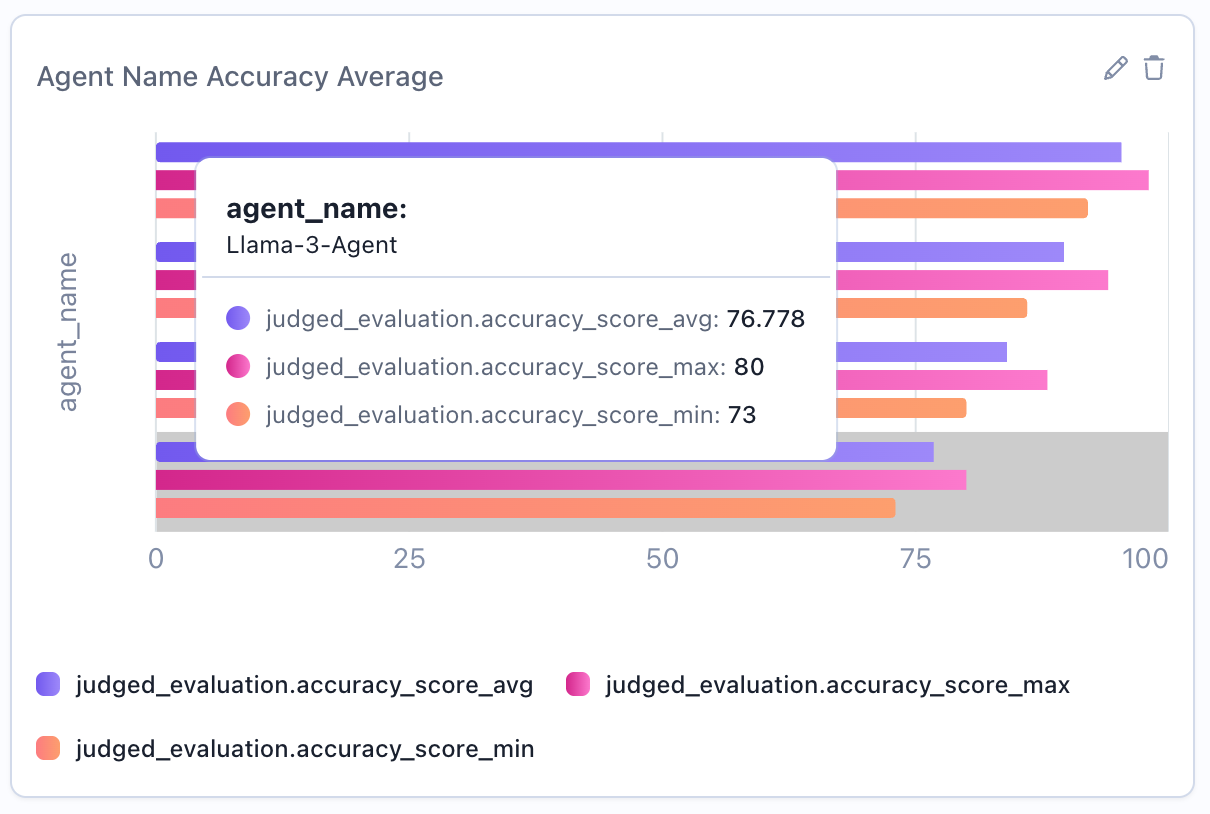
The chart renders each object as a bar.
## Example Use Cases
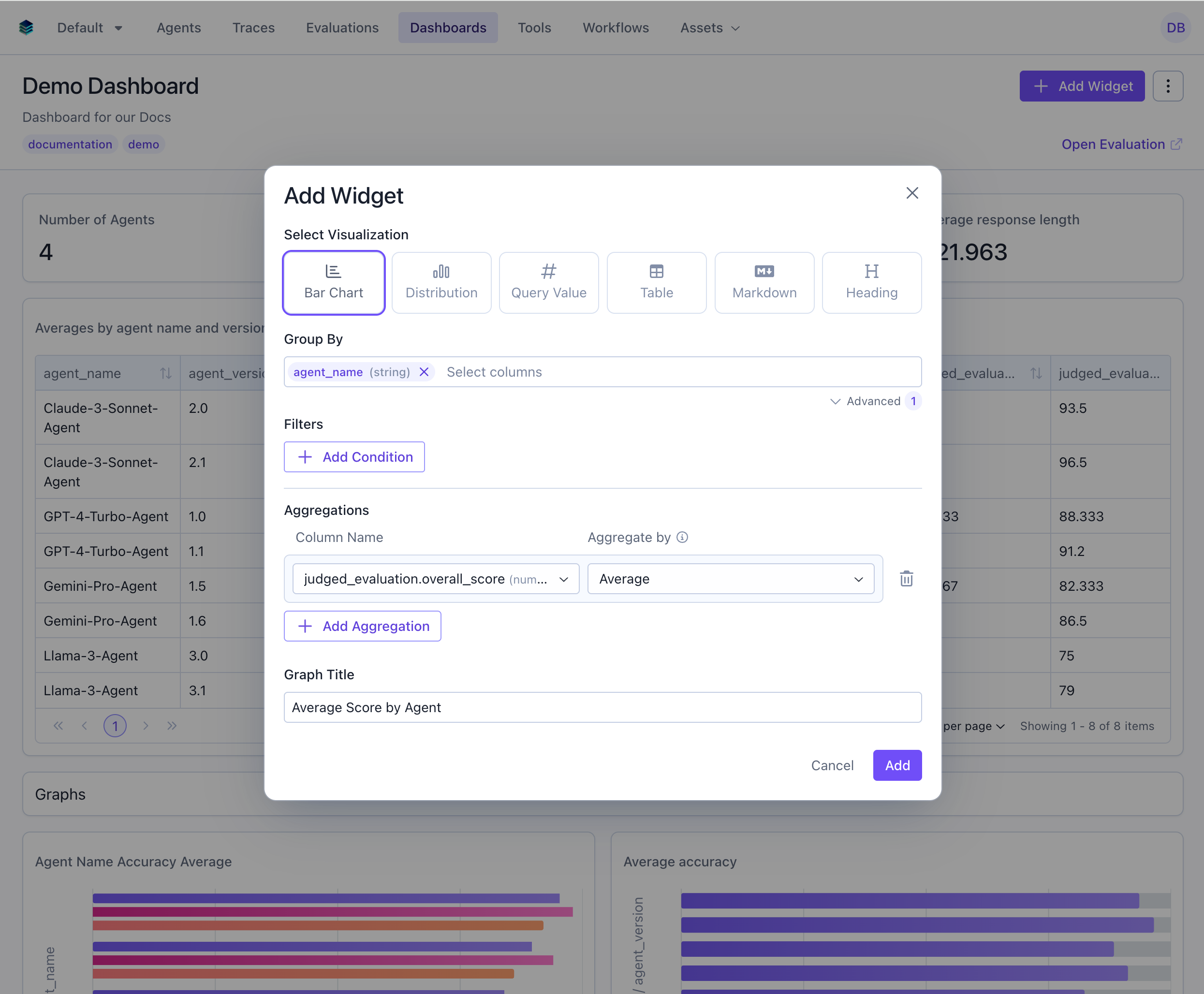
### Use Case 1: Average Score by Agent
Compare performance across different agents.
## Output Format
Bar chart widgets use the same series format as tables:
```json theme={null}
{
"type": "series",
"data": [
{"category": "Quality", "avg_score": 0.89},
{"category": "Accuracy", "avg_score": 0.85},
{"category": "Helpfulness", "avg_score": 0.91}
]
}
```
The chart renders each object as a bar.
## Example Use Cases
### Use Case 1: Average Score by Agent
Compare performance across different agents.
 ```python Python theme={null}
widget = client.evaluation_dashboards.widgets.create(
dashboard_id=dashboard.id,
title="Average Score by Agent",
type="bar",
query={
"select": [
{
"expression": {
"type": "COLUMN",
"column": "agent_name",
"source": "data"
}
},
{
"expression": {
"type": "AGGREGATION",
"function": "AVG",
"column": "overall_score",
"source": "data"
}
}
],
"groupBy": ["agent_name"]
},
config={
"x_column": "agent_name"
}
)
```
```json JSON theme={null}
{
"title": "Average Score by Agent",
"type": "bar",
"query": {
"select": [
{"expression": {"type": "COLUMN", "column": "agent_name", "source": "data"}},
{"expression": {"type": "AGGREGATION", "function": "AVG", "column": "overall_score", "source": "data"}}
],
"groupBy": ["agent_name"]
},
"config": {
"x_column": "agent_name"
}
}
```
***
### Use Case 2: Evaluation Count by Task Type
Show which task types have the most evaluations.
```python Python theme={null}
widget = client.evaluation_dashboards.widgets.create(
dashboard_id=dashboard.id,
title="Average Score by Agent",
type="bar",
query={
"select": [
{
"expression": {
"type": "COLUMN",
"column": "agent_name",
"source": "data"
}
},
{
"expression": {
"type": "AGGREGATION",
"function": "AVG",
"column": "overall_score",
"source": "data"
}
}
],
"groupBy": ["agent_name"]
},
config={
"x_column": "agent_name"
}
)
```
```json JSON theme={null}
{
"title": "Average Score by Agent",
"type": "bar",
"query": {
"select": [
{"expression": {"type": "COLUMN", "column": "agent_name", "source": "data"}},
{"expression": {"type": "AGGREGATION", "function": "AVG", "column": "overall_score", "source": "data"}}
],
"groupBy": ["agent_name"]
},
"config": {
"x_column": "agent_name"
}
}
```
***
### Use Case 2: Evaluation Count by Task Type
Show which task types have the most evaluations.
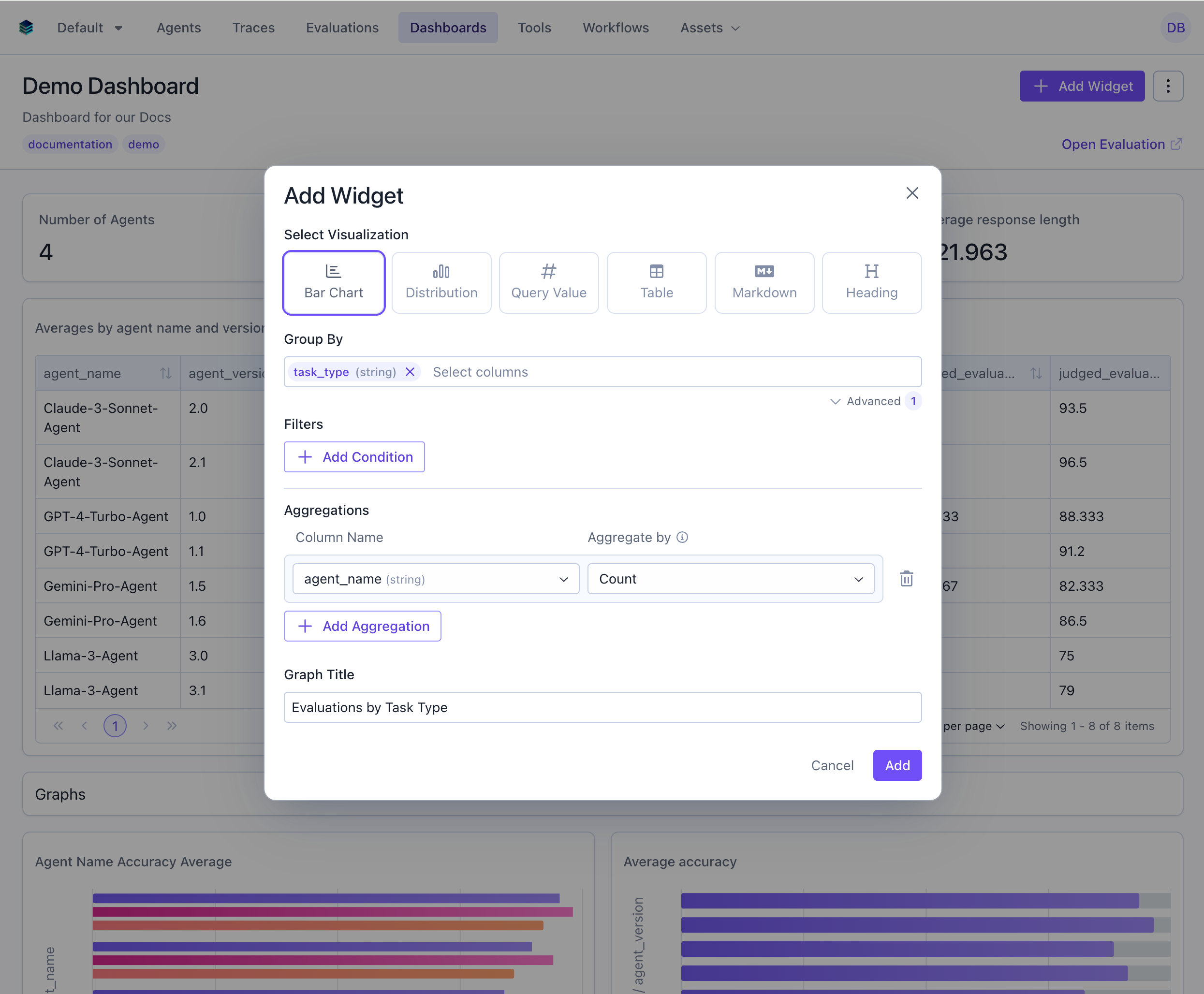 ```python Python theme={null}
widget = client.evaluation_dashboards.widgets.create(
dashboard_id=dashboard.id,
title="Evaluations by Task Type",
type="bar",
query={
"select": [
{"expression": {"type": "COLUMN", "column": "task_type", "source": "data"}},
{"expression": {"type": "AGGREGATION", "function": "COUNT", "column": "*"}}
],
"groupBy": ["task_type"]
},
config={"x_column": "task_type"}
)
```
```json JSON theme={null}
{
"title": "Evaluations by Task Type",
"type": "bar",
"query": {
"select": [
{"expression": {"type": "COLUMN", "column": "task_type", "source": "data"}},
{"expression": {"type": "AGGREGATION", "function": "COUNT", "column": "*"}}
],
"groupBy": ["task_type"]
},
"config": {
"x_column": "task_type"
}
}
```
***
### Use Case 3: High Performance Rate by Agent
Visualize percentage of evaluations scoring 85+ across agents.
```python Python theme={null}
widget = client.evaluation_dashboards.widgets.create(
dashboard_id=dashboard.id,
title="Evaluations by Task Type",
type="bar",
query={
"select": [
{"expression": {"type": "COLUMN", "column": "task_type", "source": "data"}},
{"expression": {"type": "AGGREGATION", "function": "COUNT", "column": "*"}}
],
"groupBy": ["task_type"]
},
config={"x_column": "task_type"}
)
```
```json JSON theme={null}
{
"title": "Evaluations by Task Type",
"type": "bar",
"query": {
"select": [
{"expression": {"type": "COLUMN", "column": "task_type", "source": "data"}},
{"expression": {"type": "AGGREGATION", "function": "COUNT", "column": "*"}}
],
"groupBy": ["task_type"]
},
"config": {
"x_column": "task_type"
}
}
```
***
### Use Case 3: High Performance Rate by Agent
Visualize percentage of evaluations scoring 85+ across agents.
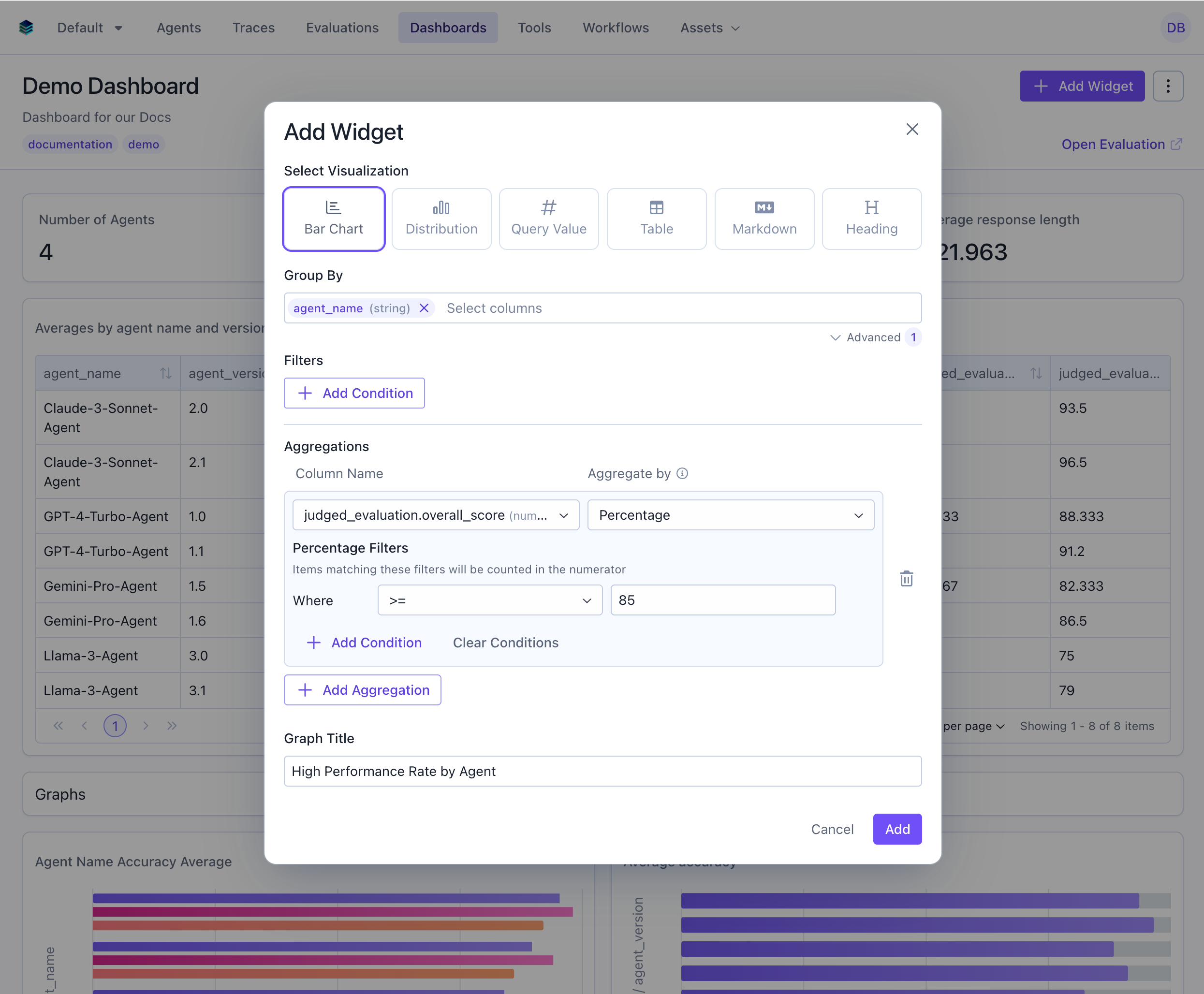 ```python Python theme={null}
widget = client.evaluation_dashboards.widgets.create(
dashboard_id=dashboard.id,
title="High Performance Rate by Agent",
type="bar",
query={
"select": [
{"expression": {"type": "COLUMN", "column": "agent_name", "source": "data"}},
{
"expression": {
"type": "AGGREGATION",
"function": "PERCENTAGE",
"column": "overall_score",
"params": {
"percentage_filters": {
"conditions": [{
"column": "overall_score",
"source": "data",
"operator": ">=",
"value": 85
}]
}
}
}
}
],
"groupBy": ["agent_name"]
},
config={"x_column": "agent_name"}
)
```
```json JSON theme={null}
{
"title": "High Performance Rate by Agent",
"type": "bar",
"query": {
"select": [
{"expression": {"type": "COLUMN", "column": "agent_name", "source": "data"}},
{
"expression": {
"type": "AGGREGATION",
"function": "PERCENTAGE",
"column": "overall_score",
"params": {
"percentage_filters": {
"conditions": [{
"column": "overall_score",
"source": "data",
"operator": ">=",
"value": 85
}]
}
}
}
}
],
"groupBy": ["agent_name"]
},
"config": {
"x_column": "agent_name"
}
}
```
***
### Use Case 4: Multi-Dimensional Grouping with x\_column\_group
Group by multiple dimensions to create side-by-side bar comparisons. This example shows average scores grouped by both agent and task type.
```python Python theme={null}
widget = client.evaluation_dashboards.widgets.create(
dashboard_id=dashboard.id,
title="High Performance Rate by Agent",
type="bar",
query={
"select": [
{"expression": {"type": "COLUMN", "column": "agent_name", "source": "data"}},
{
"expression": {
"type": "AGGREGATION",
"function": "PERCENTAGE",
"column": "overall_score",
"params": {
"percentage_filters": {
"conditions": [{
"column": "overall_score",
"source": "data",
"operator": ">=",
"value": 85
}]
}
}
}
}
],
"groupBy": ["agent_name"]
},
config={"x_column": "agent_name"}
)
```
```json JSON theme={null}
{
"title": "High Performance Rate by Agent",
"type": "bar",
"query": {
"select": [
{"expression": {"type": "COLUMN", "column": "agent_name", "source": "data"}},
{
"expression": {
"type": "AGGREGATION",
"function": "PERCENTAGE",
"column": "overall_score",
"params": {
"percentage_filters": {
"conditions": [{
"column": "overall_score",
"source": "data",
"operator": ">=",
"value": 85
}]
}
}
}
}
],
"groupBy": ["agent_name"]
},
"config": {
"x_column": "agent_name"
}
}
```
***
### Use Case 4: Multi-Dimensional Grouping with x\_column\_group
Group by multiple dimensions to create side-by-side bar comparisons. This example shows average scores grouped by both agent and task type.
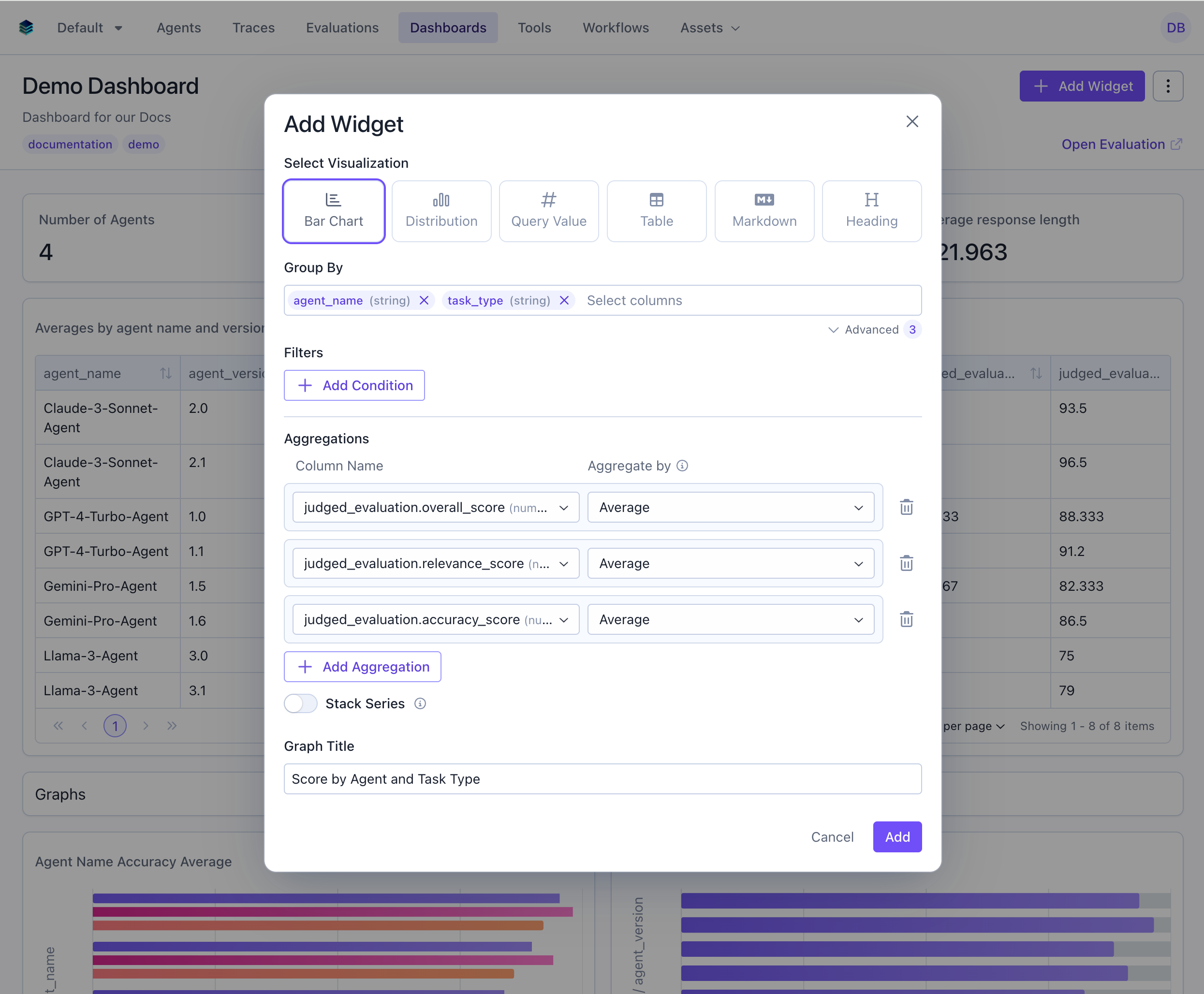 ```python Python theme={null}
widget = client.evaluation_dashboards.widgets.create(
dashboard_id=dashboard.id,
title="Score by Agent and Task Type",
type="bar",
query={
"select": [
{"expression": {"type": "COLUMN", "column": "agent_name", "source": "data"}},
{"expression": {"type": "COLUMN", "column": "task_type", "source": "data"}},
{
"expression": {
"type": "AGGREGATION",
"function": "AVG",
"column": "overall_score",
"source": "data"
}
},
{
"expression": {
"type": "AGGREGATION",
"function": "AVG",
"column": "relevance_score",
"source": "data"
}
},
{
"expression": {
"type": "AGGREGATION",
"function": "AVG",
"column": "accuracy_score",
"source": "data"
}
}
],
"groupBy": ["agent_name", "task_type"]
},
config={
"x_column_group": ["agent_name", "task_type"],
"stacked": False # Display side-by-side for easier comparison
}
)
```
```json JSON theme={null}
{
"title": "Score by Agent and Task Type",
"type": "bar",
"query": {
"select": [
{"expression": {"type": "COLUMN", "column": "agent_name", "source": "data"}},
{"expression": {"type": "COLUMN", "column": "task_type", "source": "data"}},
{"expression": {"type": "AGGREGATION", "function": "AVG", "column": "overall_score", "source": "data"}}
{"expression": {"type": "AGGREGATION", "function": "AVG", "column": "relevance_score", "source": "data"}},
{"expression": {"type": "AGGREGATION", "function": "AVG", "column": "accuracy_score", "source": "data"}}
],
"groupBy": ["agent_name", "task_type"]
},
"config": {
"x_column_group": ["agent_name", "task_type"],
"stacked": false
}
}
```
## Stacked vs Unstacked Series
When you have multiple series (e.g., multiple aggregations or groupings), you can control how they're displayed:
### Stacked Bars (Default)
```python Python theme={null}
widget = client.evaluation_dashboards.widgets.create(
dashboard_id=dashboard.id,
title="Score by Agent and Task Type",
type="bar",
query={
"select": [
{"expression": {"type": "COLUMN", "column": "agent_name", "source": "data"}},
{"expression": {"type": "COLUMN", "column": "task_type", "source": "data"}},
{
"expression": {
"type": "AGGREGATION",
"function": "AVG",
"column": "overall_score",
"source": "data"
}
},
{
"expression": {
"type": "AGGREGATION",
"function": "AVG",
"column": "relevance_score",
"source": "data"
}
},
{
"expression": {
"type": "AGGREGATION",
"function": "AVG",
"column": "accuracy_score",
"source": "data"
}
}
],
"groupBy": ["agent_name", "task_type"]
},
config={
"x_column_group": ["agent_name", "task_type"],
"stacked": False # Display side-by-side for easier comparison
}
)
```
```json JSON theme={null}
{
"title": "Score by Agent and Task Type",
"type": "bar",
"query": {
"select": [
{"expression": {"type": "COLUMN", "column": "agent_name", "source": "data"}},
{"expression": {"type": "COLUMN", "column": "task_type", "source": "data"}},
{"expression": {"type": "AGGREGATION", "function": "AVG", "column": "overall_score", "source": "data"}}
{"expression": {"type": "AGGREGATION", "function": "AVG", "column": "relevance_score", "source": "data"}},
{"expression": {"type": "AGGREGATION", "function": "AVG", "column": "accuracy_score", "source": "data"}}
],
"groupBy": ["agent_name", "task_type"]
},
"config": {
"x_column_group": ["agent_name", "task_type"],
"stacked": false
}
}
```
## Stacked vs Unstacked Series
When you have multiple series (e.g., multiple aggregations or groupings), you can control how they're displayed:
### Stacked Bars (Default)
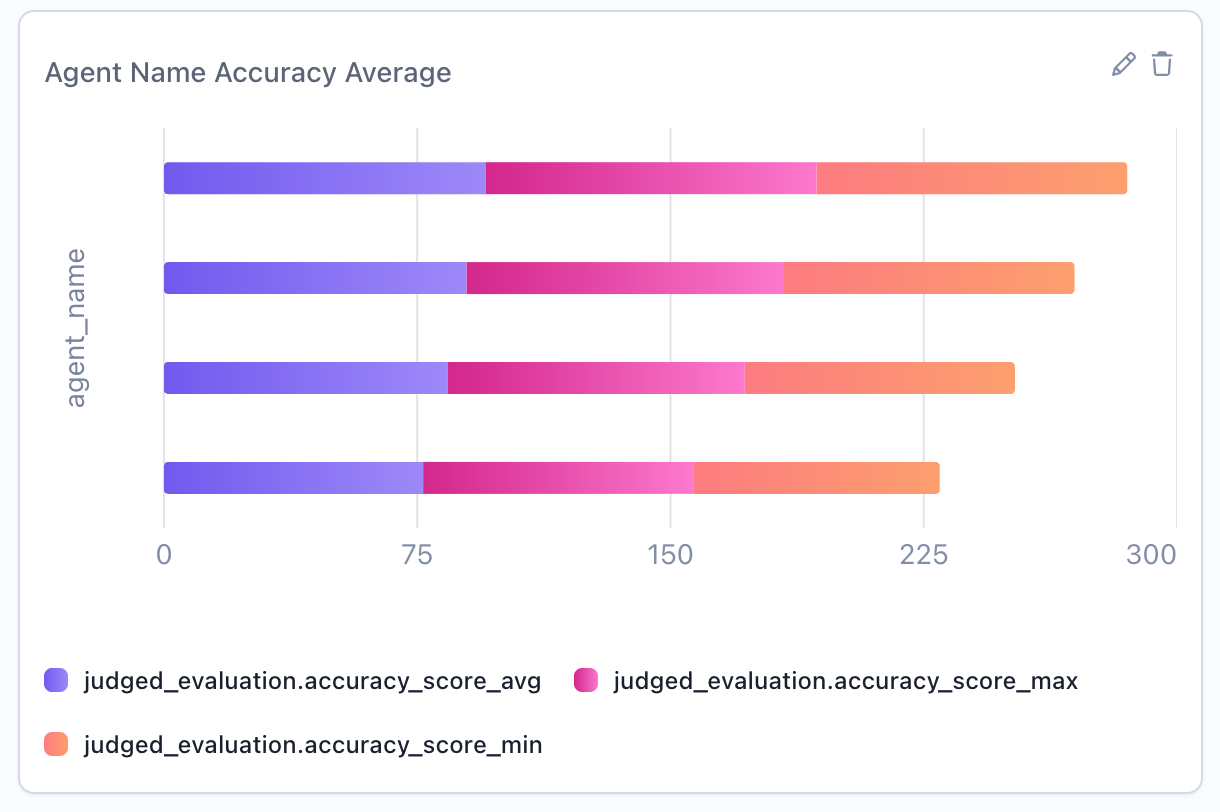 Bars are stacked vertically, showing cumulative totals. Best for:
* Showing part-to-whole relationships
* Comparing total values across categories
* Visualizing composition over categories
```python theme={null}
config={"x_column": "agent_name", "stacked": True} # Default
```
### Unstacked Bars (Side-by-Side)
Bars are displayed side-by-side, making individual values easier to compare. Best for:
* Comparing individual series values directly
* When exact values matter more than totals
* Multi-dimensional analysis (e.g., agent + task type)
```python theme={null}
config={"x_column": "agent_name", "stacked": False}
```
## Display Behavior
Bar charts apply the following formatting automatically. These behaviors are built into the rendering, so there are no extra config fields to set.
### Category labels
Category labels are shown next to each bar by default, so you can read values without hovering. Long labels are truncated to fit, and hovering a truncated label reveals its full text in a tooltip.
### Per-category colors
When a chart has a single series and more than one category (for example, an `AVG` grouped by `agent_name`), each bar is given a distinct color from a rotating palette. This makes individual categories easier to tell apart when there are many bars. Charts with multiple series keep one consistent color per series instead, so the series stay comparable across categories.
### Humanized column names
Raw column names are converted to readable Title Case in axis labels, the legend, and tooltips (for example, `experiment_param_value` becomes "Experiment Param Value" and `avgScore` becomes "Avg Score"). Aliases that already contain spaces are shown unchanged, so you can override the displayed text by aliasing a column in your query.
## Related Documentation
* [Table Widget](./table) - Tabular alternative with more detail
* [Histogram Widget](./histogram) - For numerical distributions
* [Query Language](../query-language) - `GROUP BY` and aggregation syntax
* [API Reference](/reference/v5/evaluation-dashboards) - Programmatic chart creation
Bars are stacked vertically, showing cumulative totals. Best for:
* Showing part-to-whole relationships
* Comparing total values across categories
* Visualizing composition over categories
```python theme={null}
config={"x_column": "agent_name", "stacked": True} # Default
```
### Unstacked Bars (Side-by-Side)
Bars are displayed side-by-side, making individual values easier to compare. Best for:
* Comparing individual series values directly
* When exact values matter more than totals
* Multi-dimensional analysis (e.g., agent + task type)
```python theme={null}
config={"x_column": "agent_name", "stacked": False}
```
## Display Behavior
Bar charts apply the following formatting automatically. These behaviors are built into the rendering, so there are no extra config fields to set.
### Category labels
Category labels are shown next to each bar by default, so you can read values without hovering. Long labels are truncated to fit, and hovering a truncated label reveals its full text in a tooltip.
### Per-category colors
When a chart has a single series and more than one category (for example, an `AVG` grouped by `agent_name`), each bar is given a distinct color from a rotating palette. This makes individual categories easier to tell apart when there are many bars. Charts with multiple series keep one consistent color per series instead, so the series stay comparable across categories.
### Humanized column names
Raw column names are converted to readable Title Case in axis labels, the legend, and tooltips (for example, `experiment_param_value` becomes "Experiment Param Value" and `avgScore` becomes "Avg Score"). Aliases that already contain spaces are shown unchanged, so you can override the displayed text by aliasing a column in your query.
## Related Documentation
* [Table Widget](./table) - Tabular alternative with more detail
* [Histogram Widget](./histogram) - For numerical distributions
* [Query Language](../query-language) - `GROUP BY` and aggregation syntax
* [API Reference](/reference/v5/evaluation-dashboards) - Programmatic chart creation