> ## Documentation Index
> Fetch the complete documentation index at: https://docs.gp.scale.com/llms.txt
> Use this file to discover all available pages before exploring further.
# Authentication
The next step is to get your API key and account ID, which are needed to make calls to the Scale GP API
and to create, modify resources in the right place.
First navigate to the [SGP Admin](https://app.sgp.scale.com/admin/api-key) and grab your API key.
If you do not have an account provisioned by your organization or Scale, please contact the relevant System
administrator.
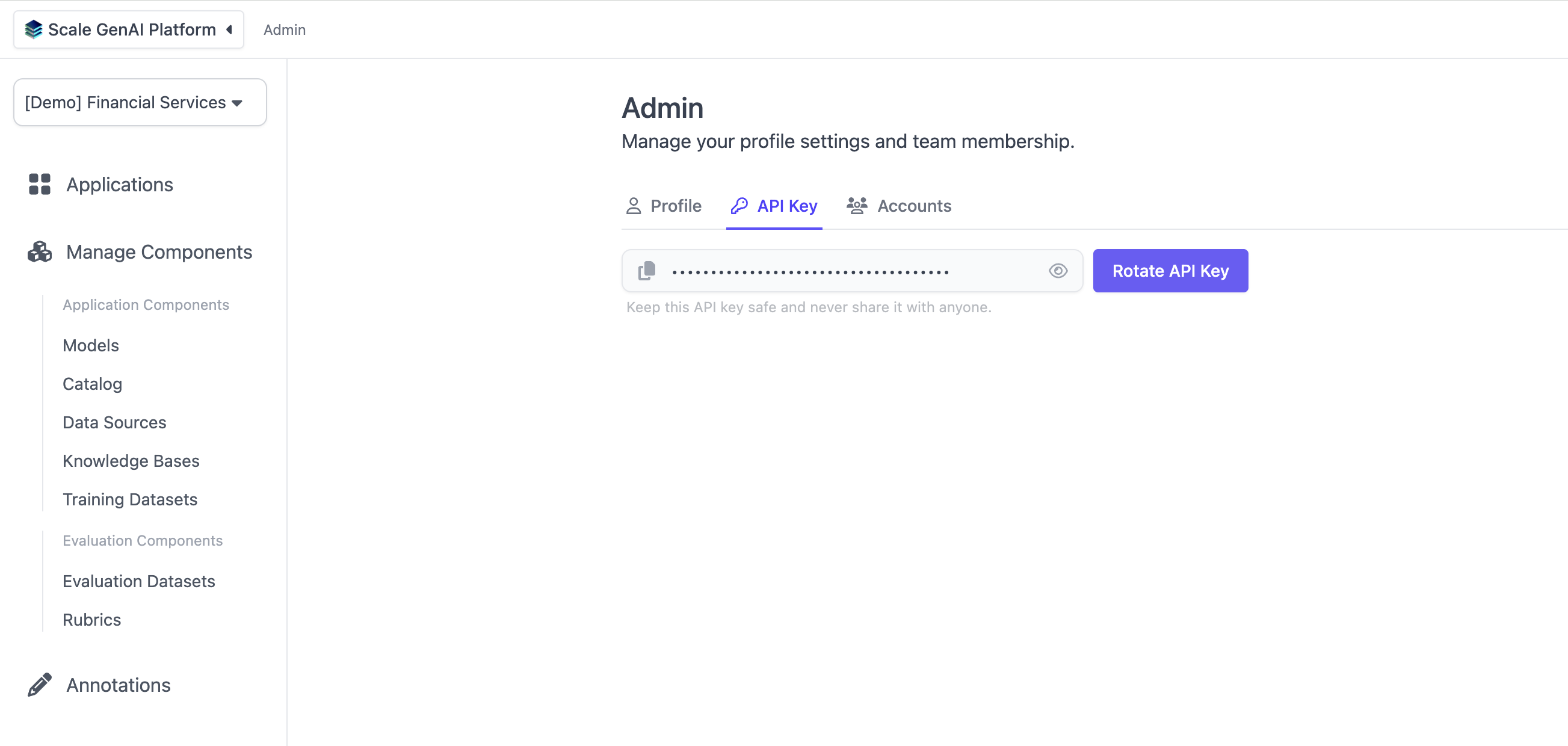 or via the UI by clicking on the "API Keys" tab in the admin dashboard.
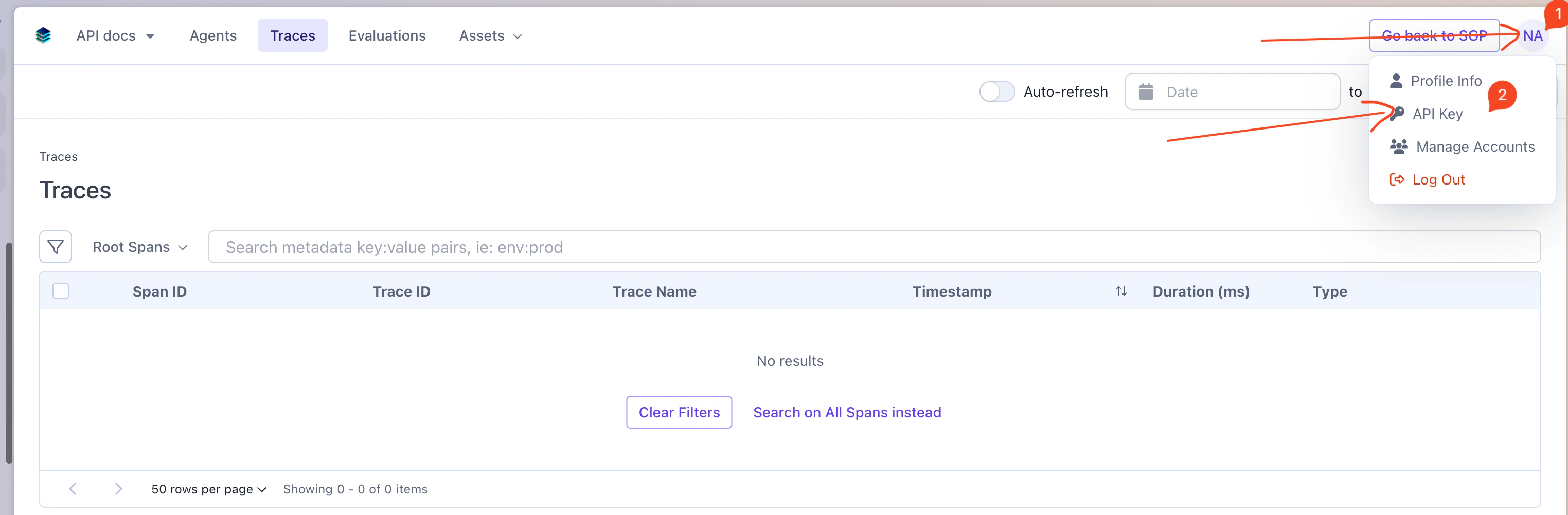 Next, switch to [Accounts](https://app.sgp.scale.com/admin/accounts) and find the account ID for the
account that you want to work with. You can also create a new account. Make sure to copy this ID to use it when
testing your setup.
Next, switch to [Accounts](https://app.sgp.scale.com/admin/accounts) and find the account ID for the
account that you want to work with. You can also create a new account. Make sure to copy this ID to use it when
testing your setup.
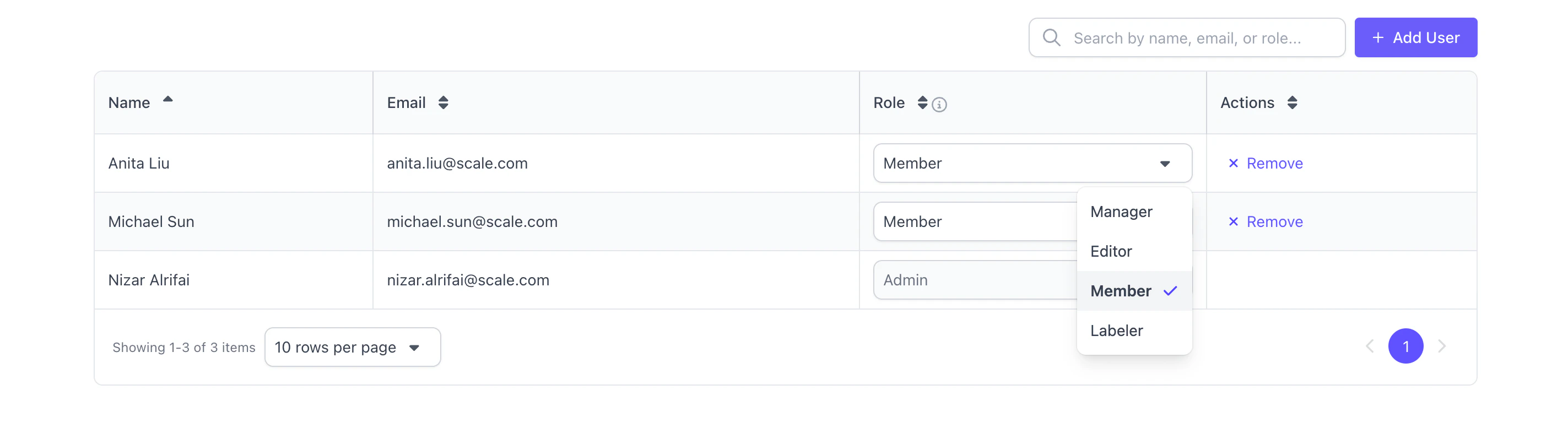
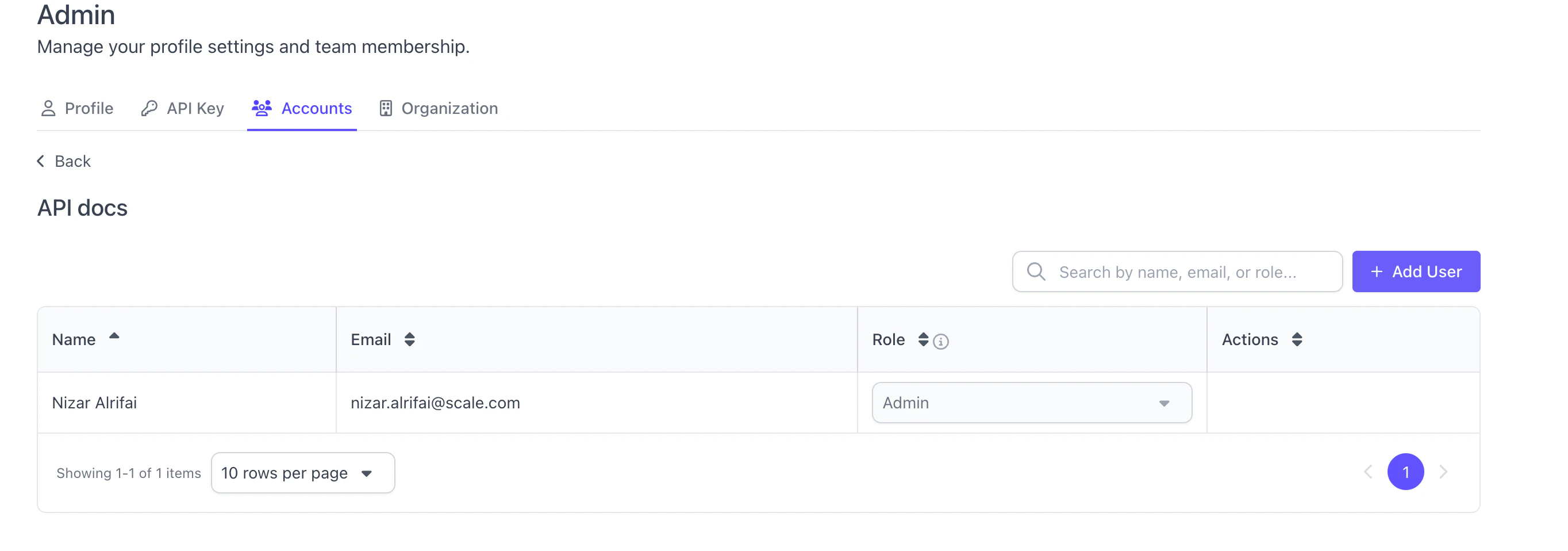 If you have an existing account but want to add Users to it, you can click into the account and add users.
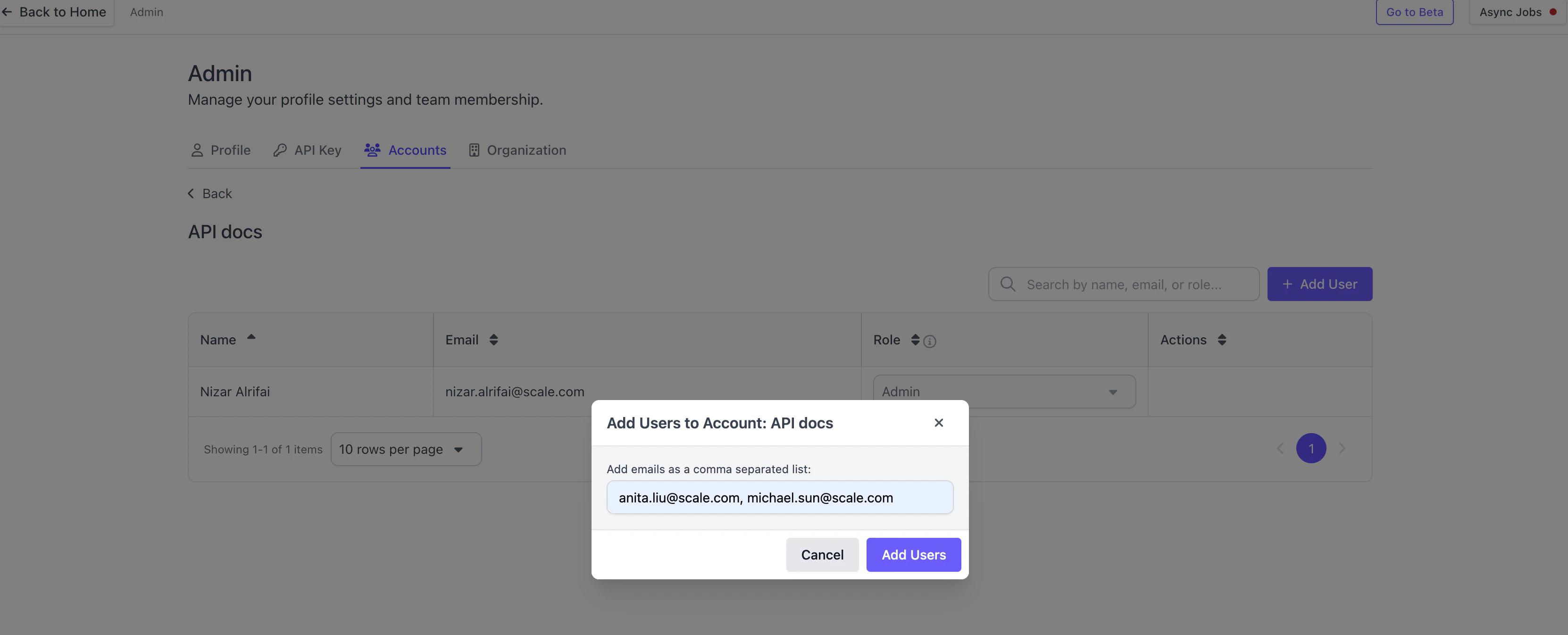 You can also change the role of a user by clicking on the user and changing the role.
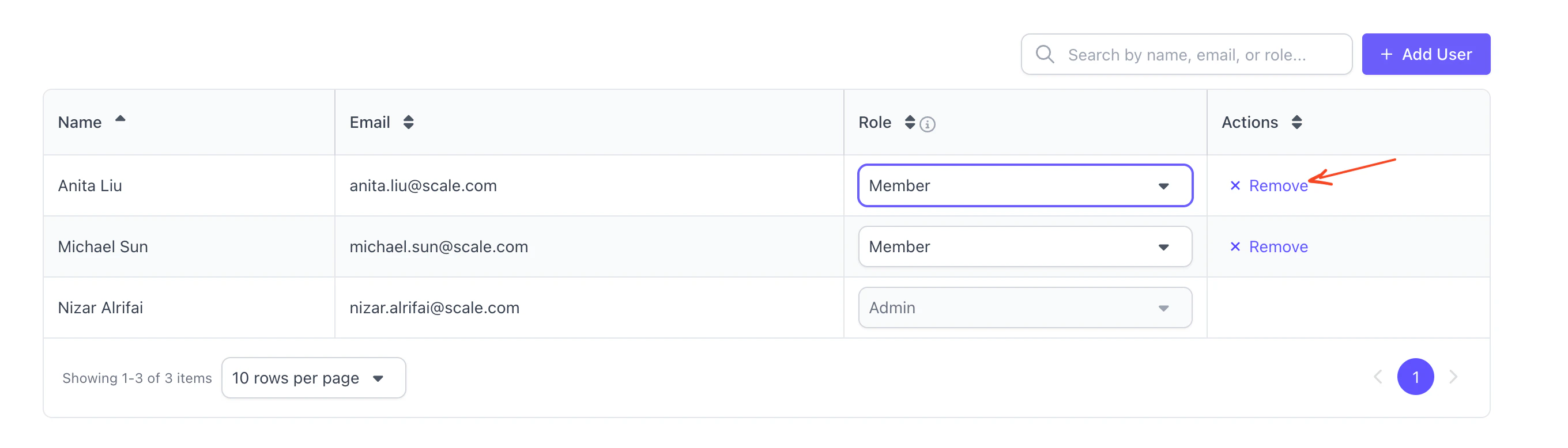
 You can also remove a user by clicking on the remove button in the actions column.
 ## Storing Your Credentials
For security and convenience when using the SDK, it's recommended to store your API key and account ID as environment variables. This prevents accidentally exposing your credentials in code repositories.
```bash macOS/Linux theme={null}
export SGP_API_KEY="your-api-key-here"
export SGP_ACCOUNT_ID="your-account-id-here"
```
```bash Windows (PowerShell) theme={null}
$env:SGP_API_KEY="your-api-key-here"
$env:SGP_ACCOUNT_ID="your-account-id-here"
```
```bash Windows (CMD) theme={null}
set SGP_API_KEY=your-api-key-here
set SGP_ACCOUNT_ID=your-account-id-here
```
The SDK will automatically use the `SGP_API_KEY` and `SGP_ACCOUNT_ID` environment variables if they are set. Otherwise, you can pass them to the `SGPClient` constructor.
```python Python theme={null}
import os
from scale_gp_beta import SGPClient
client = SGPClient(
account_id="your-account-id",
api_key="your-api-key",
)
```
The `SGPClient` constructor accepts the following parameters:
| Parameter | Description | Default |
| ------------- | -------------------------------------------------------------------------------------------------------------------- | ------------------------------------- |
| `account_id` | Your SGP account ID. Found in the [Accounts](https://app.sgp.scale.com/admin/accounts) tab of the admin dashboard. | `SGP_ACCOUNT_ID` environment variable |
| `api_key` | Your SGP API key. Found in the [API Keys](https://app.sgp.scale.com/admin/api-key) tab of the admin dashboard. | `SGP_API_KEY` environment variable |
| `environment` | The SGP environment to connect to. **Possible values:** `production-multitenant`, `staging`, `development`, `local`. | `production-multitenant` |
| `base_url` | Override the base URL with a custom endpoint. Takes precedence over `environment`. | None |
To make the environment variables persist across sessions, add the export commands to your shell configuration file (e.g., `~/.bashrc`, `~/.zshrc`, or `~/.bash_profile`).
## Storing Your Credentials
For security and convenience when using the SDK, it's recommended to store your API key and account ID as environment variables. This prevents accidentally exposing your credentials in code repositories.
```bash macOS/Linux theme={null}
export SGP_API_KEY="your-api-key-here"
export SGP_ACCOUNT_ID="your-account-id-here"
```
```bash Windows (PowerShell) theme={null}
$env:SGP_API_KEY="your-api-key-here"
$env:SGP_ACCOUNT_ID="your-account-id-here"
```
```bash Windows (CMD) theme={null}
set SGP_API_KEY=your-api-key-here
set SGP_ACCOUNT_ID=your-account-id-here
```
The SDK will automatically use the `SGP_API_KEY` and `SGP_ACCOUNT_ID` environment variables if they are set. Otherwise, you can pass them to the `SGPClient` constructor.
```python Python theme={null}
import os
from scale_gp_beta import SGPClient
client = SGPClient(
account_id="your-account-id",
api_key="your-api-key",
)
```
The `SGPClient` constructor accepts the following parameters:
| Parameter | Description | Default |
| ------------- | -------------------------------------------------------------------------------------------------------------------- | ------------------------------------- |
| `account_id` | Your SGP account ID. Found in the [Accounts](https://app.sgp.scale.com/admin/accounts) tab of the admin dashboard. | `SGP_ACCOUNT_ID` environment variable |
| `api_key` | Your SGP API key. Found in the [API Keys](https://app.sgp.scale.com/admin/api-key) tab of the admin dashboard. | `SGP_API_KEY` environment variable |
| `environment` | The SGP environment to connect to. **Possible values:** `production-multitenant`, `staging`, `development`, `local`. | `production-multitenant` |
| `base_url` | Override the base URL with a custom endpoint. Takes precedence over `environment`. | None |
To make the environment variables persist across sessions, add the export commands to your shell configuration file (e.g., `~/.bashrc`, `~/.zshrc`, or `~/.bash_profile`).