> ## Documentation Index
> Fetch the complete documentation index at: https://docs.gp.scale.com/llms.txt
> Use this file to discover all available pages before exploring further.
# Deploying an Agent
> How to deploy and interact with agents in the SGP UI.
#### Recommendation & Future Development
While Agent Service remains supported, **Agentex is the recommended path** for all new projects. Future development, new features, and enhancements will be focused primarily on Agentex.
## Introduction
Agents that are configured with YAML in SGP and are fully executed on the platform's backend. The application logic defined in your YAML configuration determines how the agent processes inputs and produces outputs.
## Live Execution from YAML Editor
As you configure your agent in YAML, you can execute it within SGP's interface to see how it behaves.
The execution output is shown in the right-hand panel, on a per-node basis. This allows you to debug and validate your agent's flow in real time:
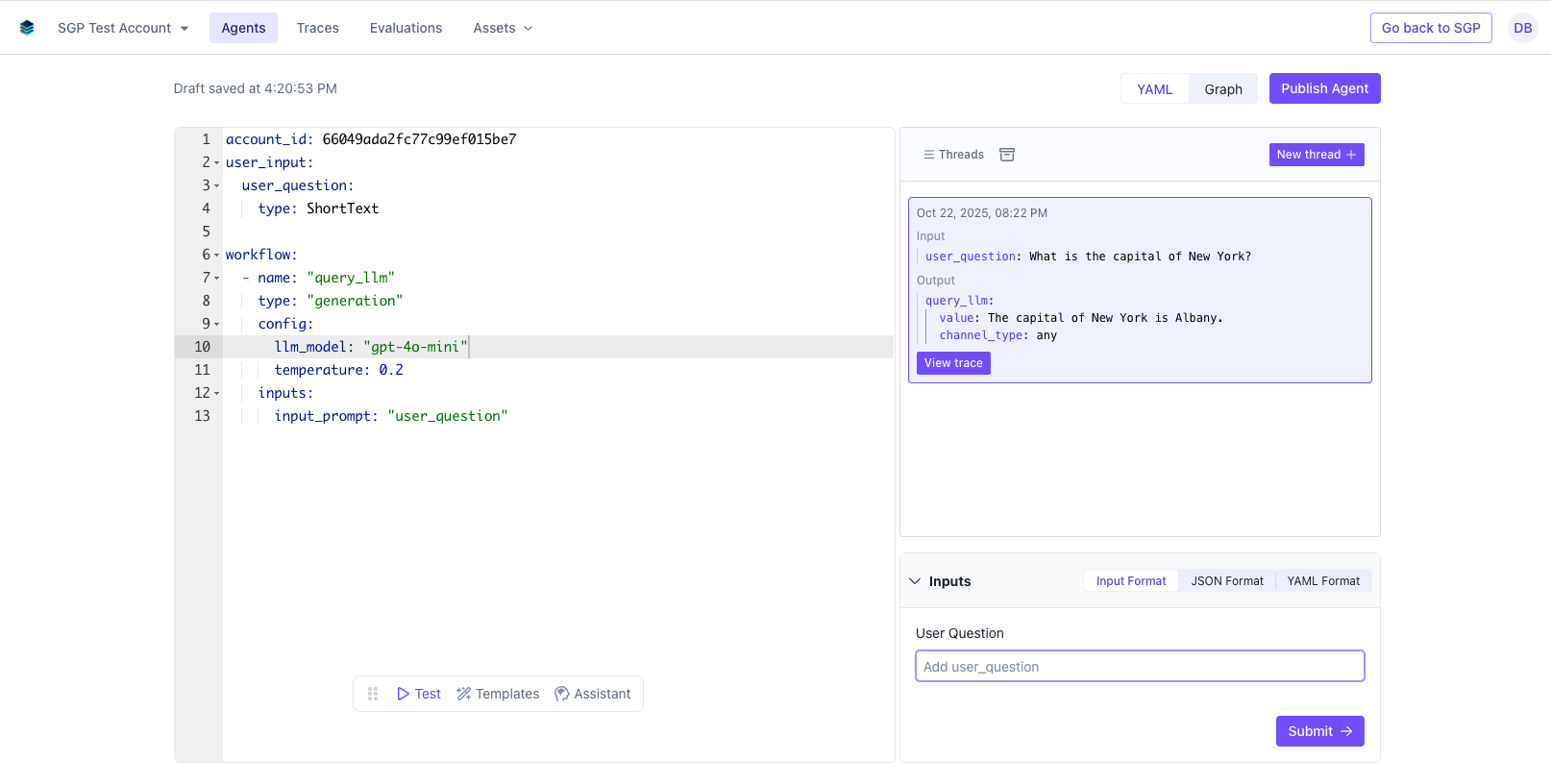 Outputs can be viewed either as raw JSON or in a more readable, formatted display. Toggle between these modes to best understand or debug your agent's responses.
## Providing User Inputs
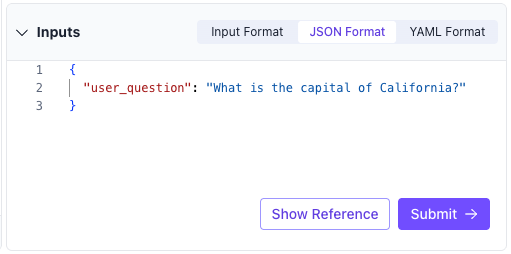
In the Agent Service CI/CD page, you will be prompted to provide inputs that are designated as `user_question` in the YAML config.
```yaml theme={null}
workflow:
- name: query_llm
type: generation
config:
llm_model: gpt-4o-mini
temperature: 0.2
inputs:
input_prompt: user_question
```
These inputs will be rendered in the inputs panel. You can provide them as either raw JSON or fill them in via form fields. If you do not specify user inputs or type them, you will have to use JSON inputs. Hitting submit starts an execution of the agent as a run.
Outputs can be viewed either as raw JSON or in a more readable, formatted display. Toggle between these modes to best understand or debug your agent's responses.
## Providing User Inputs
In the Agent Service CI/CD page, you will be prompted to provide inputs that are designated as `user_question` in the YAML config.
```yaml theme={null}
workflow:
- name: query_llm
type: generation
config:
llm_model: gpt-4o-mini
temperature: 0.2
inputs:
input_prompt: user_question
```
These inputs will be rendered in the inputs panel. You can provide them as either raw JSON or fill them in via form fields. If you do not specify user inputs or type them, you will have to use JSON inputs. Hitting submit starts an execution of the agent as a run.
 ## Deploying an Agent
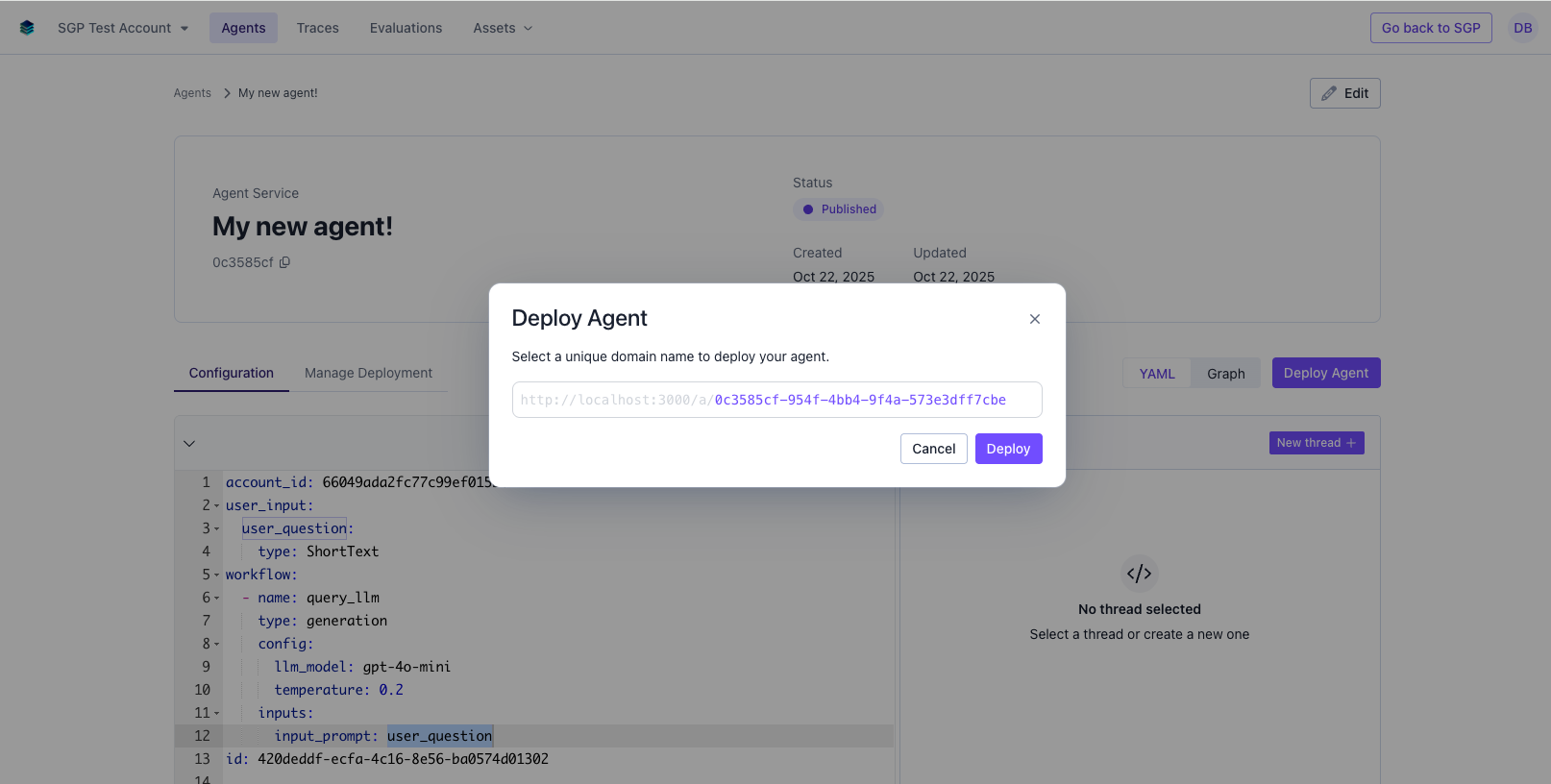
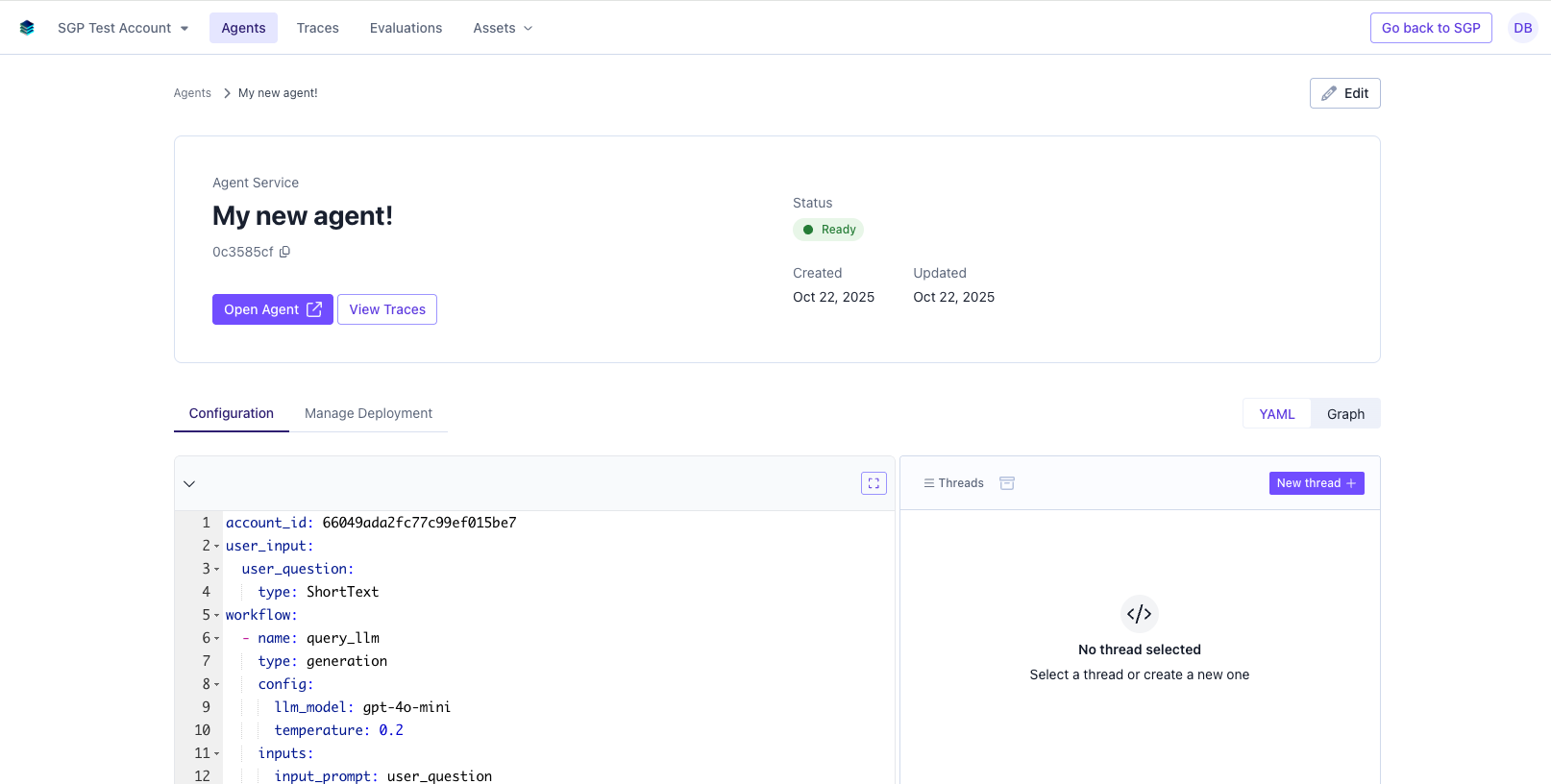
From the Agent Service CI/CD page, click **Deploy Agent**. Then enter a custom slug (a unique identifier) for your url. By default this is set to the agent's id.
Click **Deploy**, which creates a simple web-based chat interface you can access.
## Deploying an Agent
From the Agent Service CI/CD page, click **Deploy Agent**. Then enter a custom slug (a unique identifier) for your url. By default this is set to the agent's id.
Click **Deploy**, which creates a simple web-based chat interface you can access.
 When an agent is deployed, you will see a success message and a link to the deployed agent in the header.
 ## Interacting with a Deployed Agent
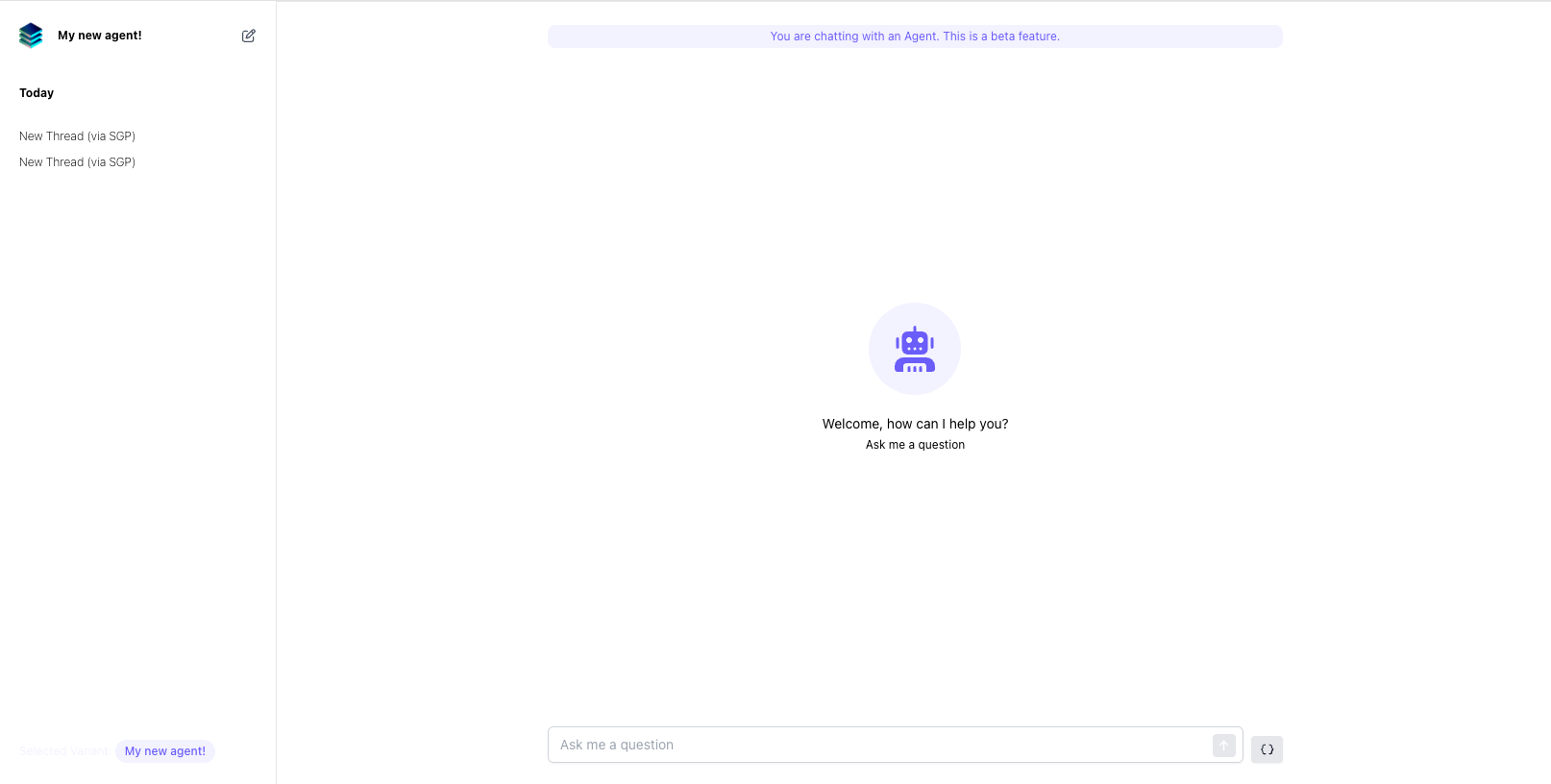
Once deployed, you can visit the web app at the slug you specified. You can chat with the agent in a more intuitive, conversational format. The chat interface supports threads, user feedback, and dynamic inputs (if the agent requires more than one input per turn).
## Interacting with a Deployed Agent
Once deployed, you can visit the web app at the slug you specified. You can chat with the agent in a more intuitive, conversational format. The chat interface supports threads, user feedback, and dynamic inputs (if the agent requires more than one input per turn).
 ## Customizing a Deployed Agent
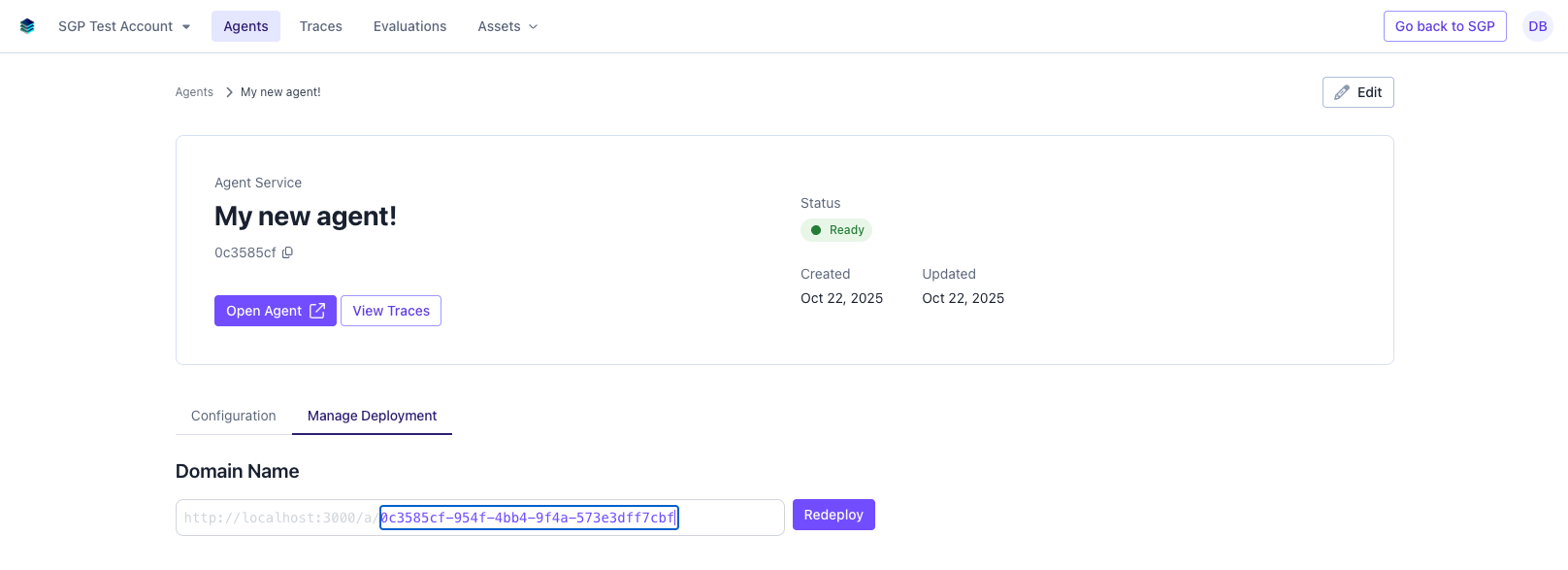
Once an agent is deployed, you can customize it by clicking the **Manage Deployment** tab. From there you can:
* Change the slug (URL) of the deployed agent
* Change the theme of the deployed agent
* Change the evaluation settings of the deployed agent
### Changing the slug
To change the slug of the deployed agent, simply enter a new slug in the input field and click **Redeploy**.
## Customizing a Deployed Agent
Once an agent is deployed, you can customize it by clicking the **Manage Deployment** tab. From there you can:
* Change the slug (URL) of the deployed agent
* Change the theme of the deployed agent
* Change the evaluation settings of the deployed agent
### Changing the slug
To change the slug of the deployed agent, simply enter a new slug in the input field and click **Redeploy**.
 ### Changing the theme
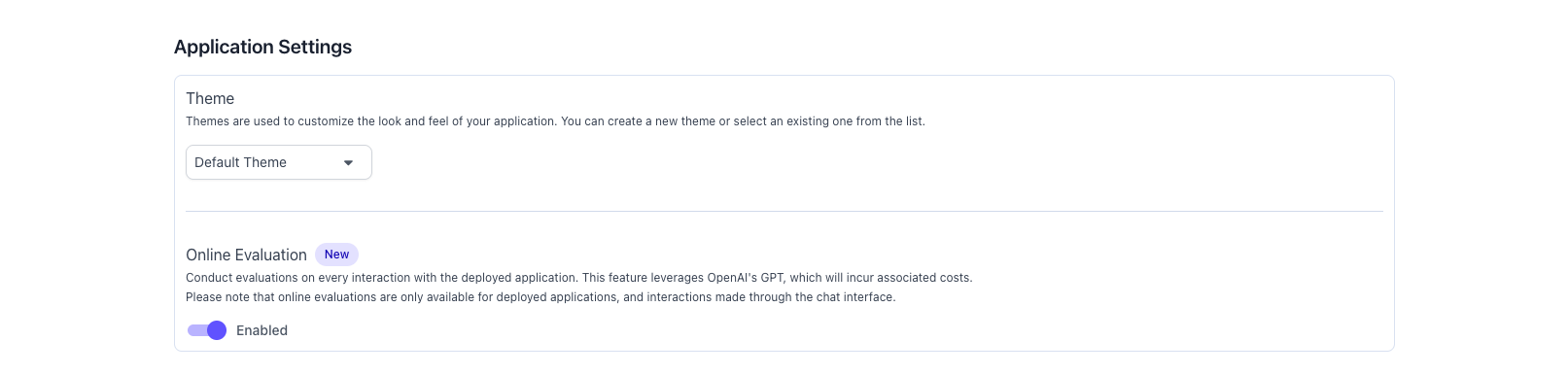
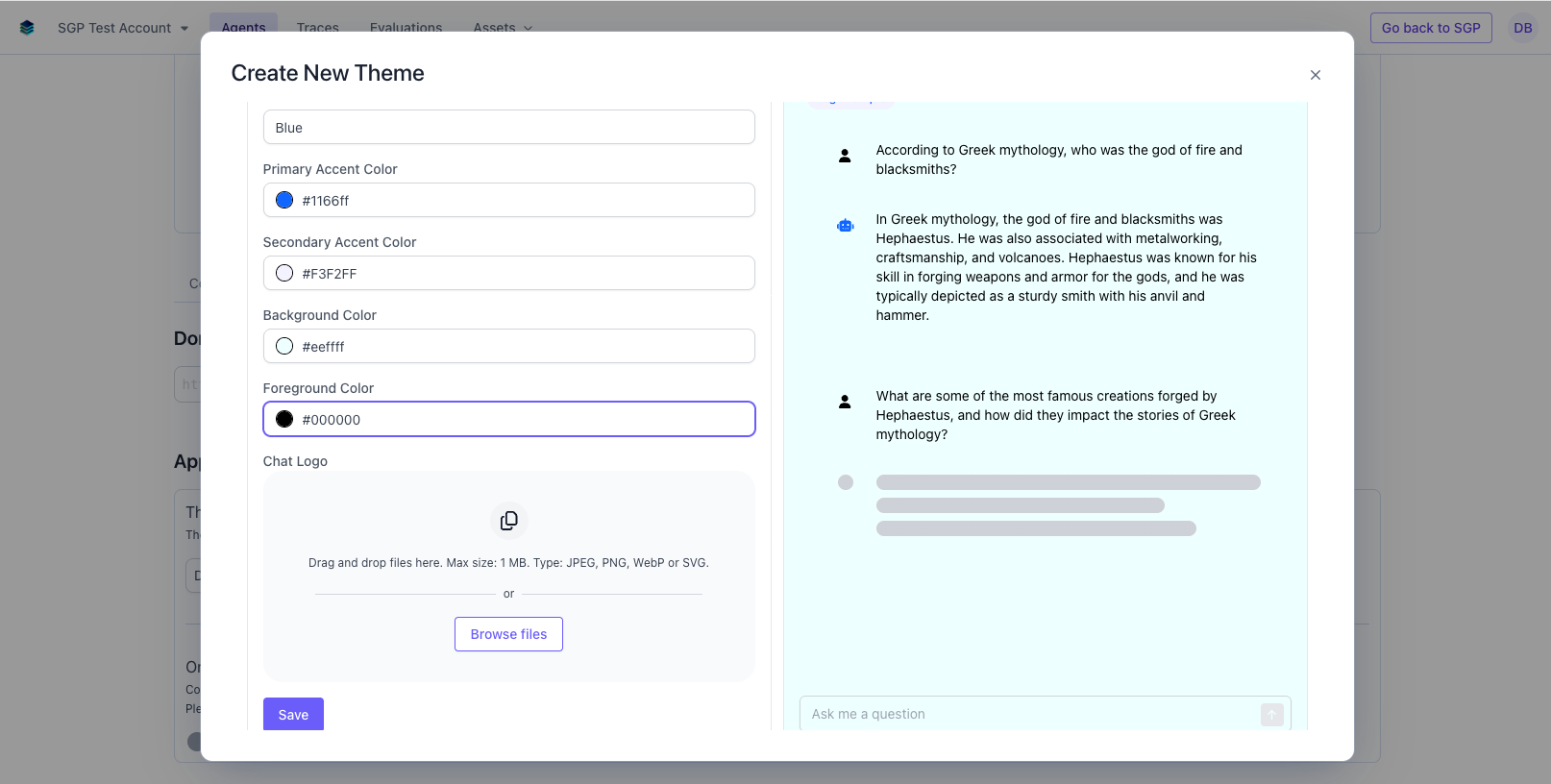
To change the theme of the deployed agent, simply select a new theme from the dropdown. This will apply the theme to the deployed agent without having to redeploy.
You can also create a new theme by clicking **Create New Theme** in the dropdown. This will open the theme editor, where you can customize the theme to your liking.
### Changing the theme
To change the theme of the deployed agent, simply select a new theme from the dropdown. This will apply the theme to the deployed agent without having to redeploy.
You can also create a new theme by clicking **Create New Theme** in the dropdown. This will open the theme editor, where you can customize the theme to your liking.
 ### Changing the evaluation settings
You can enable or disable continuous evaluation for your agent by toggling the **Online Evaluation** switch.
### Changing the evaluation settings
You can enable or disable continuous evaluation for your agent by toggling the **Online Evaluation** switch.