> ## Documentation Index
> Fetch the complete documentation index at: https://docs.gp.scale.com/llms.txt
> Use this file to discover all available pages before exploring further.
# UI Customization
> Scale Generative AI Platform supports basic customization options for the UI of your application.
## Create Theme
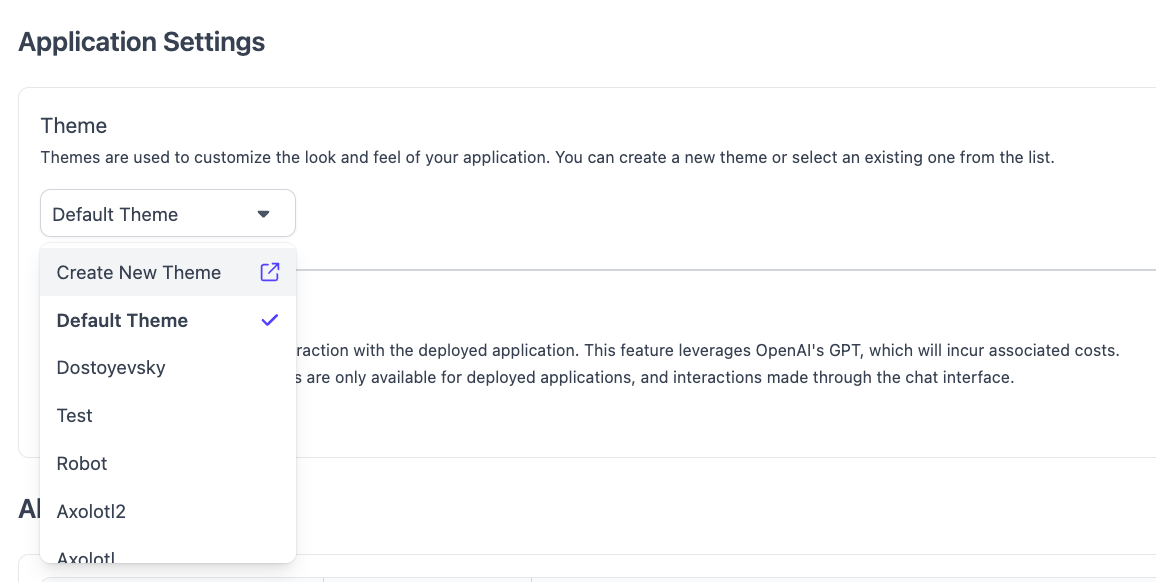
If you want customize the UI, select **Create New Theme** under the **Application Settings** section.
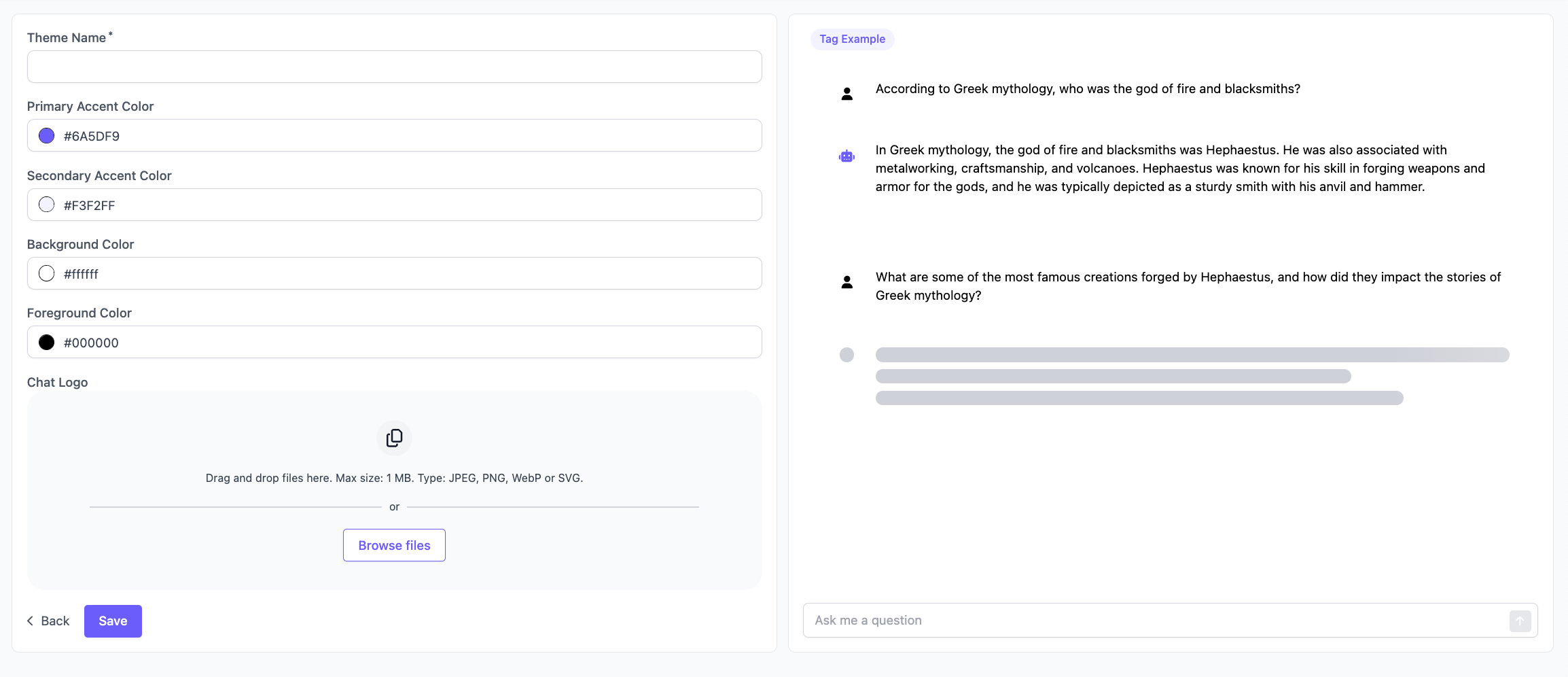
 Creating a theme enables you to select the following options:
* Primary Accent Color: Hex Code
* Secondary Accent Color: Hex Code
* Background Color: Hex Code
* Foreground Color: Hex Code
* Chat Icon: Image (JPG, PNG, WeP, SVG)
For the chat app that we currently support:
* **Primary Accent Color** is used for the icon of the bot and the text color of the button.
* **Secondary Accent Color** is used for the background color of the button.
* **Background Color** is used for the background of the app.
* **Foreground Color** is used for the color of the text.
* **Chat Icon** is used as the icon for the application displayed on the left side of the screen
The theme editor will allow you to play around with the settings you select and show you what your application will look like.
Creating a theme enables you to select the following options:
* Primary Accent Color: Hex Code
* Secondary Accent Color: Hex Code
* Background Color: Hex Code
* Foreground Color: Hex Code
* Chat Icon: Image (JPG, PNG, WeP, SVG)
For the chat app that we currently support:
* **Primary Accent Color** is used for the icon of the bot and the text color of the button.
* **Secondary Accent Color** is used for the background color of the button.
* **Background Color** is used for the background of the app.
* **Foreground Color** is used for the color of the text.
* **Chat Icon** is used as the icon for the application displayed on the left side of the screen
The theme editor will allow you to play around with the settings you select and show you what your application will look like.
 ## Select Theme
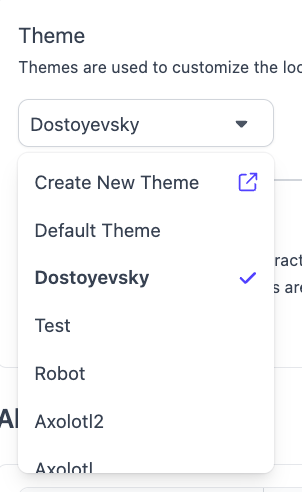
After creating a theme, you can apply the theme by navigating back to the **Application Settings** section and selecting the theme you created from the drop down.
To view the changes in theme for your application, simply refresh the application. The theme will apply to your application without having to deploy again.
## Select Theme
After creating a theme, you can apply the theme by navigating back to the **Application Settings** section and selecting the theme you created from the drop down.
To view the changes in theme for your application, simply refresh the application. The theme will apply to your application without having to deploy again.