> ## Documentation Index
> Fetch the complete documentation index at: https://docs.gp.scale.com/llms.txt
> Use this file to discover all available pages before exploring further.
# Summarization Evaluation
> How to create and evaluate a summarization application.
Many use cases for GenAI applications follow a summarization pattern, where the input is a document and the output is a summary.
These patterns are natively supported with Flexible Evaluation runs. In this guide, we walk the creation of summarization evaluations step by step.
# Application Setup
Evaluations are tied to an external application variant. You will first need to [initialize an external application](/docs/external-applications) before you can evaluate your application.
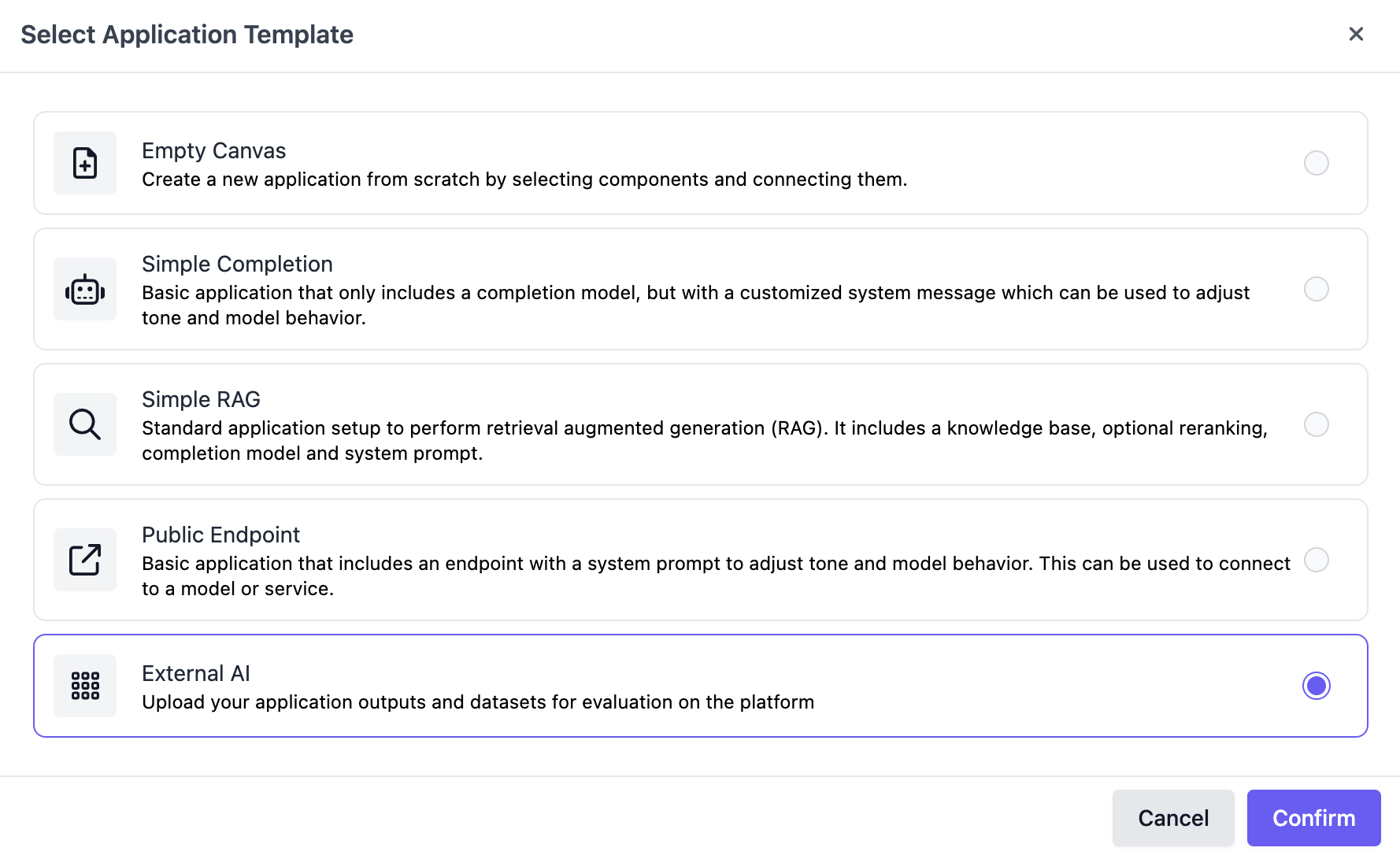
To create the variant, navigate to the "Applications" page on the SGP dashboard, click **Create a new Application**, and select **External AI** as the application template.
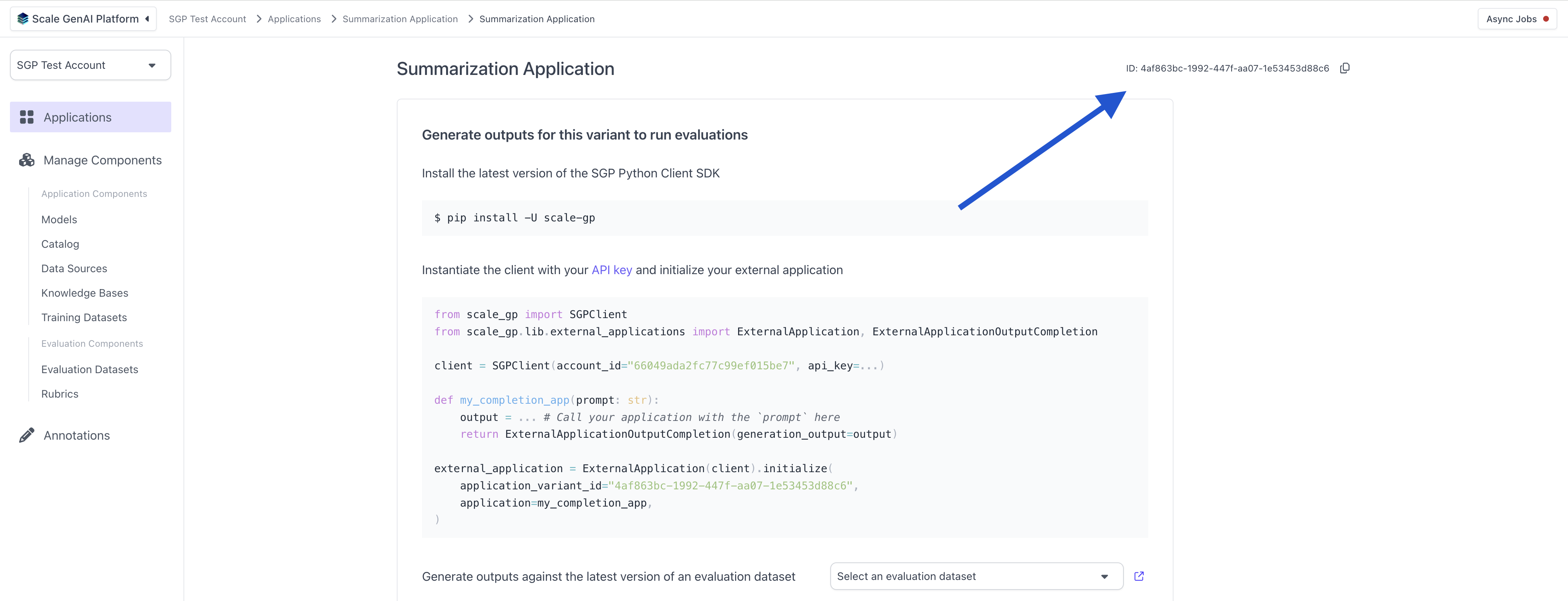
 You can find the `application_variant_id` in the top right:
 # Summarization Evaluation using the UI
## Create Evaluation Dataset
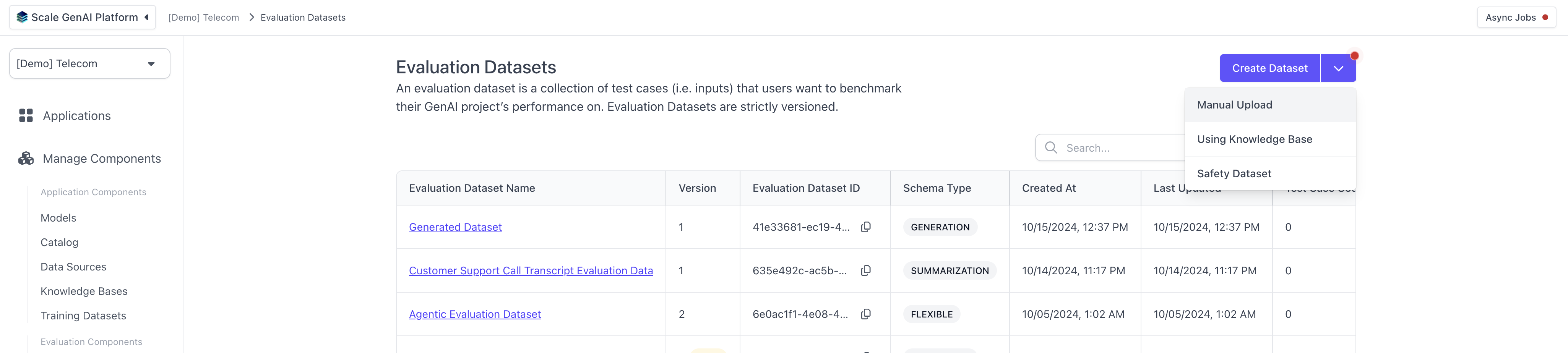
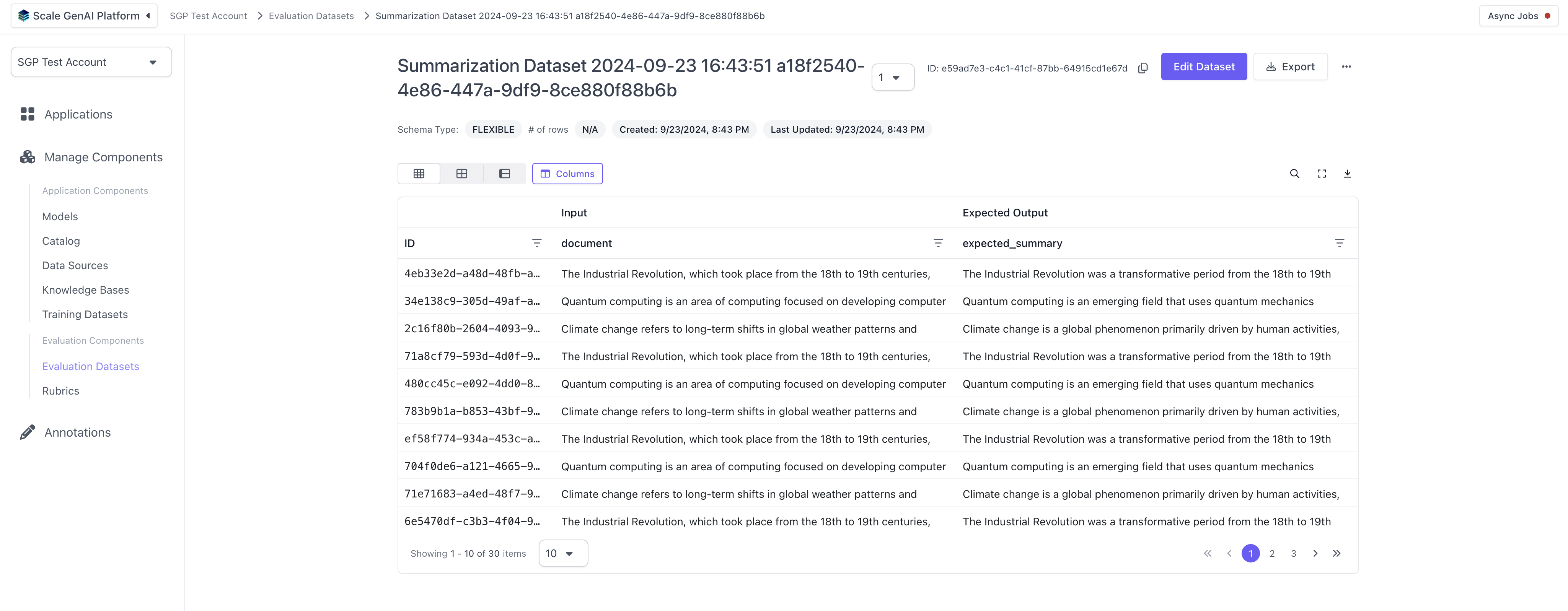
First, we need to set up an a summarization evaluation dataset. To do this, we can navigate to the "Evaluation Datasets" page in the left hand navigation and hit "Create Dataset" in the top left, chosing "Manual Uplaod".
# Summarization Evaluation using the UI
## Create Evaluation Dataset
First, we need to set up an a summarization evaluation dataset. To do this, we can navigate to the "Evaluation Datasets" page in the left hand navigation and hit "Create Dataset" in the top left, chosing "Manual Uplaod".
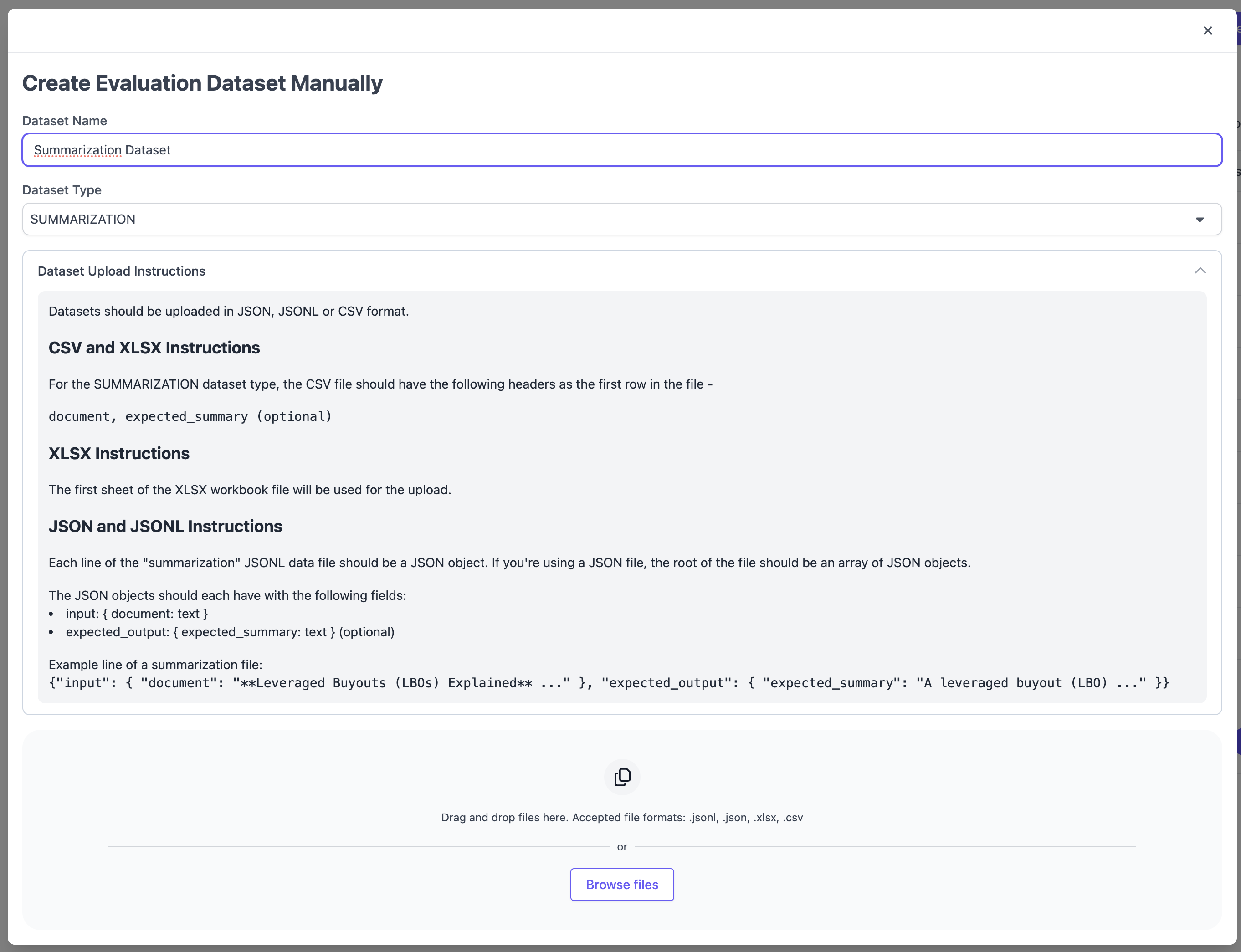
 In the following modal, select Dataset Type `SUMMARIZATION` and follow the formatting instructions. Supported file types include `CSV`, `XSLX`, `JSON` and `JSONL`.
 ## Upload Outputs
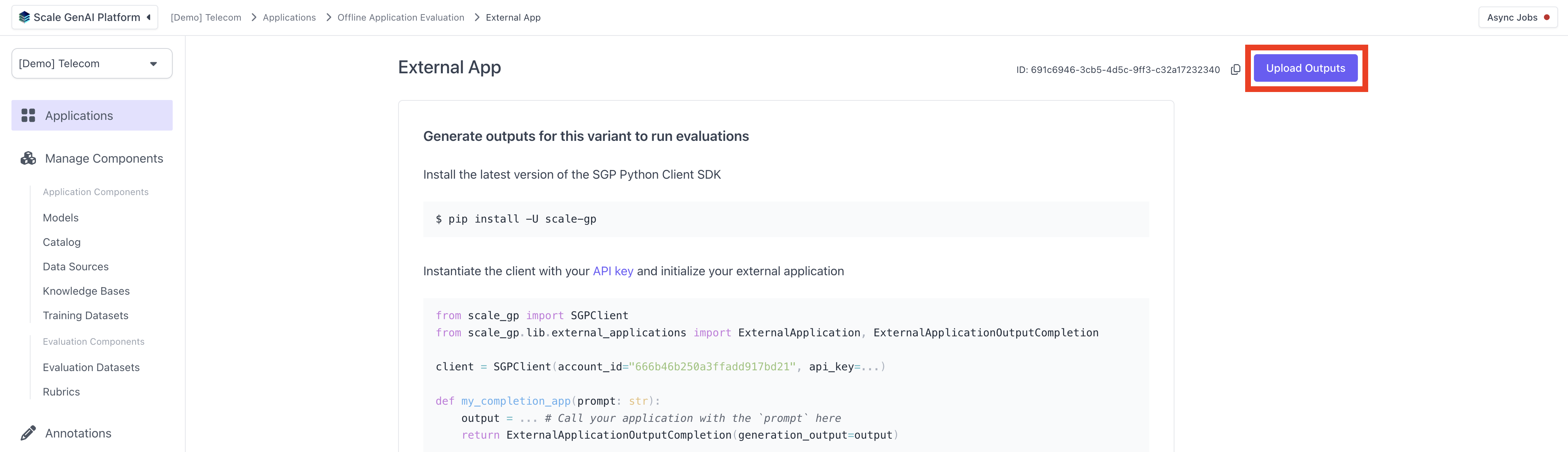
After creating the dataset, you can now upload a set of outputs for your external AI variant using this dataset. Navigate to the application variant you created previously and hit "Upload Outputs" in the top right hand corner.
## Upload Outputs
After creating the dataset, you can now upload a set of outputs for your external AI variant using this dataset. Navigate to the application variant you created previously and hit "Upload Outputs" in the top right hand corner.
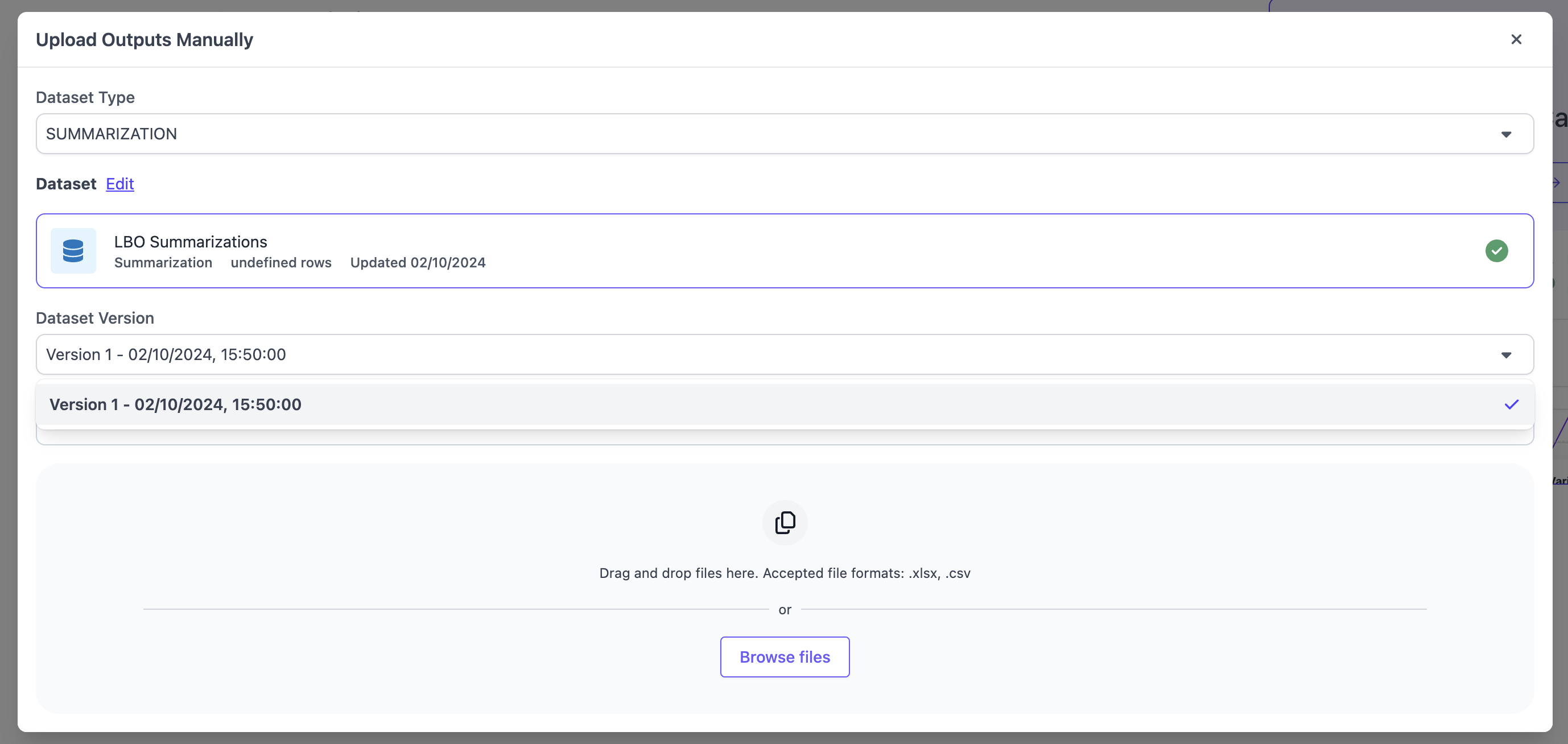
 In the modal, select `SUMMARIZATION` as the Dataset Type and pick a dataset that matches that schema. If the dataset has multiple version, you will have to select the version of the dataset for which you want to upload the outputs. Ensure to follow the upload instructions for the file type you are choosing. We support the same file types as for the evaluation dataset upload, `CSV`, `XSLX`, `JSON` and `JSONL`.
 ## Run Evaluation
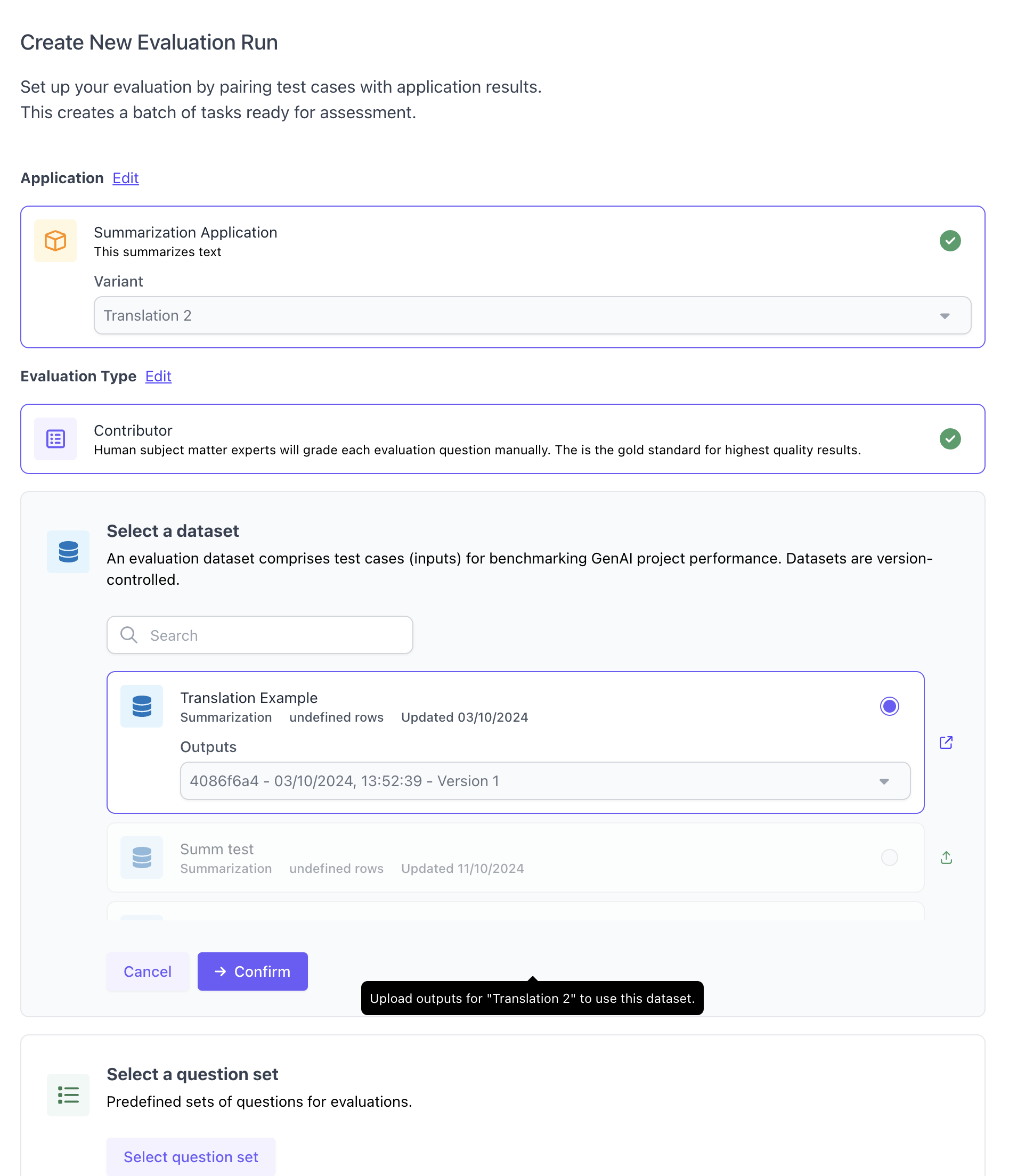
After uploading outputs, you can create a new evaluation run. You will need to select an application variant and dataset, including the set of outputs you just uploaded within the given dataset. Furthermore, you will need to select a question set. Note that currently summarization evaluations only support `Contributor` evlauations and no auto-evaluation from the UI.
## Run Evaluation
After uploading outputs, you can create a new evaluation run. You will need to select an application variant and dataset, including the set of outputs you just uploaded within the given dataset. Furthermore, you will need to select a question set. Note that currently summarization evaluations only support `Contributor` evlauations and no auto-evaluation from the UI.
 # Summarization Evaluation using the SDK
This part of the guide walks through the steps to create and execute an summarization evaluation via our Python SDK.
## Initialize the SGP client
Follow the instructions in the [Quickstart Guide](/docs/getting-started) to setup the SGP Client. After installing the client, you can import and initialize the client as follows:
```Python theme={null}
from scale_gp import SGPClient
client = SGPClient(environment="production-multitenant")
```
## Define and upload summarization test cases
The next step is to create an evaluation dataset for the summarization use case.
The `SummarizationTestCaseSchema` function is a helper function that allows you to quickly create a Summarization Evaluation through the [flexible evaluations](docs/flexible-evaluation/full-guide-to-flexible-evaluation) framework. This function assumes the application you want to evaluate has a document as an input and the expected summary of the document as the expected input. It takes in a `document` and a `expected_summary` and creates a test case object.
In order to use this function, you start by creating a list of data for your test cases. The test case data is represented as an object that contains a `document` (a string containing the text of a document you want to summarize) and `expected_summary` (the expected summarization of this document) key.
```Python theme={null}
document_data = [
{
"document": "The Industrial Revolution, which took place from the 18th to 19th centuries, was a period ... technological advancements of this period laid the groundwork for future innovations and economic growth.",
"expected_summary": "The Industrial Revolution was a transformative period from the 18th to 19th centuries, marked ..."
},
{
"document": "Quantum computing is an area of computing focused on developing computer technology ... significant investment and research continue in this potentially revolutionary technology.",
"expected_summary": "Quantum computing is an emerging field that uses quantum mechanics principles to process ..."
},
{
"document": "Climate change refers to long-term shifts in global weather patterns and average temperatures ... addressing climate change will require sustained effort and collaboration at all levels of society.",
"expected_summary": "Climate change is a global phenomenon primarily driven by human activities, especially the ..."
}
]
```
Then, we iterate through this list and create a new list of test case objects with the data that we defined using the `SummarizationTestCaseSchema` function.
```Python theme={null}
test_cases = []
for data in document_data:
tc = SummarizationTestCaseSchema(
document=data["document"],
expected_summary=data["expected_summary"]
)
test_cases.append(tc)
print(tc)
```
## Create the summarization dataset
Next, we create the actual evaluation dataset and upload it to the relevant account in SGP. After running this, you'll be able to see the evaluation dataset in the UI when navigating to the "Evaluation Datasets" section in the left hand side bar.
```Python theme={null}
from datetime import datetime
from uuid import uuid4
def timestamp():
return f"{datetime.now().strftime('%Y-%m-%d %H:%M:%S')} {uuid4()}"
dataset = DatasetBuilder(client).initialize(
account_id="your_account_id",
name=f"Summarization Dataset {timestamp()}",
test_cases=test_cases
)
print(dataset)
```
## Configure and run summarization application
```Python theme={null}
def my_summarization_app(prompt, test_case):
print(prompt['document'][:50])
start = datetime.now().replace(microsecond=5000)
return ExternalApplicationOutputFlexible(
generation_output={
"generated_summary": "GENERATED OUTPUT SUMMARY"
},
trace_spans=[
{
"node_id": "formatting",
"start_timestamp": str(start.isoformat()),
"operation_input": {
"document": "EXAMPLE INPUT DOCUMENT"
},
"operation_output": {
"formatted_document": "EXAMPLE OUTPUT DOCUMENT FORMATTED"
},
"duration_ms": 1000,
}
],
metrics={"grammar": 0.5}
)
app = ExternalApplication(client)
app.initialize(application_variant_id="your_variant_id", application=my_summarization_app)
app.generate_outputs(evaluation_dataset_id=dataset.id, evaluation_dataset_version='1')
```
Note that alternatively to creating a summarization dataset and running the summarization application, you can also use the batch upload functionality, see details [here](/docs/external-applications#generate-outputs).
## Create evaluation questions
Next up, we need to define the evaluation questions that we want to evaluate for this given summarization app. In the case below we are creating three questions: accuracy, conciseness and missing information.
```Python theme={null}
question_requests = [
{
"type": "categorical",
"title": "Summarization Accuracy",
"prompt": "Is this summary accurate with respect to the expected summary provided?",
"choices": [{"label": "No", "value": 0}, {"label": "Yes", "value": 1}]
},
{
"type": "categorical",
"title": "Summarization Conciseness",
"prompt": "Was the summary concise?",
"choices": [{"label": "No", "value": 0}, {"label": "Yes", "value": 1}]
},
{
"type": "free_text",
"title": "Summarization Missing Information",
"prompt": "List relevant information the summary cut out"
}
]
question_ids = []
for question in question_requests:
q = client.questions.create(
**question
)
question_ids.append(q.id)
print(q)
```
## Create question set and annotation configuration
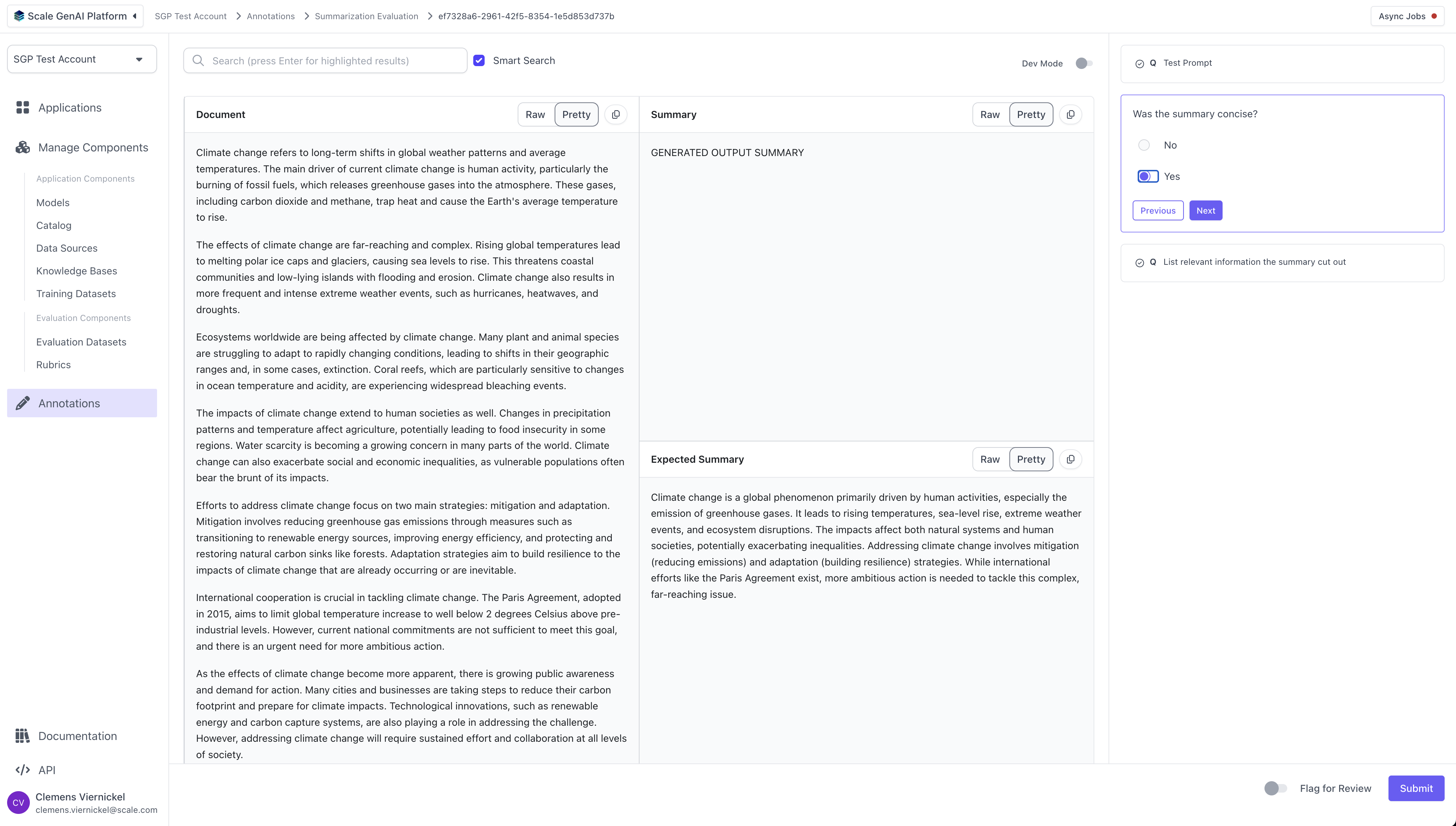
Finally, we bundle the previously created questions into a "question set" and set up the annotation configuration. The annotation configuration defines the layout and fields that the annotator of the evaluation will see. Because we are using the predefined "summarization" template, we do not need to configure anything here. For more details on all the configuration options for the annotation config, please refer to the "Full Guide to Flexible Evaluation".
```Python theme={null}
q_set = client.question_sets.create(
name="summarization question set",
question_ids=question_ids
)
print(q_set)
config = client.evaluation_configs.create(
question_set_id=q_set.id,
evaluation_type='human'
)
print(config)
```
## Run the evaluation
With everything set up, we can now run the evaluation by providing the relevant variant and application ids.
```Python theme={null}
from scale_gp.lib.types import data_locator
from scale_gp.types import SummarizationAnnotationConfigParam
annotation_config_dict = SummarizationAnnotationConfigParam(
document_loc=data_locator.test_case_data.input["document"],
summary_loc=data_locator.test_case_output.output["generated_summary"],
expected_summary_loc=data_locator.test_case_data.expected_output["expected_summary"]
)
evaluation = client.evaluations.create(
application_variant_id="your_variant_id",
application_spec_id="your_spec_id",
description="Demo Evaluation",
name="Summarization Evaluation",
evaluation_config_id=config.id,
annotation_config=annotation_config_dict,
evaluation_dataset_id=dataset.id,
type="builder"
)
```
# Perform Annotations
Once the evaluation run has been created, human annotators can log into the platform and begin completing the evaluation tasks using the task dashboard.
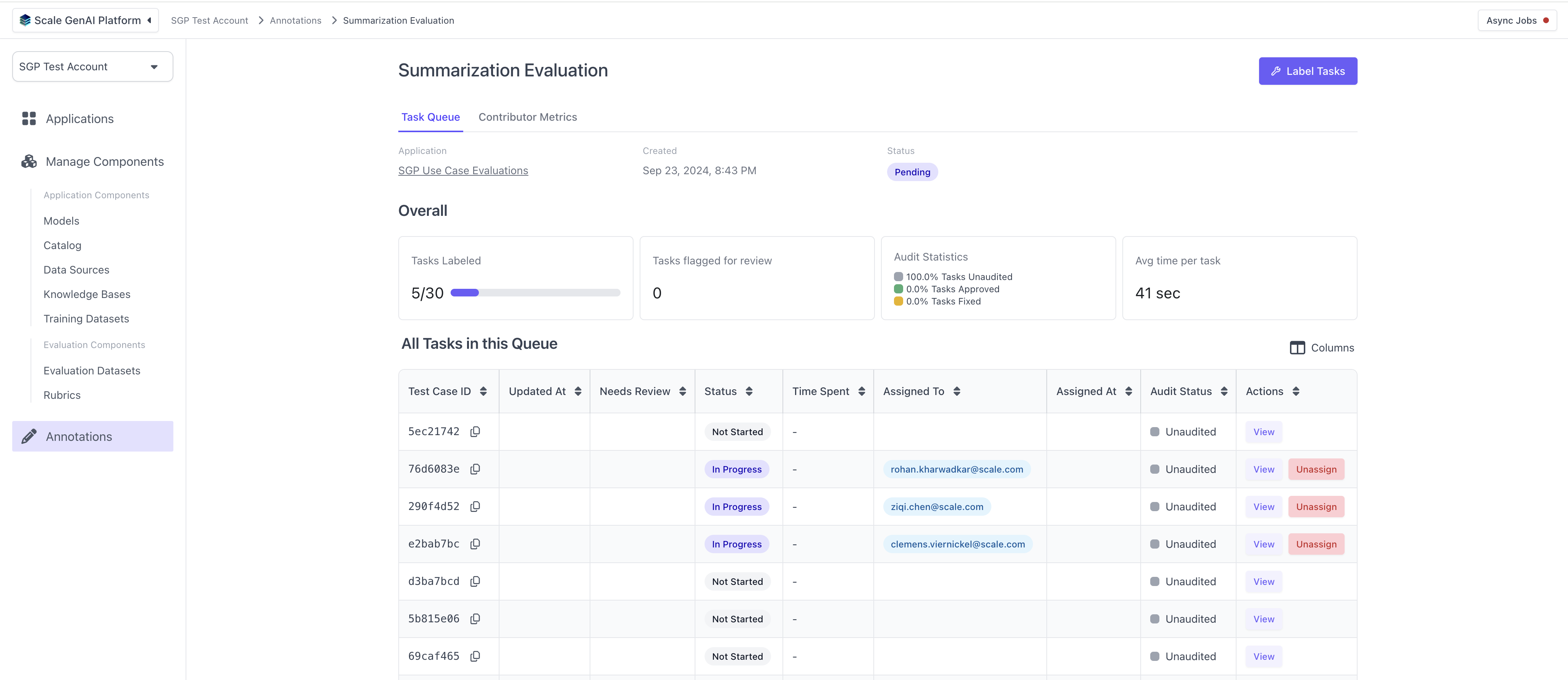
For each task, the annotators will see the layout defined by the summarization template and the questions configured in the question set.
## Review Results
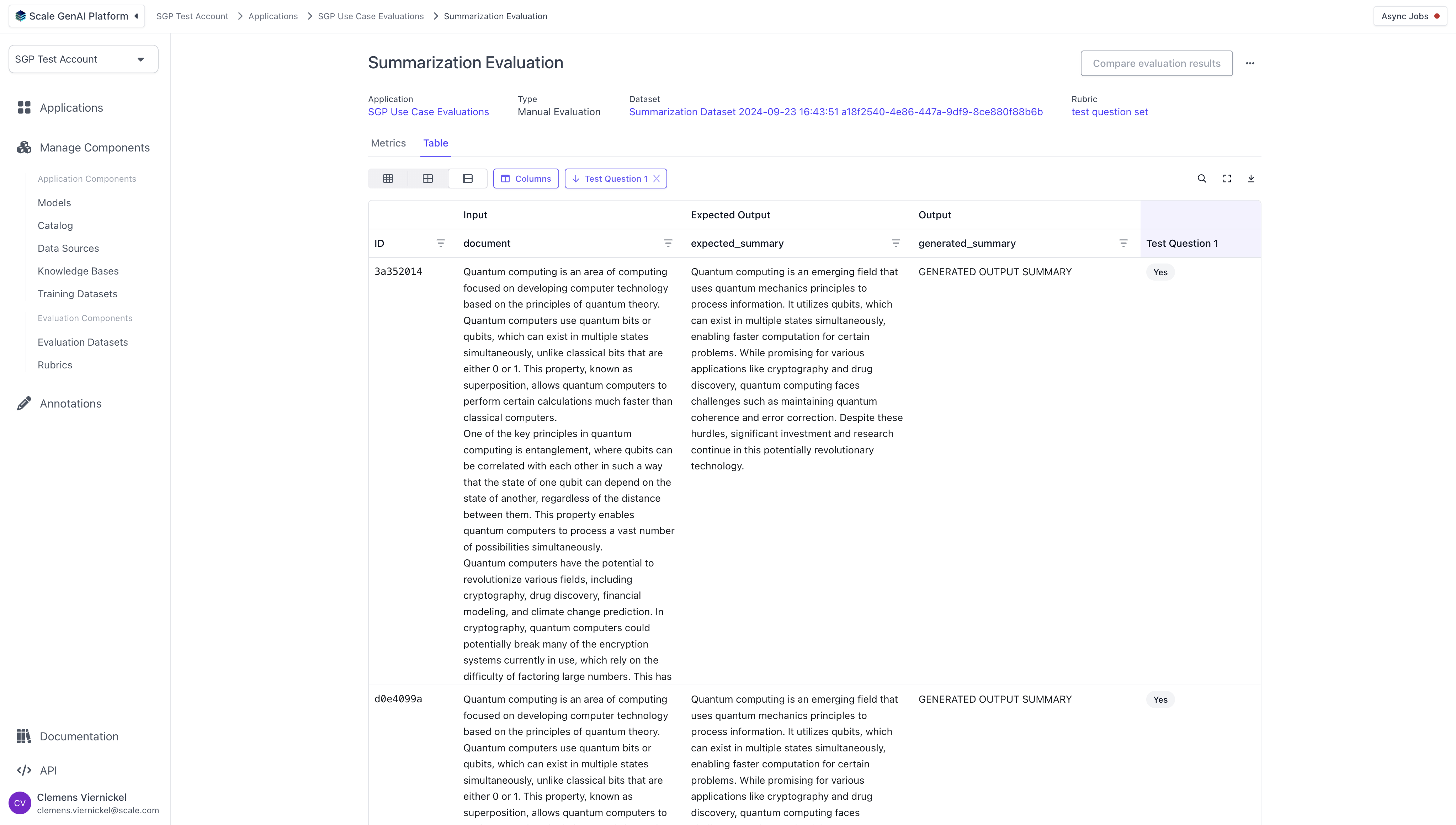
As the annotators complete the tasks, we can review the results of the evaluation by navigating to the respective application and clicking on the previously created evaluation run. The results are split into aggregate results and a tabular detail view with all test cases and their annotations.
# Summarization Evaluation using the SDK
This part of the guide walks through the steps to create and execute an summarization evaluation via our Python SDK.
## Initialize the SGP client
Follow the instructions in the [Quickstart Guide](/docs/getting-started) to setup the SGP Client. After installing the client, you can import and initialize the client as follows:
```Python theme={null}
from scale_gp import SGPClient
client = SGPClient(environment="production-multitenant")
```
## Define and upload summarization test cases
The next step is to create an evaluation dataset for the summarization use case.
The `SummarizationTestCaseSchema` function is a helper function that allows you to quickly create a Summarization Evaluation through the [flexible evaluations](docs/flexible-evaluation/full-guide-to-flexible-evaluation) framework. This function assumes the application you want to evaluate has a document as an input and the expected summary of the document as the expected input. It takes in a `document` and a `expected_summary` and creates a test case object.
In order to use this function, you start by creating a list of data for your test cases. The test case data is represented as an object that contains a `document` (a string containing the text of a document you want to summarize) and `expected_summary` (the expected summarization of this document) key.
```Python theme={null}
document_data = [
{
"document": "The Industrial Revolution, which took place from the 18th to 19th centuries, was a period ... technological advancements of this period laid the groundwork for future innovations and economic growth.",
"expected_summary": "The Industrial Revolution was a transformative period from the 18th to 19th centuries, marked ..."
},
{
"document": "Quantum computing is an area of computing focused on developing computer technology ... significant investment and research continue in this potentially revolutionary technology.",
"expected_summary": "Quantum computing is an emerging field that uses quantum mechanics principles to process ..."
},
{
"document": "Climate change refers to long-term shifts in global weather patterns and average temperatures ... addressing climate change will require sustained effort and collaboration at all levels of society.",
"expected_summary": "Climate change is a global phenomenon primarily driven by human activities, especially the ..."
}
]
```
Then, we iterate through this list and create a new list of test case objects with the data that we defined using the `SummarizationTestCaseSchema` function.
```Python theme={null}
test_cases = []
for data in document_data:
tc = SummarizationTestCaseSchema(
document=data["document"],
expected_summary=data["expected_summary"]
)
test_cases.append(tc)
print(tc)
```
## Create the summarization dataset
Next, we create the actual evaluation dataset and upload it to the relevant account in SGP. After running this, you'll be able to see the evaluation dataset in the UI when navigating to the "Evaluation Datasets" section in the left hand side bar.
```Python theme={null}
from datetime import datetime
from uuid import uuid4
def timestamp():
return f"{datetime.now().strftime('%Y-%m-%d %H:%M:%S')} {uuid4()}"
dataset = DatasetBuilder(client).initialize(
account_id="your_account_id",
name=f"Summarization Dataset {timestamp()}",
test_cases=test_cases
)
print(dataset)
```

## Configure and run summarization application
```Python theme={null}
def my_summarization_app(prompt, test_case):
print(prompt['document'][:50])
start = datetime.now().replace(microsecond=5000)
return ExternalApplicationOutputFlexible(
generation_output={
"generated_summary": "GENERATED OUTPUT SUMMARY"
},
trace_spans=[
{
"node_id": "formatting",
"start_timestamp": str(start.isoformat()),
"operation_input": {
"document": "EXAMPLE INPUT DOCUMENT"
},
"operation_output": {
"formatted_document": "EXAMPLE OUTPUT DOCUMENT FORMATTED"
},
"duration_ms": 1000,
}
],
metrics={"grammar": 0.5}
)
app = ExternalApplication(client)
app.initialize(application_variant_id="your_variant_id", application=my_summarization_app)
app.generate_outputs(evaluation_dataset_id=dataset.id, evaluation_dataset_version='1')
```
Note that alternatively to creating a summarization dataset and running the summarization application, you can also use the batch upload functionality, see details [here](/docs/external-applications#generate-outputs).
## Create evaluation questions
Next up, we need to define the evaluation questions that we want to evaluate for this given summarization app. In the case below we are creating three questions: accuracy, conciseness and missing information.
```Python theme={null}
question_requests = [
{
"type": "categorical",
"title": "Summarization Accuracy",
"prompt": "Is this summary accurate with respect to the expected summary provided?",
"choices": [{"label": "No", "value": 0}, {"label": "Yes", "value": 1}]
},
{
"type": "categorical",
"title": "Summarization Conciseness",
"prompt": "Was the summary concise?",
"choices": [{"label": "No", "value": 0}, {"label": "Yes", "value": 1}]
},
{
"type": "free_text",
"title": "Summarization Missing Information",
"prompt": "List relevant information the summary cut out"
}
]
question_ids = []
for question in question_requests:
q = client.questions.create(
**question
)
question_ids.append(q.id)
print(q)
```
## Create question set and annotation configuration
Finally, we bundle the previously created questions into a "question set" and set up the annotation configuration. The annotation configuration defines the layout and fields that the annotator of the evaluation will see. Because we are using the predefined "summarization" template, we do not need to configure anything here. For more details on all the configuration options for the annotation config, please refer to the "Full Guide to Flexible Evaluation".
```Python theme={null}
q_set = client.question_sets.create(
name="summarization question set",
question_ids=question_ids
)
print(q_set)
config = client.evaluation_configs.create(
question_set_id=q_set.id,
evaluation_type='human'
)
print(config)
```
## Run the evaluation
With everything set up, we can now run the evaluation by providing the relevant variant and application ids.
```Python theme={null}
from scale_gp.lib.types import data_locator
from scale_gp.types import SummarizationAnnotationConfigParam
annotation_config_dict = SummarizationAnnotationConfigParam(
document_loc=data_locator.test_case_data.input["document"],
summary_loc=data_locator.test_case_output.output["generated_summary"],
expected_summary_loc=data_locator.test_case_data.expected_output["expected_summary"]
)
evaluation = client.evaluations.create(
application_variant_id="your_variant_id",
application_spec_id="your_spec_id",
description="Demo Evaluation",
name="Summarization Evaluation",
evaluation_config_id=config.id,
annotation_config=annotation_config_dict,
evaluation_dataset_id=dataset.id,
type="builder"
)
```
# Perform Annotations
Once the evaluation run has been created, human annotators can log into the platform and begin completing the evaluation tasks using the task dashboard.

For each task, the annotators will see the layout defined by the summarization template and the questions configured in the question set.

## Review Results
As the annotators complete the tasks, we can review the results of the evaluation by navigating to the respective application and clicking on the previously created evaluation run. The results are split into aggregate results and a tabular detail view with all test cases and their annotations.
