> ## Documentation Index
> Fetch the complete documentation index at: https://docs.gp.scale.com/llms.txt
> Use this file to discover all available pages before exploring further.
# Scheduling Uploads
> Once you have a **Data Source** set up and a **Knowledge Base** connected to that **Data Source**, you want to make sure your **Knowledge Base** is up to date. You can ensure that any changes made to the data inside your Source will be updated by setting an upload schedule.
## How to Schedule an Upload
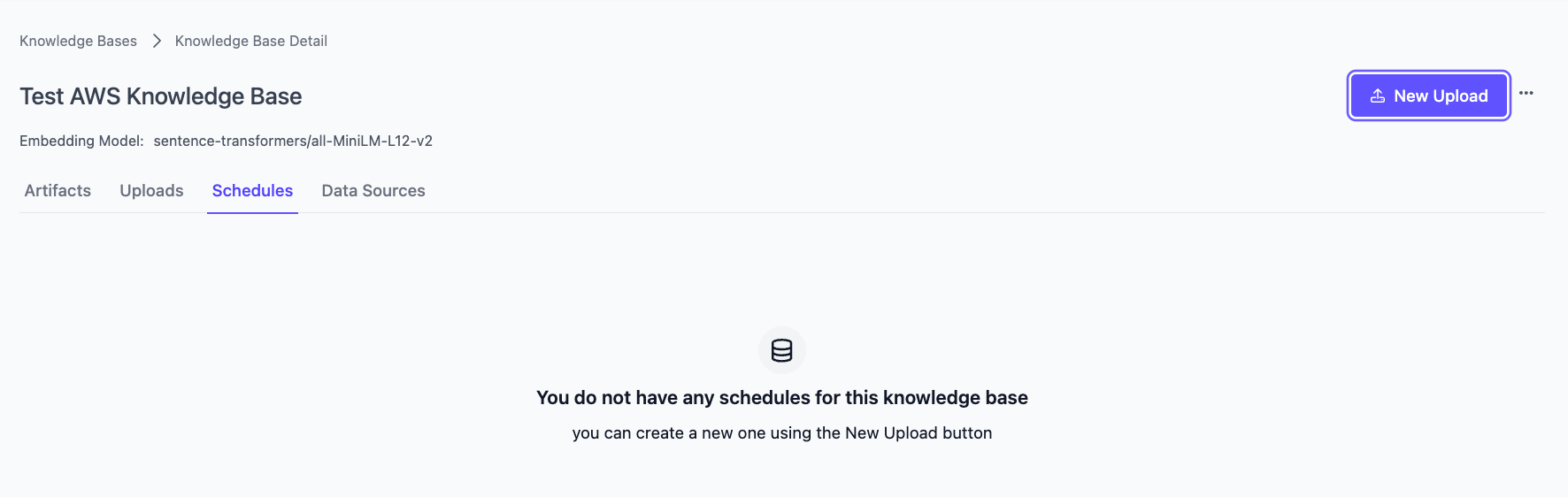
1. Navigate to the **Knowledge Base** and click **New Upload**.
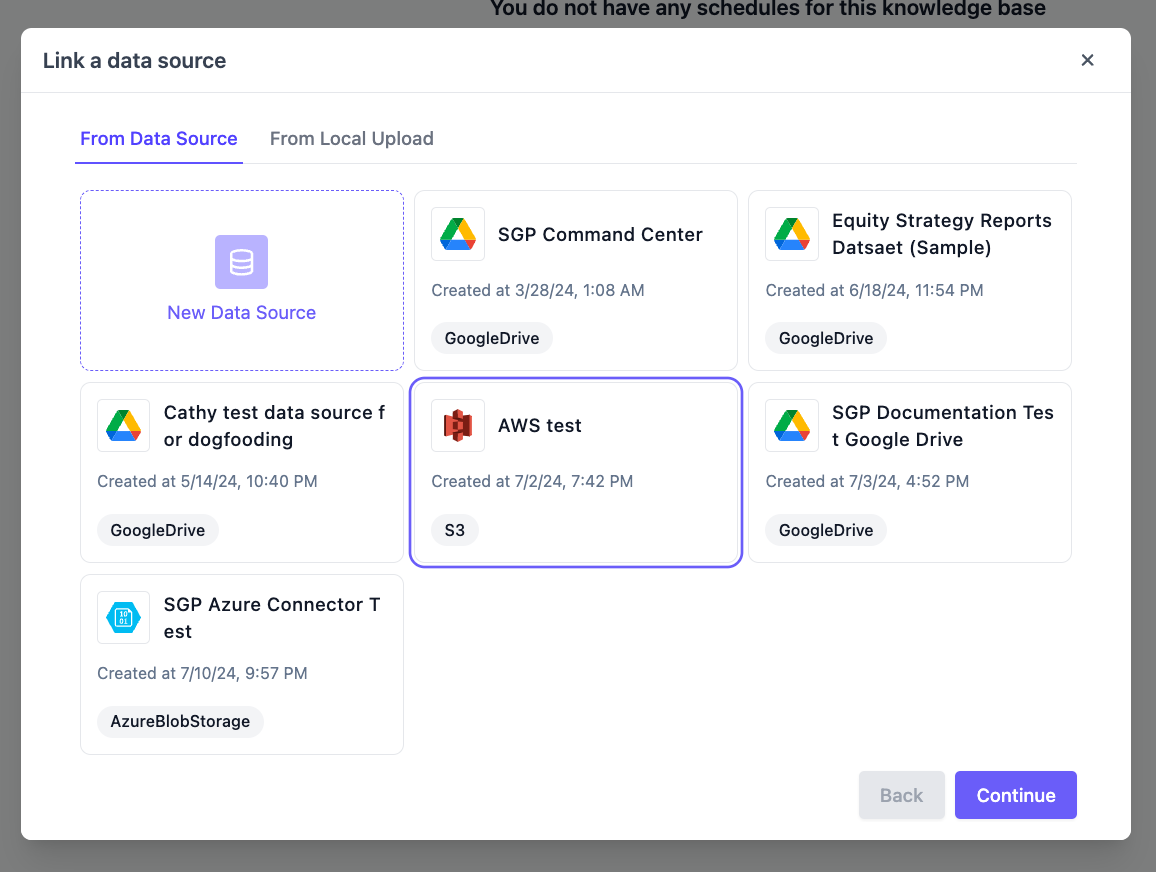
 2. Select a **Data Source**.
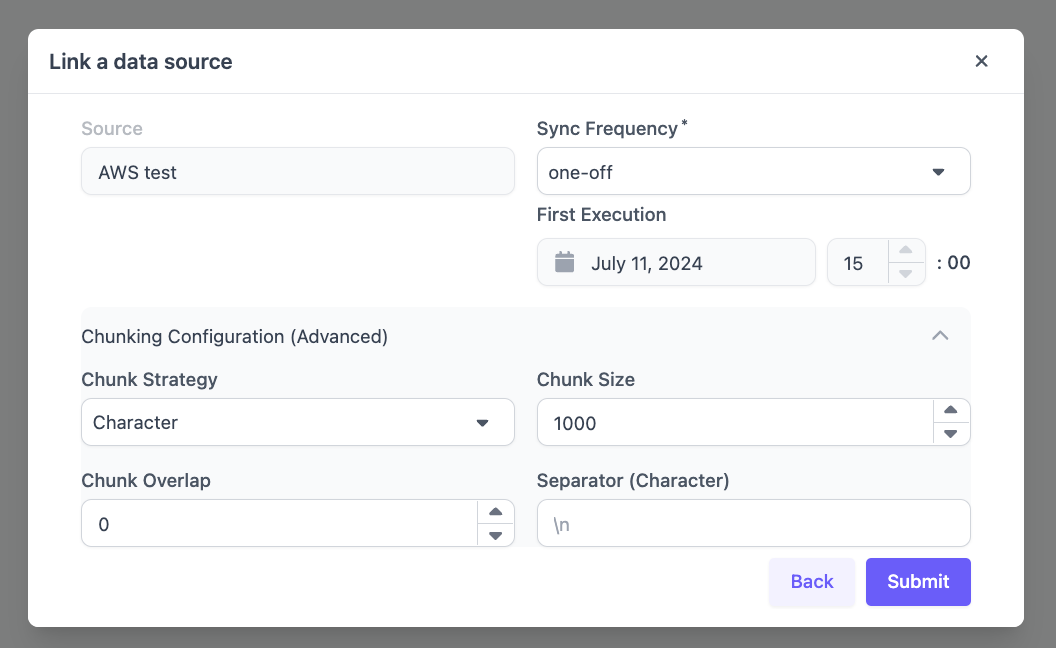
 3. Link the Data Source to the Knowledge Base and Select a Sync Frequency.
1. The Sync Frequency will be how often the Knowledge Base pulls data from your Data Source.
2. The first execution will automatically happen the next hour from the time of configuration.
3. There is an option of making adjustments to the **Chunking Configuration** and setting a **Chunk Strategy**, **Chunk Size**, **Chunk Overlap**, and **Separator** when linking this data source.
3. Link the Data Source to the Knowledge Base and Select a Sync Frequency.
1. The Sync Frequency will be how often the Knowledge Base pulls data from your Data Source.
2. The first execution will automatically happen the next hour from the time of configuration.
3. There is an option of making adjustments to the **Chunking Configuration** and setting a **Chunk Strategy**, **Chunk Size**, **Chunk Overlap**, and **Separator** when linking this data source.
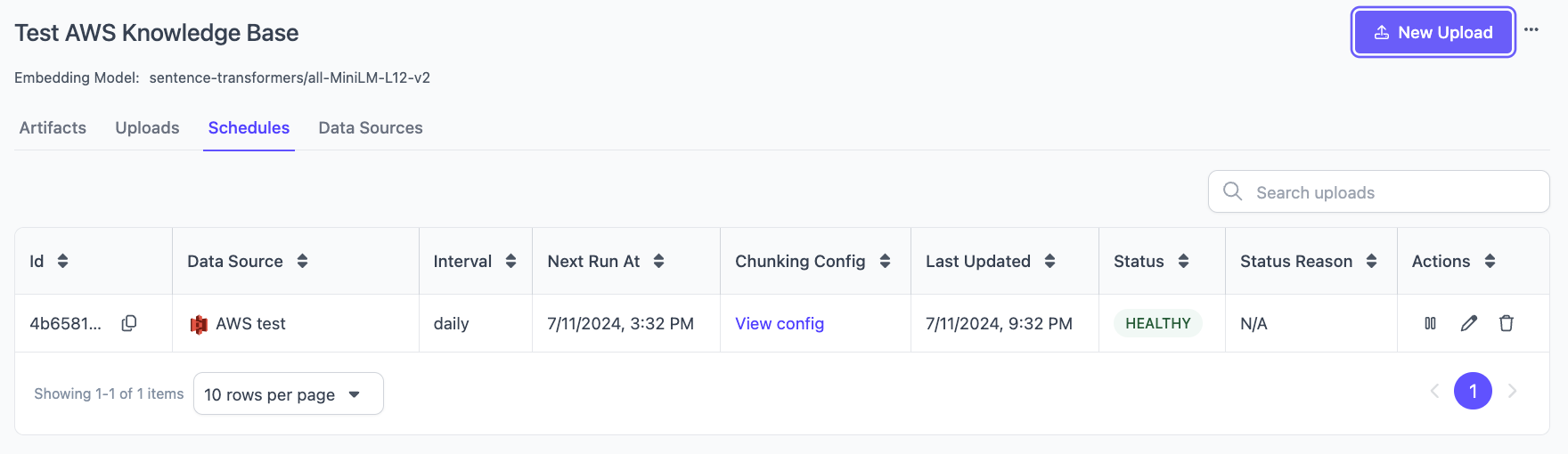
 4. After configuration, scheduled uploads will appear under the **Schedules** tab.