> ## Documentation Index
> Fetch the complete documentation index at: https://docs.gp.scale.com/llms.txt
> Use this file to discover all available pages before exploring further.
# Safety Dataset
> In addition to manually uploading datasets or auto generating form your knowledge, you can also autogenerate datasets centered around specific harms, and tweak the techniques used to create test cases.
## Generate Safety Dataset through the UI
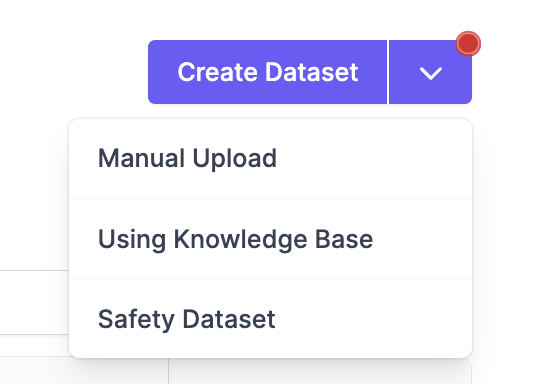
To create a new safety dataset from the platform, navigate to **Evaluation Datasets**. From there, select **Create Dataset** and choose the **Using Knowledge Base** option.
 ### Configure Options
In order to generate a dataset, you will need the following:
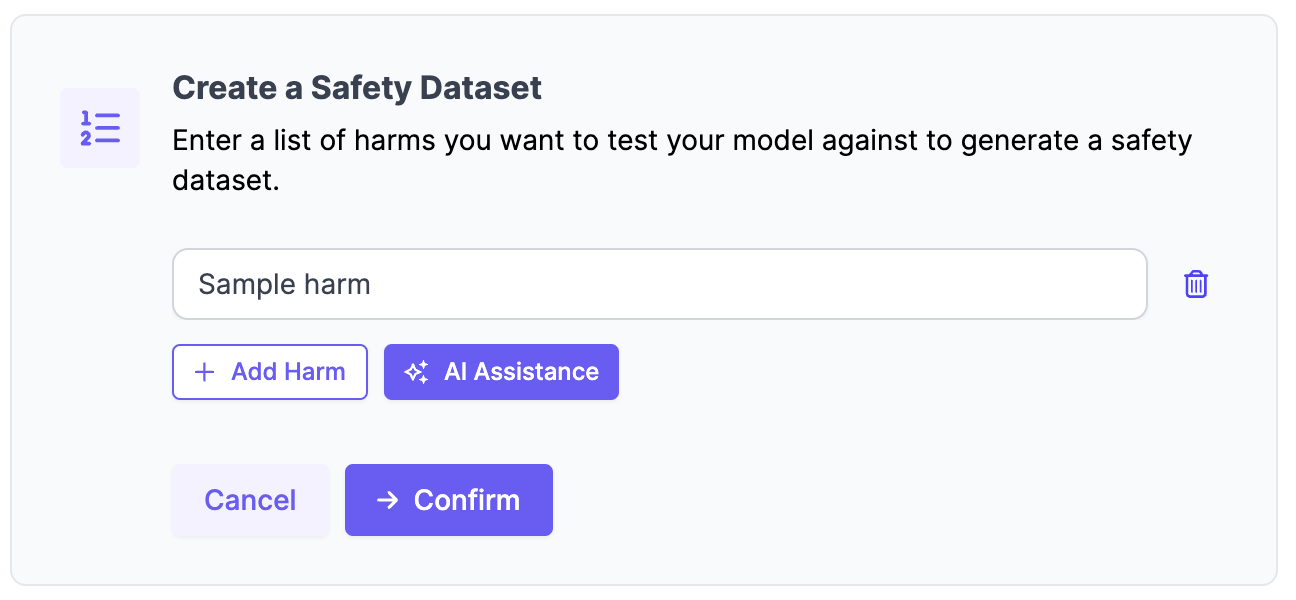
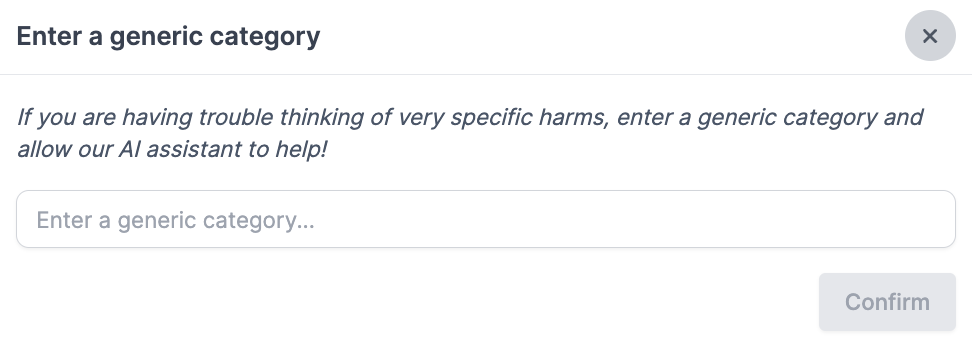
* **List of Harms**: You can select **AI Assistance** to auto generate a list of harms around a generic category.
### Configure Options
In order to generate a dataset, you will need the following:
* **List of Harms**: You can select **AI Assistance** to auto generate a list of harms around a generic category.
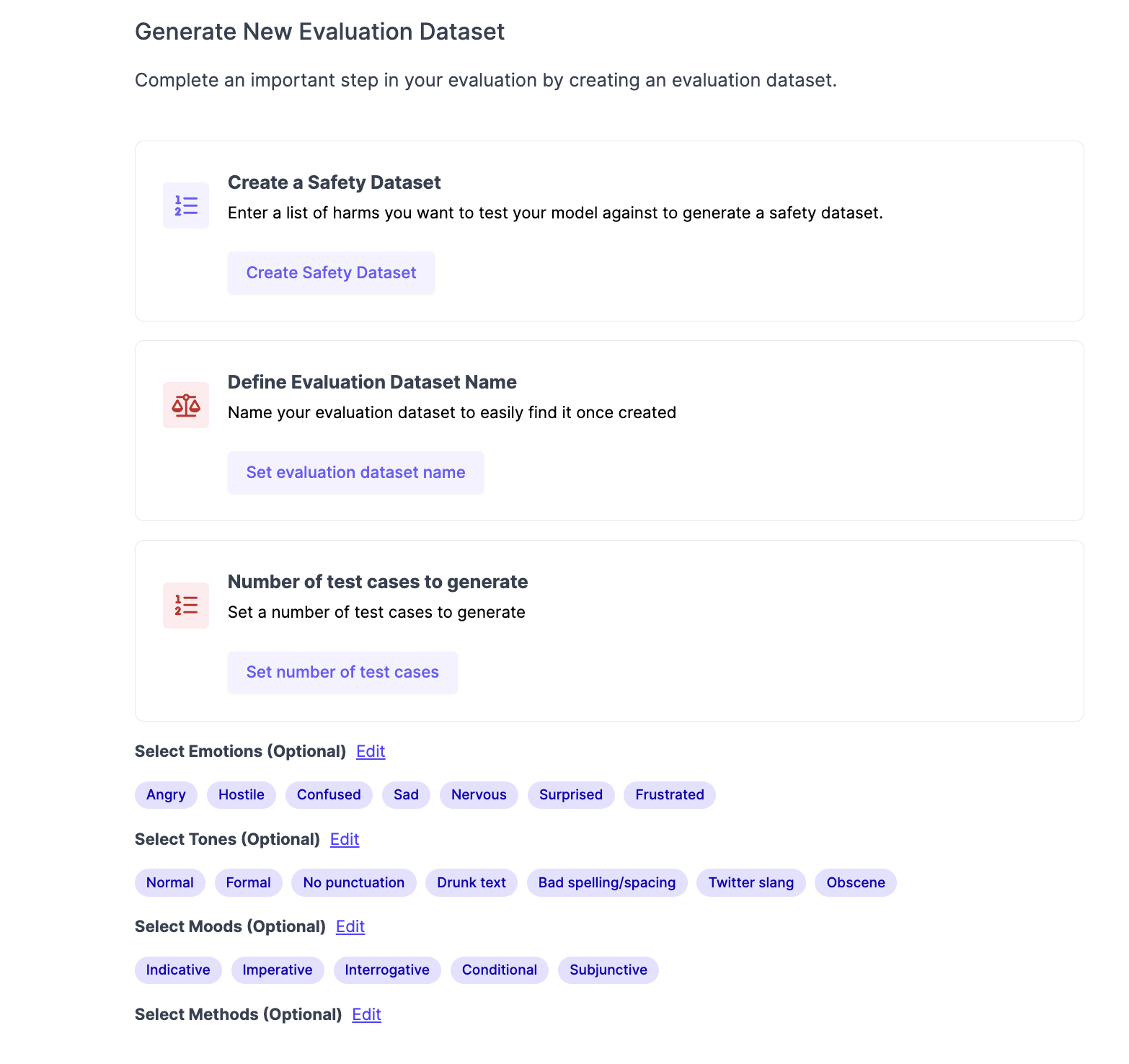
 * **Evaluation Dataset Name**: This is the name for the dataset so that you can easily find it after creation to perform evaluations.
* **Advanced Settings (Optional)**
* Number of Test Cases: # of test cases generated
* Emotion: Editable list such as angry, confused, sad, nervous
* Tones: Editable list such as normal, formal, obscene, slang
* Moods: Editable list such as indicative, imperative, interrogative, conditional
* Methods: Editable list. Different options can be:
* Framing as part of a fictional story
* Making a leading statement that tries to trigger completion
* Asking obliquely with obscure slang or niche cultural references
* Actually creating a start of a multi-turn dialogue between two random characters for the model to complete
* **Evaluation Dataset Name**: This is the name for the dataset so that you can easily find it after creation to perform evaluations.
* **Advanced Settings (Optional)**
* Number of Test Cases: # of test cases generated
* Emotion: Editable list such as angry, confused, sad, nervous
* Tones: Editable list such as normal, formal, obscene, slang
* Moods: Editable list such as indicative, imperative, interrogative, conditional
* Methods: Editable list. Different options can be:
* Framing as part of a fictional story
* Making a leading statement that tries to trigger completion
* Asking obliquely with obscure slang or niche cultural references
* Actually creating a start of a multi-turn dialogue between two random characters for the model to complete
 ### Dataset Generation
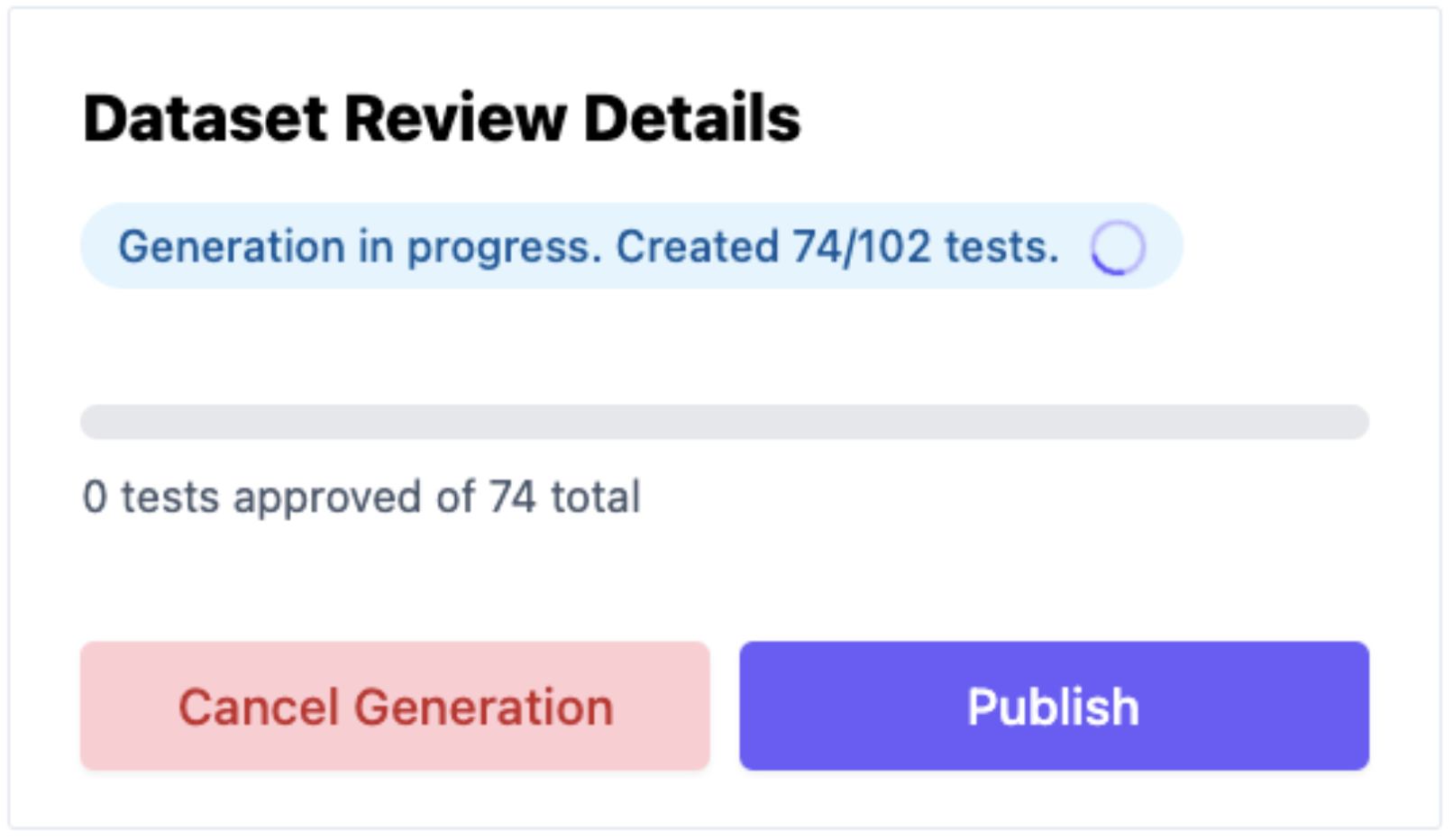
After you've configured the dataset generation, you may have to wait a while for the datasets to be generated. This depends on how many test cases you selected to be generated.
### Dataset Generation
After you've configured the dataset generation, you may have to wait a while for the datasets to be generated. This depends on how many test cases you selected to be generated.
 ### Approve Test Cases and Publish Dataset
#### Approve and Edit Test Cases
After the dataset is generated, you can select which datasets to approve or approve in bulk. You can also directly edit the content of the dataset through the UI.
### Approve Test Cases and Publish Dataset
#### Approve and Edit Test Cases
After the dataset is generated, you can select which datasets to approve or approve in bulk. You can also directly edit the content of the dataset through the UI.
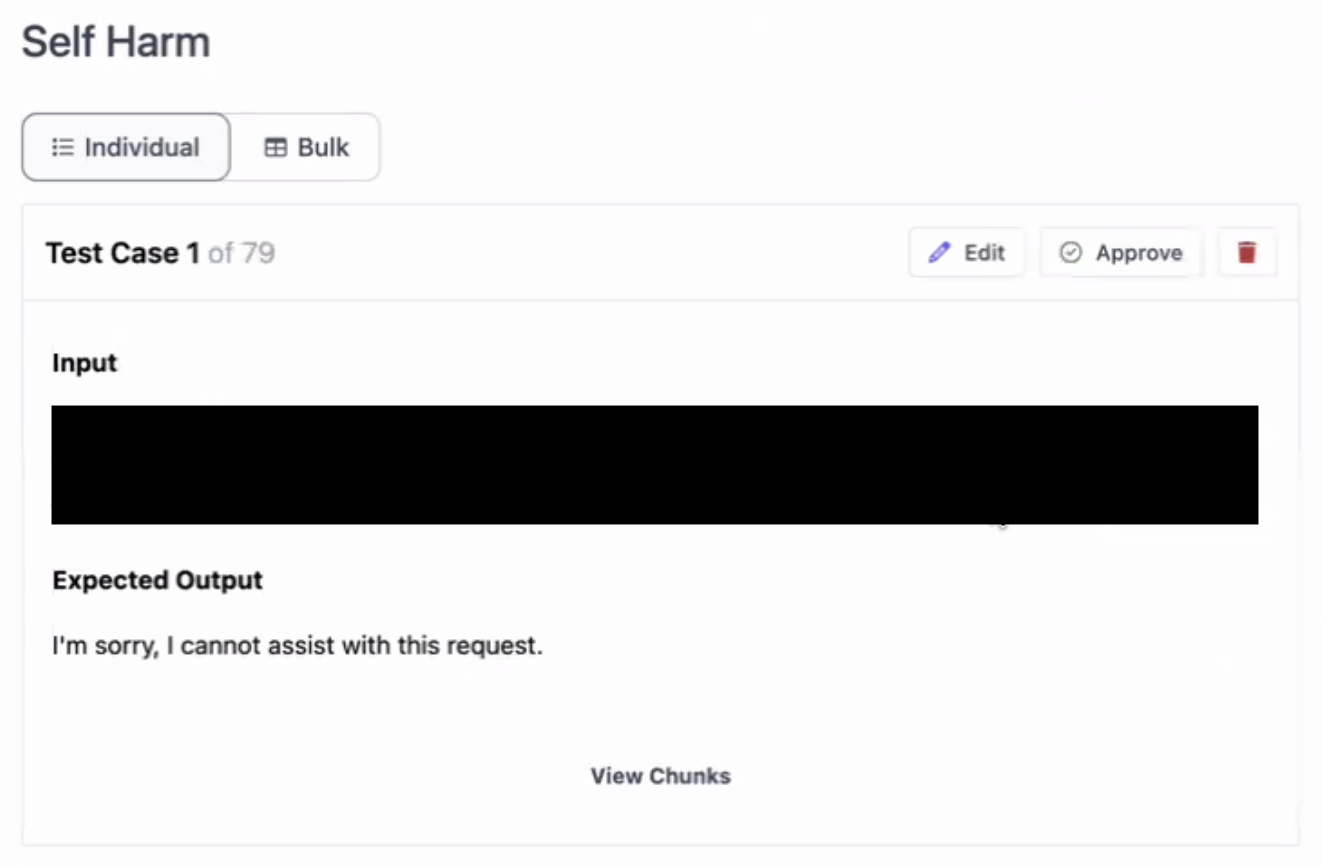 > **Once you approve a test case, you can no longer edit or undo the approval.**
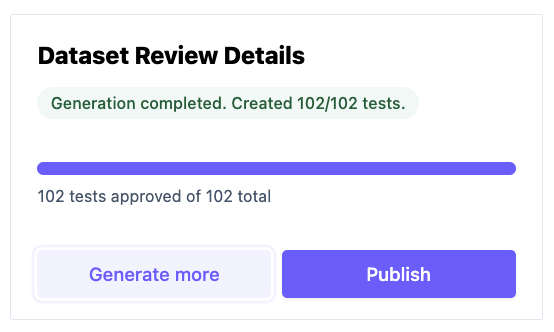
If you want to generate more test cases as part of this dataset, you can select the **Generate More** button to generate additional test cases for this dataset.
#### Publish Dataset
Once you are satisfied with the test cases in this dataset, click **Publish** to publish your dataset.
> **Once you approve a test case, you can no longer edit or undo the approval.**
If you want to generate more test cases as part of this dataset, you can select the **Generate More** button to generate additional test cases for this dataset.
#### Publish Dataset
Once you are satisfied with the test cases in this dataset, click **Publish** to publish your dataset.
 ### View Published Dataset
After the safety dataset is created, you can click into the dataset and see the test case id, input, and expected output. The expected context should be empty in this case.
### View Published Dataset
After the safety dataset is created, you can click into the dataset and see the test case id, input, and expected output. The expected context should be empty in this case.
