> ## Documentation Index
> Fetch the complete documentation index at: https://docs.gp.scale.com/llms.txt
> Use this file to discover all available pages before exploring further.
# Multiturn Evaluation
> How to create and evaluate a multiturn application
Many use cases for GenAI applications follow a multiturn pattern. Users interact with the application in a conversational format, requiring conversational evaluations. The input to a multiturn evaluation can be a single message or conversation.
These patterns are natively supported with Flexible Evaluation runs. In this guide, we will walk through the creation of a multiturn evaluation step by step.
## Initialize the SGP client
Follow the instructions in the [Quickstart Guide](/docs/getting-started) to setup the SGP Client. After installing the client, you can import and initialize the client as follows:
```python theme={null}
from scale_gp import SGPClient
client = SGPClient()
```
## Upload Multiturn Dataset
To evaluate your multiturn application, you will need an evaluation dataset with test cases. Each test case should include a list of messages as the conversation input.
You can add optional additional data such as a ground truth conversation, a list of turns to be evaluated and custom inputs/ground truths
```python theme={null}
message_data = [
{
"init_messages": [{"role": "user", "content": "What were the key factors that led to the French Revolution of 1789?"}],
},
{
"init_messages": [{"role": "user", "content": "How did Napoleon Bonaparte's rise to power impact French society and politics in the early 19th century?"}],
},
...
]
from scale_gp.lib.types.multiturn import MultiturnTestCaseSchema
test_cases = []
for data in message_data:
tc = MultiturnTestCaseSchema(
messages=data["init_messages"],
)
test_cases.append(tc)
```
Once you have all your test cases ready, you can upload your data via the `DatasetBuilder`
```python theme={null}
from scale_gp.lib.dataset_builder import DatasetBuilder
dataset = DatasetBuilder(client).initialize(
account_id="account_id",
name=f"Multiturn Dataset",
test_cases=test_cases
)
print(dataset)
```
## Application Setup
Evaluations are tied to an external application variant. You will first need to [initialize an external application](/docs/external-applications) before you can evaluate your muliturn application.
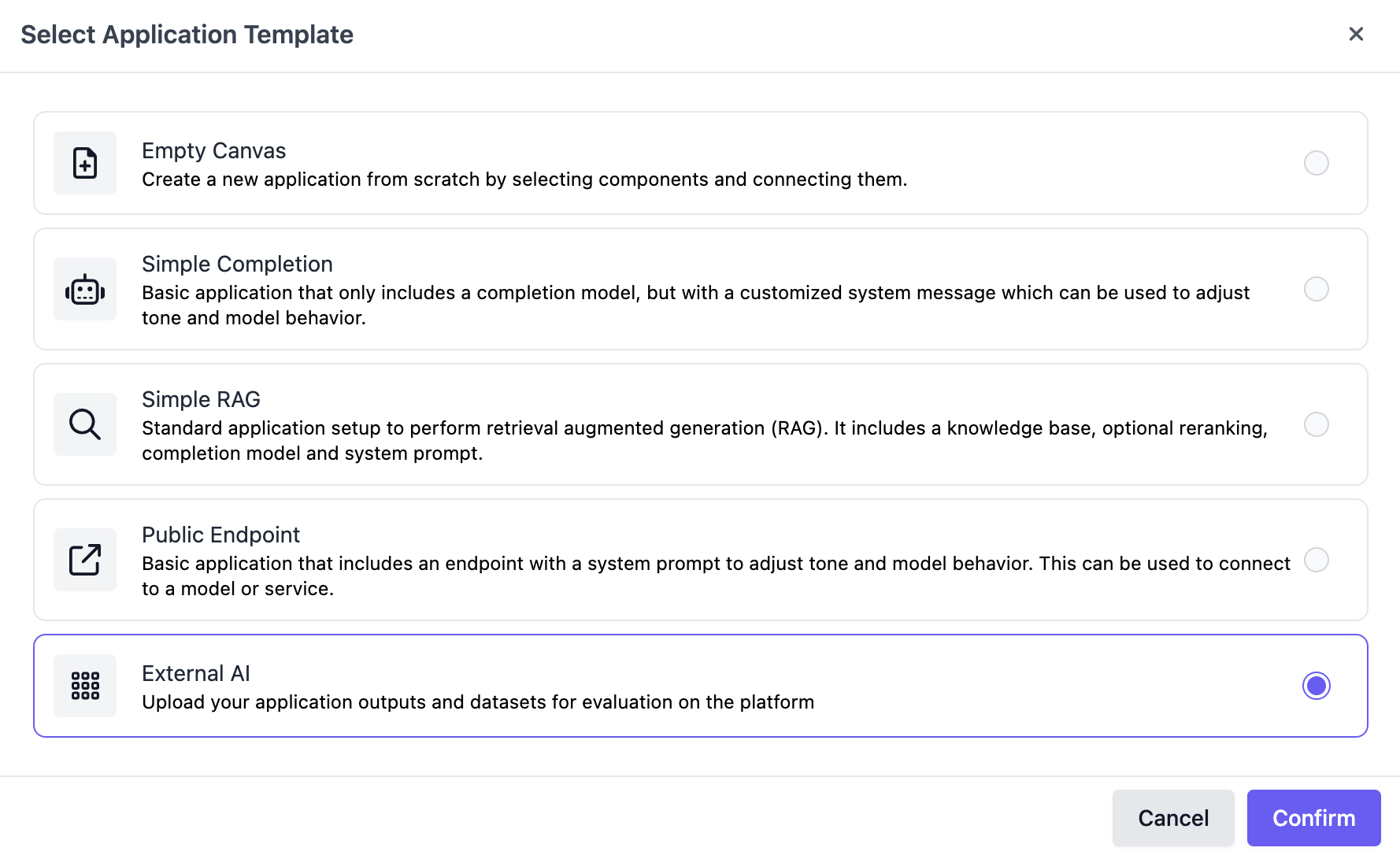
To create the variant, navigate to the "Applications" page on the SGP dashboard, click **Create a new Application**, and select **External AI** as the application template.
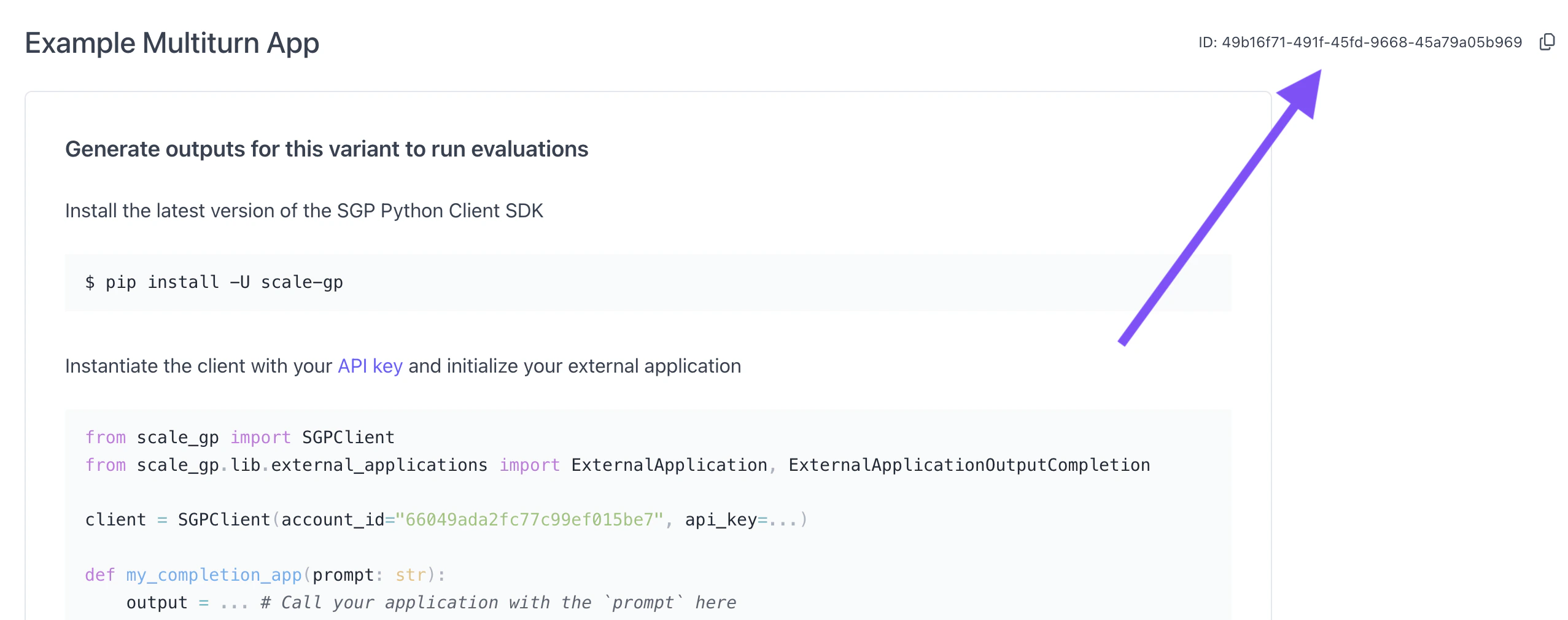
 You can find the `application_variant_id` in the top right:
 ## Generate responses
You will need to create a function to run inference for your app.
You can upload intermediate turns as traces
```python theme={null}
def my_multiturn_app(prompt, test_case):
# generate output here
input_messages = prompt['messages']
start = datetime.now().replace(microsecond=5000)
output = prompt['messages']
traces = []
return ExternalApplicationOutputFlexible(
generation_output={
"generated_conversation": output
},
trace_spans=traces,
metrics={"grammar": round(random.random(), 3), "memory": round(random.random(), 3), "content": round(random.random(), 3)}
)
```
You can now connect your application to your local inference via the code snippet below. The `generate_outputs` function will run you application on the dataset and upload responses to SGP.
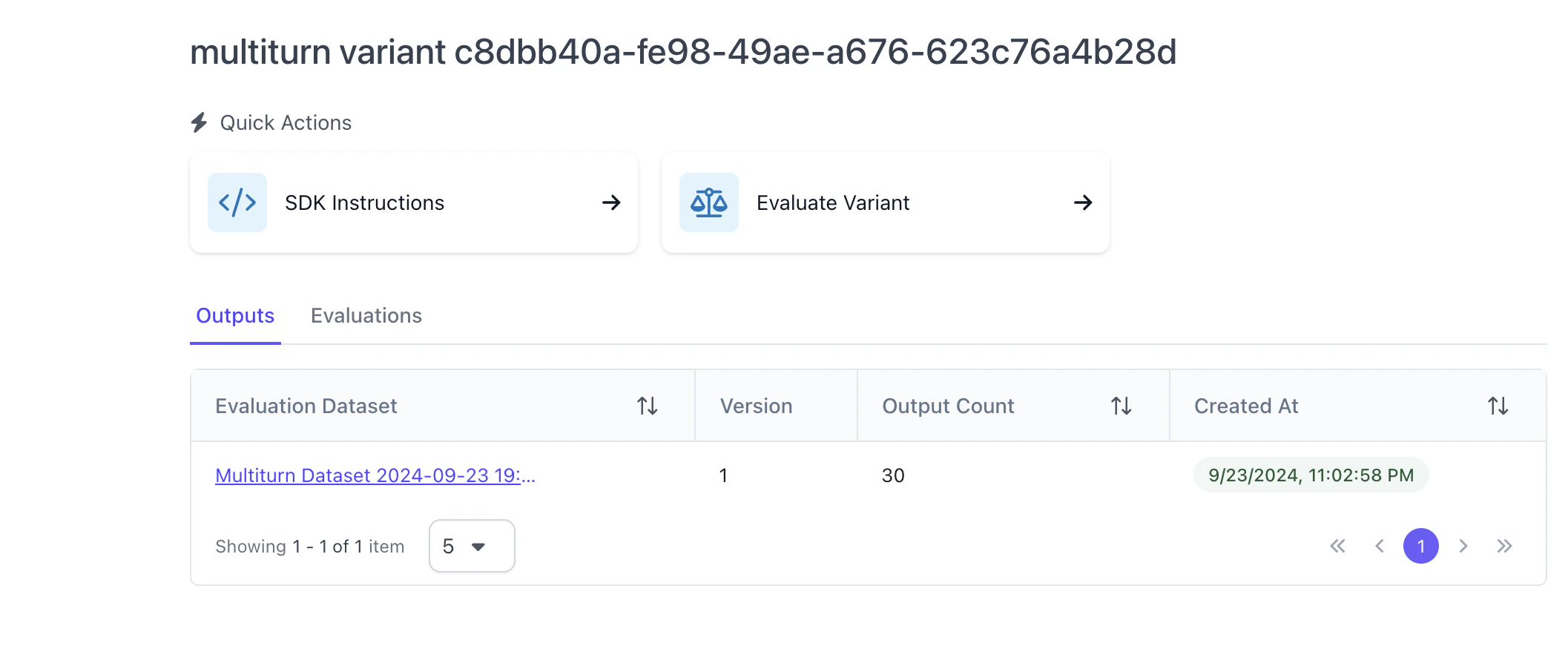
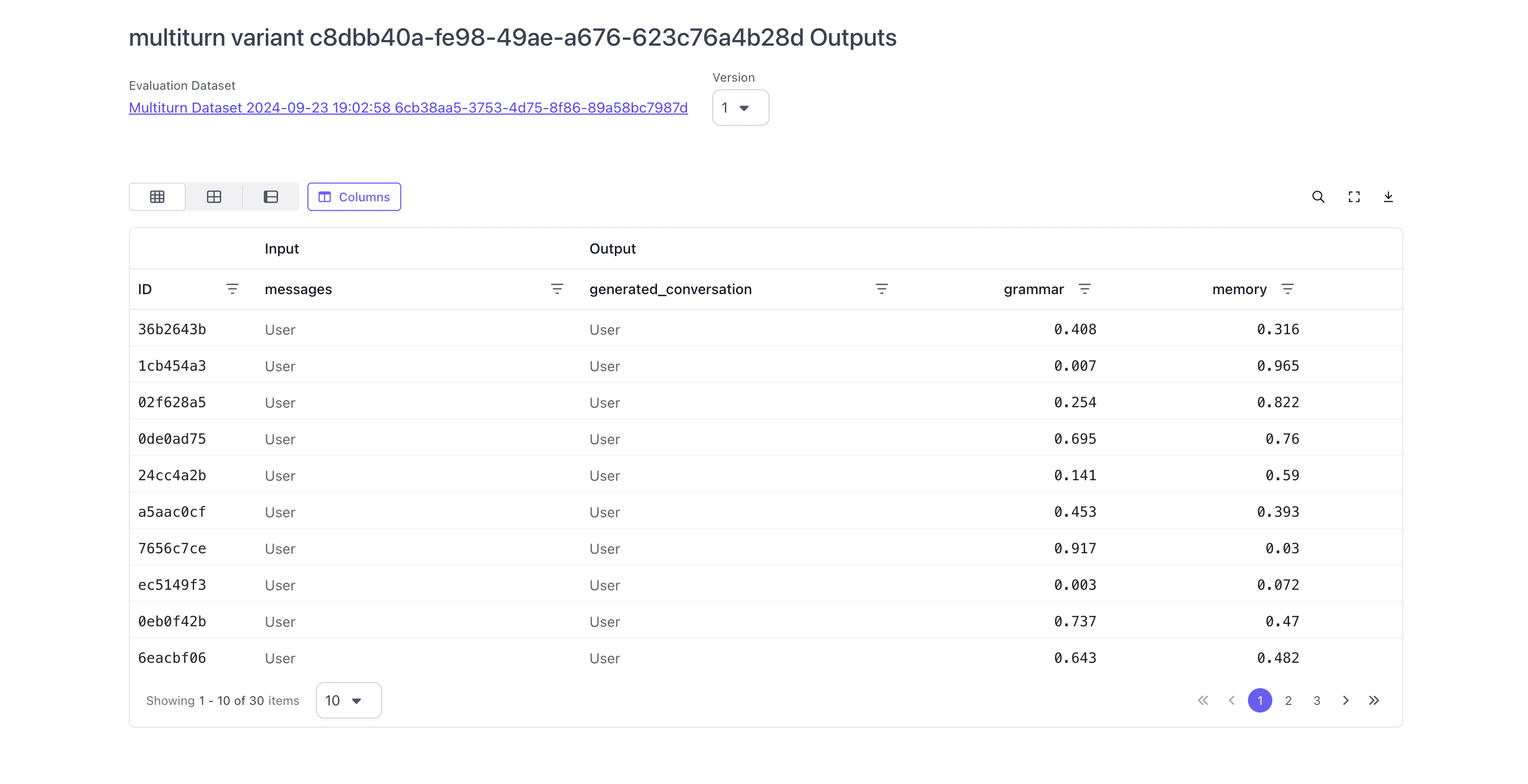
You can verify these outputs by viewing the variant and clicking on the dataset:
## Generate responses
You will need to create a function to run inference for your app.
You can upload intermediate turns as traces
```python theme={null}
def my_multiturn_app(prompt, test_case):
# generate output here
input_messages = prompt['messages']
start = datetime.now().replace(microsecond=5000)
output = prompt['messages']
traces = []
return ExternalApplicationOutputFlexible(
generation_output={
"generated_conversation": output
},
trace_spans=traces,
metrics={"grammar": round(random.random(), 3), "memory": round(random.random(), 3), "content": round(random.random(), 3)}
)
```
You can now connect your application to your local inference via the code snippet below. The `generate_outputs` function will run you application on the dataset and upload responses to SGP.
You can verify these outputs by viewing the variant and clicking on the dataset:
 ```python theme={null}
from scale_gp.lib.external_applications import ExternalApplication
app = ExternalApplication(client)
app.initialize(application_variant_id="application_variant_id", application=my_multiturn_app)
app.generate_outputs(evaluation_dataset_id=dataset.id, evaluation_dataset_version='1')
```
## Create evaluation
Once you have your data uploaded, we are ready to start an evaluation. You will need an evaluation config. Visit the [recipe](/recipes/multiturn-evaluation) for code snippets on how to do this.
To present annotators with the full conversation, you can create a custom annotation configuration. SGP has a pre-configured view for multiturn that can be pointed to pull the conversation from anywhere in your output.
```python theme={null}
from scale_gp.lib.types import data_locator
from scale_gp.types import MultiturnAnnotationConfigParam
# generic summary annotation
annotation_config_dict = MultiturnAnnotationConfigParam(
messages_loc=data_locator.test_case_output.output["generated_conversation"]
)
```
This will create an annotation view like the one below:
```python theme={null}
from scale_gp.lib.external_applications import ExternalApplication
app = ExternalApplication(client)
app.initialize(application_variant_id="application_variant_id", application=my_multiturn_app)
app.generate_outputs(evaluation_dataset_id=dataset.id, evaluation_dataset_version='1')
```
## Create evaluation
Once you have your data uploaded, we are ready to start an evaluation. You will need an evaluation config. Visit the [recipe](/recipes/multiturn-evaluation) for code snippets on how to do this.
To present annotators with the full conversation, you can create a custom annotation configuration. SGP has a pre-configured view for multiturn that can be pointed to pull the conversation from anywhere in your output.
```python theme={null}
from scale_gp.lib.types import data_locator
from scale_gp.types import MultiturnAnnotationConfigParam
# generic summary annotation
annotation_config_dict = MultiturnAnnotationConfigParam(
messages_loc=data_locator.test_case_output.output["generated_conversation"]
)
```
This will create an annotation view like the one below:
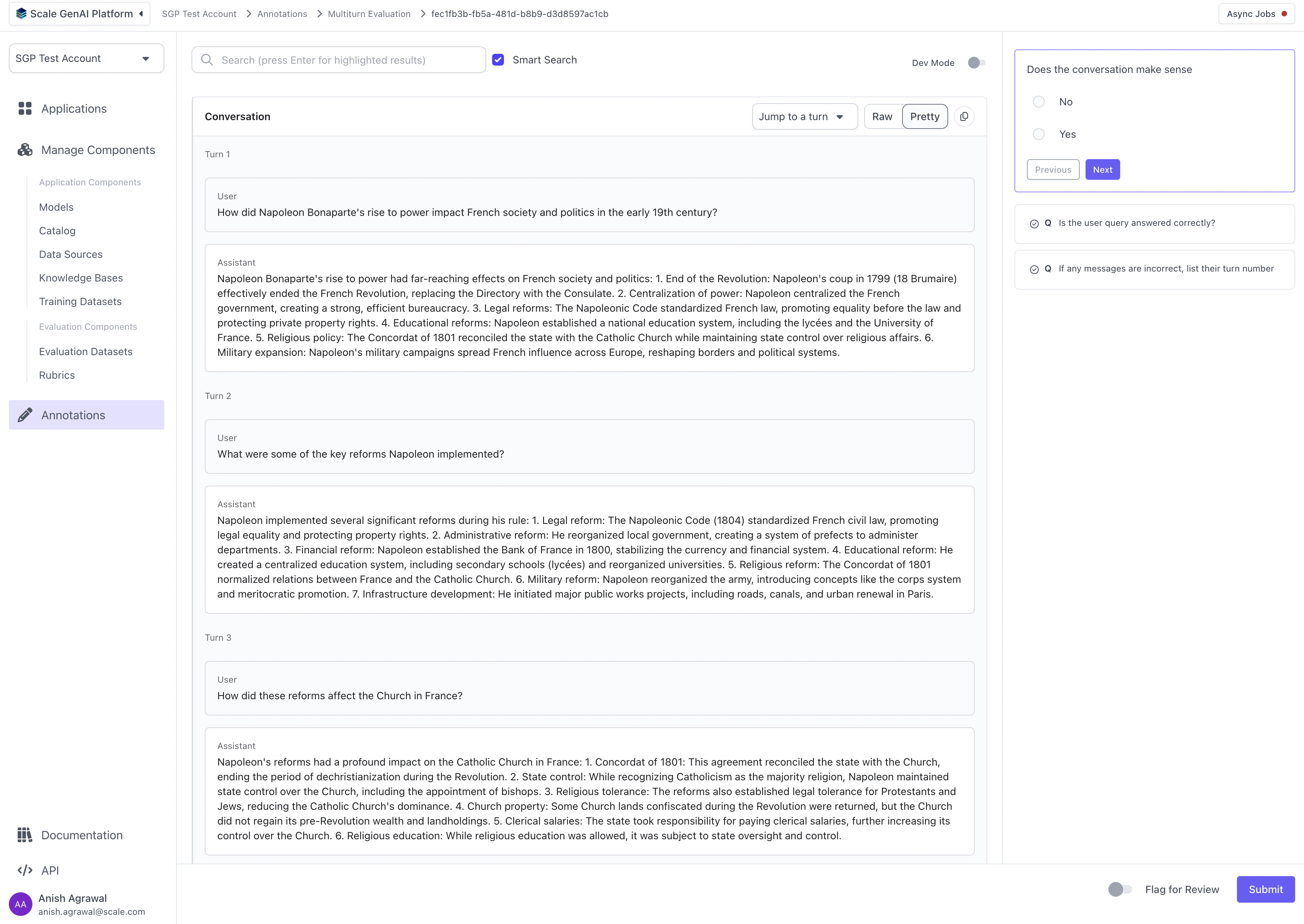 Lastly, create the evaluation:
```python theme={null}
evaluation = client.evaluations.create(
account_id=account_id,
application_variant_id=variant.id,
application_spec_id=spec.id,
description="Demo Multiturn Evaluation",
name="Multiturn Evaluation",
evaluation_config_id=config.id,
annotation_config=annotation_config_dict,
evaluation_dataset_id=dataset.id,
type="builder"
)
```
## Annotate Tasks
Once you have created your evaluation, you will find a new task queue in the annotation tab.
Lastly, create the evaluation:
```python theme={null}
evaluation = client.evaluations.create(
account_id=account_id,
application_variant_id=variant.id,
application_spec_id=spec.id,
description="Demo Multiturn Evaluation",
name="Multiturn Evaluation",
evaluation_config_id=config.id,
annotation_config=annotation_config_dict,
evaluation_dataset_id=dataset.id,
type="builder"
)
```
## Annotate Tasks
Once you have created your evaluation, you will find a new task queue in the annotation tab.
 The annotator will be presented with the following annotator view:
Additional input, output and trace information can be found by toggling developer mode in the top right
The annotator will be presented with the following annotator view:
Additional input, output and trace information can be found by toggling developer mode in the top right